You can customize adding a watermark to be displayed on videos and screenshots in the Settings window on the Server Settings -> Watermark tab.
Important
Only the Admin user or a user who has the Setting right enabled on the Watermark object can enable the watermark on video and customize its appearance.

For more information on user rights settings, see Per object rights.
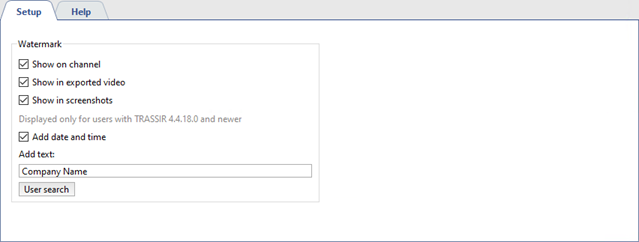
Set the corresponding flags to display the watermark:
- on live channel video and in the archive;
- on video exported from channel;
- on screenshots.
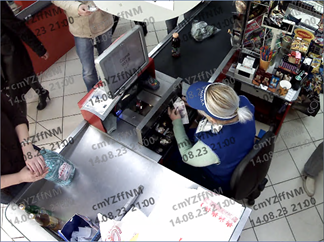
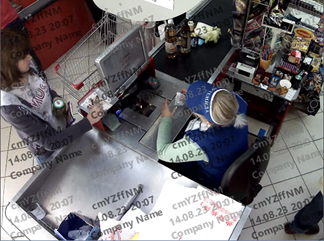
The GUID of the user authorized on the server or client where the video is viewed, exported, or screenshot from the channel is used as the watermark. Set the Add date and time flag to add the current date and time. To add the arbitrary text, enter it into the Add Text field.

Tip
You can turn off the watermark display on channel in camera window appearance settings. To do this, open the context menu of the channel, select View... and clear the Show watermark flag (for more details see Camera window interface settings).
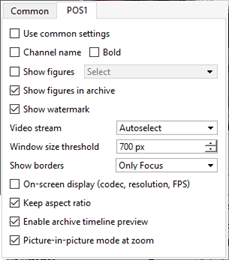
Only a user with the basic View video without watermark right enabled can turn off the watermark display on channel (see section Determining access rights)
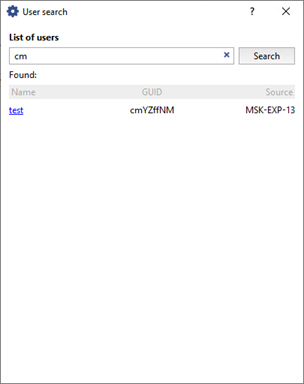
When detecting cases where a video or screenshot has been leaked to third parties, you can identify the username and the client/server from which the confidential information was leaked. To do this, click User Search and, in the window that opens, enter the GUID of the user (Username) or part of it that appears in the video or screenshot. After clicking the Search button, the user data will be displayed below.