
Volumes that were configured on the network storage when connecting in a Windows OS will be displayed as logical disks. In other words, all commands that apply to logical disks can be used when working with these disks.
Network storage connection procedure and settings in a Windows OS:
-
Open Start -> Control Panel -> Administration -> iSCSI Initiator
-
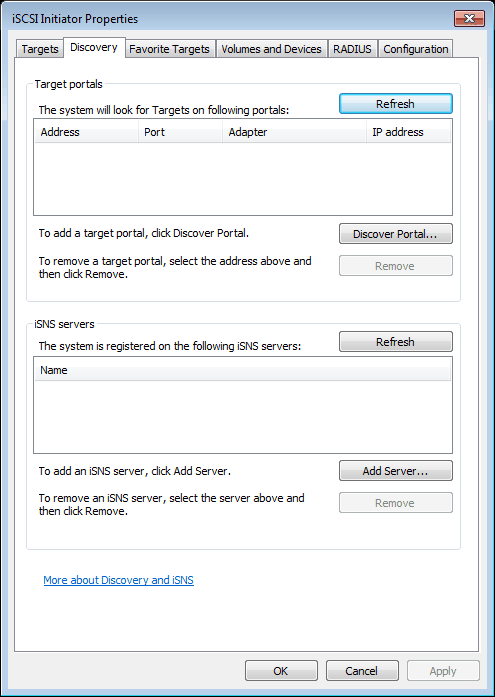
Go to the Discovery tab and click the Discover Portal... button to connect to the network storage
-
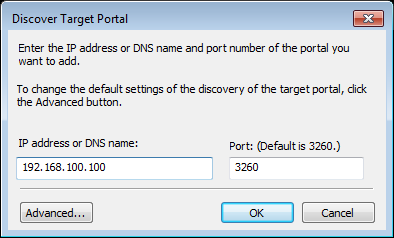
Enter the IP address of the network storage and specify the ISCSI service port that was entered during configuration of the network storage.
-
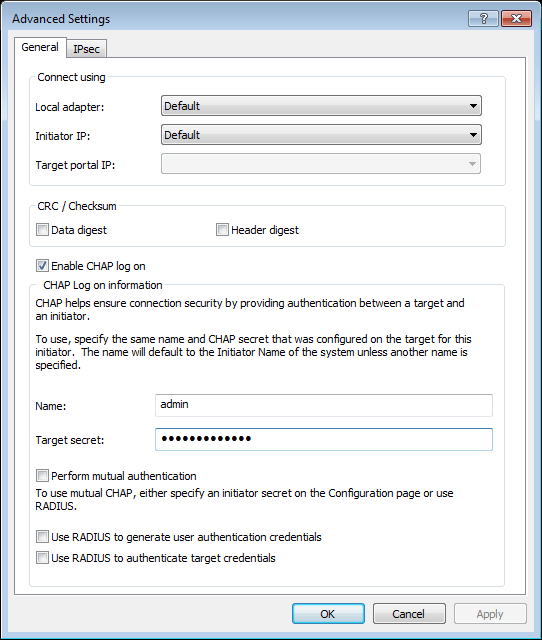
If you enabled CHAP authentication while configuring the network storage, click Advanced to enter the corresponding parameters.
-
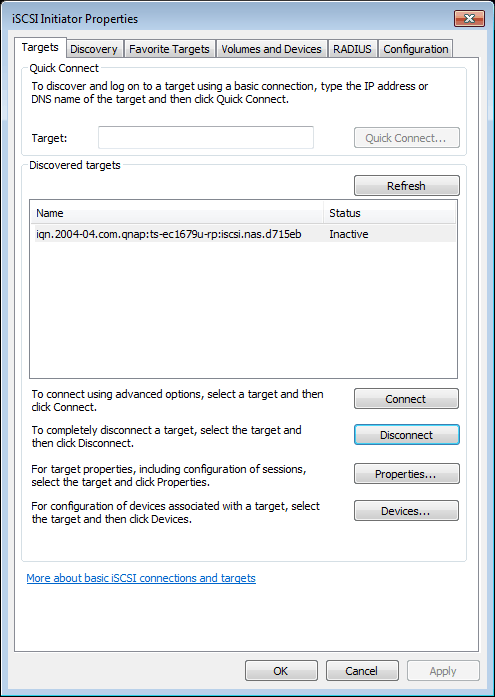
If there the network storage successfully connects, its identifier will appear in the Targets tab. And it's status will be "Inactive".
-
To start working with the network storage, it must be activated. To do this, select it in the list and click the Connect button. The network storage's status will change to "Connected".
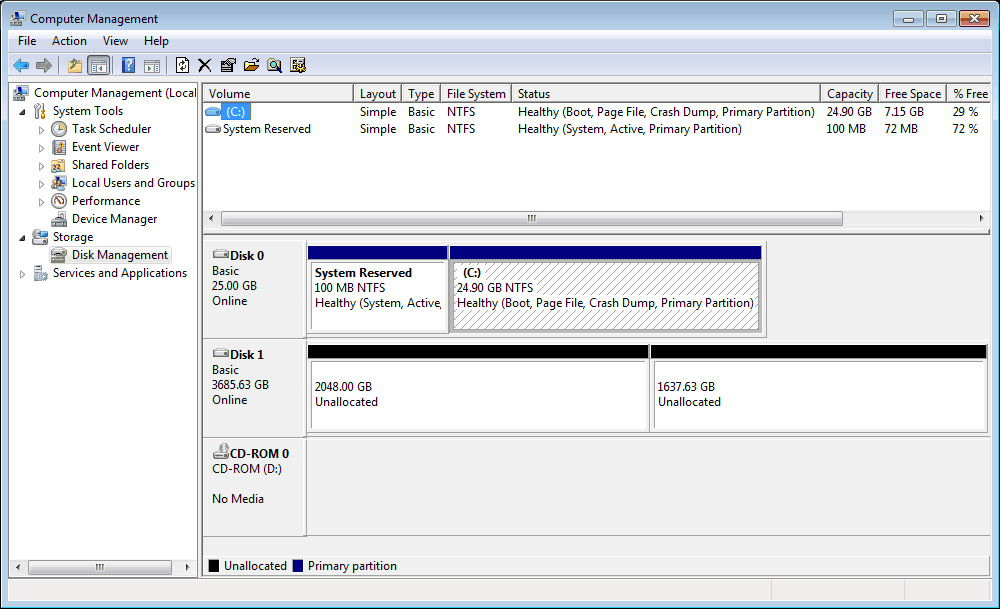
If all of these steps were successful, the new disk will appear in the OS. To locate it, open Computer -> Manage -> Disk Management
Warning
Format and partition the drive before using it. Please note that all logical disks to which the archive will be recorded, should be of approximately equal volume and must not differ in size by more than 2 times.
