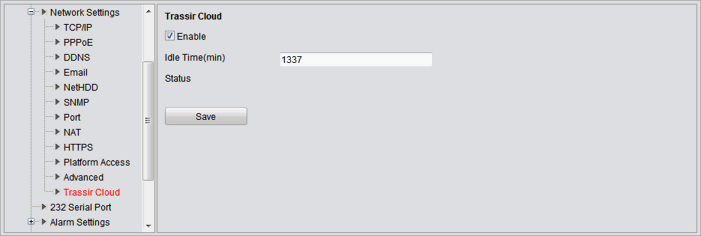
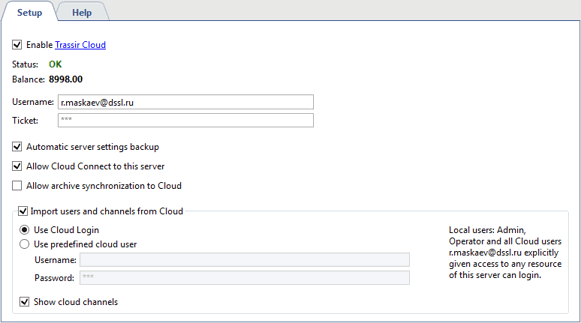
Open network settings page in the device's WEB-interface and find the TRASSIR Cloud tab
Tip
If there is no TRASSIR Cloud tab, then you should update the device's software. You can find a detailed guide and the latest software version on our website.
Check the Enable box, and in the Idle Time(min) field enter the period of time over which the device will be available for connecting to the cloud.
Important
Upon the specified time period, the device cloud connection function will be stopped. Reboot the device to restart it.
This guarantees that the device's connection to the cloud is being made specifically by you, and that only you have access
to its video data.
Save the settings.
Warning
Before you connect the device to the cloud, make sure that the values of the network ports are set to default.
In the cloud:
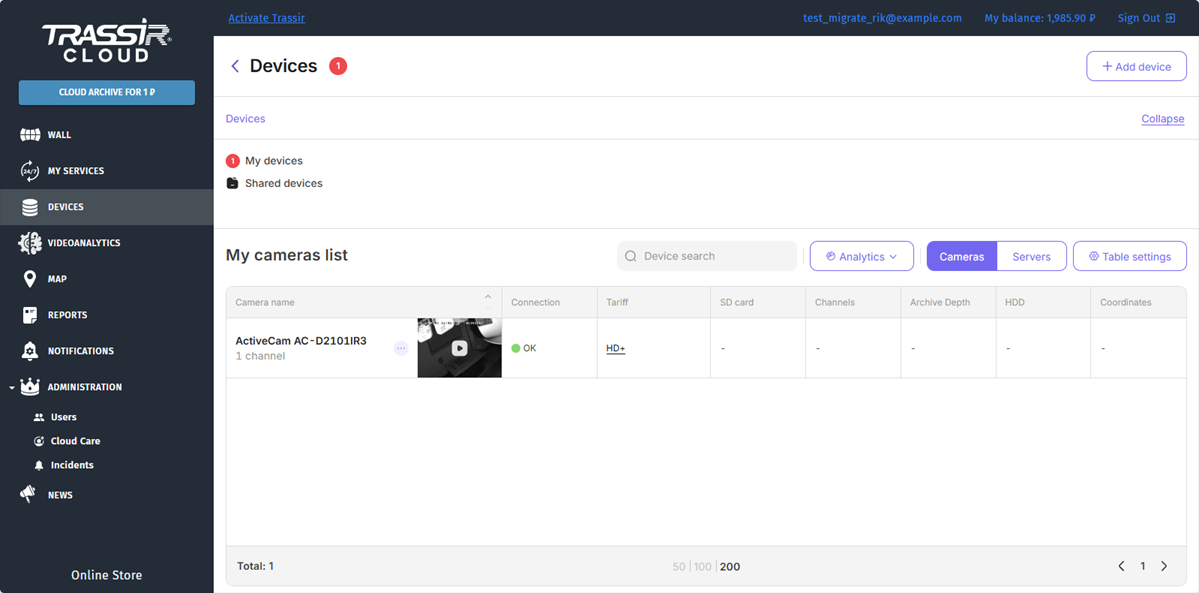
Click Add device button on the Devices page.
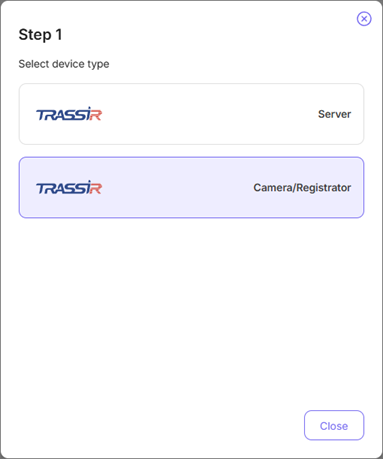
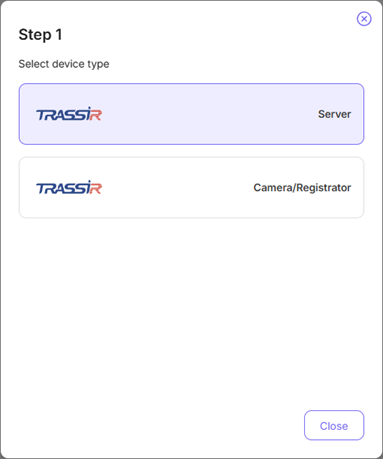
Step 1.
Click TRASSIR (camera/video recorder) button.
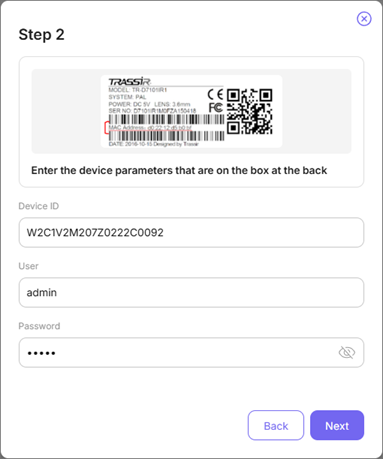
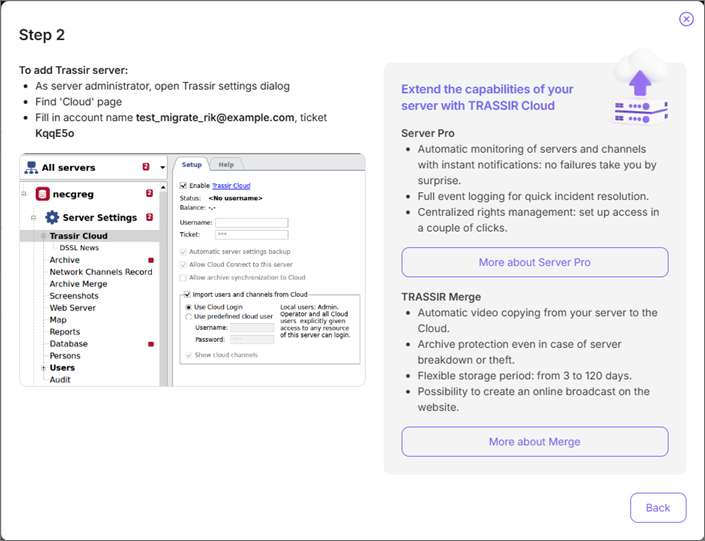
Step 2.
Enter the Device ID located on the label.
Enter User and Password, and click the Next button.
Important
The selected user should have the rights to change the device settings.
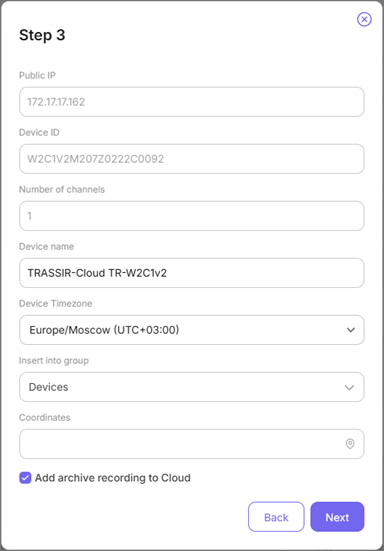
Step 3.
Wait a few seconds while the cloud connects with the IP device. After the connection is established, verify the model of the
connected device in the Device name field and complete the connection by clicking the Next button.
Tip
Monitor the device connection process in the web interface using messages in the Status field:
Unknown Status - the cloud connection feature is disabled.
Connected to TRASSIR Cloud, idle - connection with TRASSIR Cloud is established. Connect the device to the cloud.
No connection to TRASSIR Cloud - there is no connection with TRASSIR Cloud.
Connected to TRASSIR Cloud, working - the device is connected. The video is transmitted to the cloud.
"Idle Timeout" reached, service stopped - the time required for the connection of the device to the cloud has expired.