
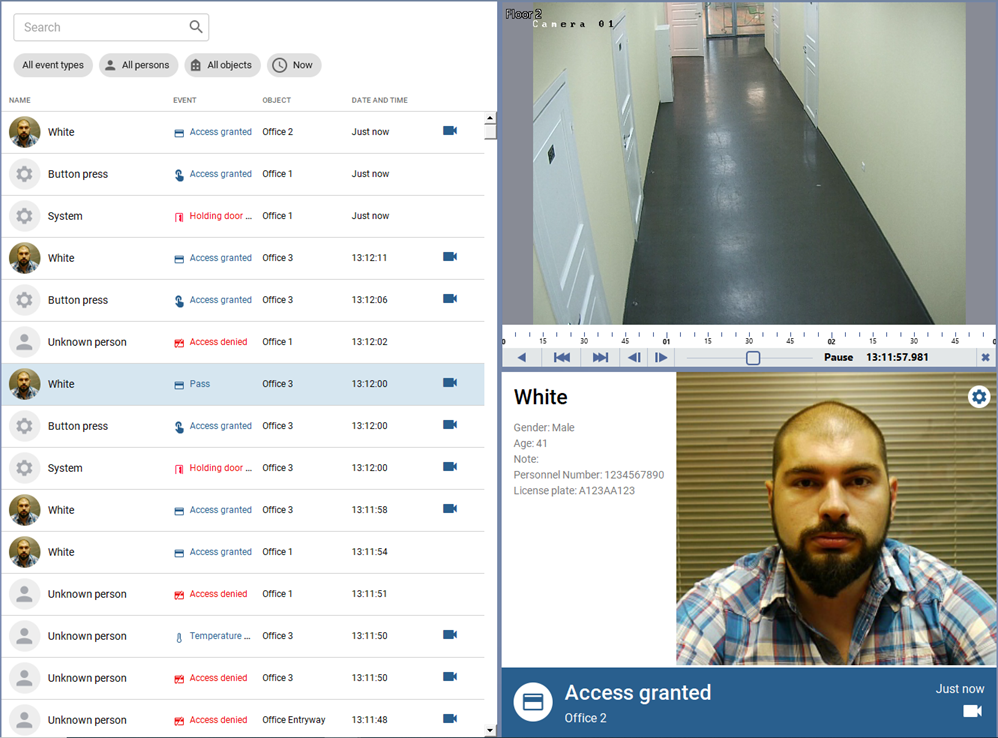
The TRASSIR ACS plugin handling in the operator interface can be simplified significantly if you use a template, which will display the following information:
- video from the channels of cameras installed in the passages;
- a list of people who have been identified;
- a detailed info on an identified person.
Tip
You can find a detailed description of the template editor and the example of the template creation in sections Creating a new template and Sample view.
Use Access Control log filters to choose the event types, persons and object, the information on which will be displayed in the log:
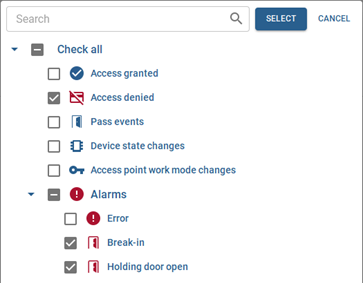
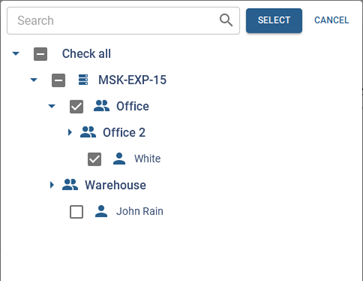
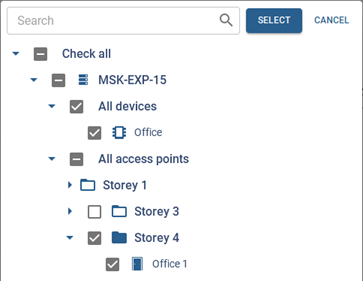
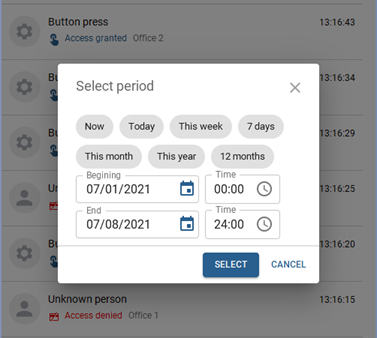
In order to display events for a specific time period in the log, click on the time filter and select the required range.
Tip
The events' storage time in the log is determined by the server database settings. All events older than The record retention period will be deleted. Read more about the database settings in the "Administrator's Guide" (see section Database connection settings).
The Access Control event panel displays the information on a person who has just passed one of the TRASSIR ACS access points. If in the reader settings its location is selected, the panel will also display the direction of passage (entrance or exit).
Clicking the  on the Access Control event panel or on an event in the Access Control log, the archive of the channel linked to the access point where the person has been identified at the time corresponding to
this event, opens in the video preview window.
on the Access Control event panel or on an event in the Access Control log, the archive of the channel linked to the access point where the person has been identified at the time corresponding to
this event, opens in the video preview window.
Press the button  you can customize the following Access Control event panel parameters:

-
Select the list of objects, the data from which will be displayed on the panel.
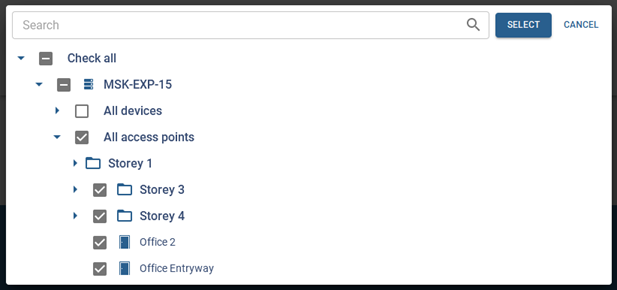
Set the Attach to Access Control Log flag to display detailed information on the event when you select it in the log.
-
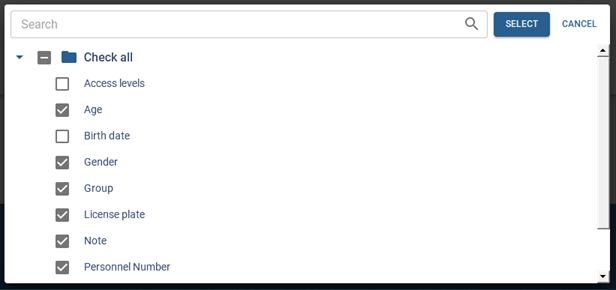
Select the information fields that will be displayed on the panel.
Tip
The list of fields that can be displayed on Access Control Event panel consists of main and additional person's fields. Read more in Administrator's Guide (see Creating a new person).
In order to hide fields that contain no information, set the Hide empty fields flag.
