
The following information is displayed in the server's main settings window:
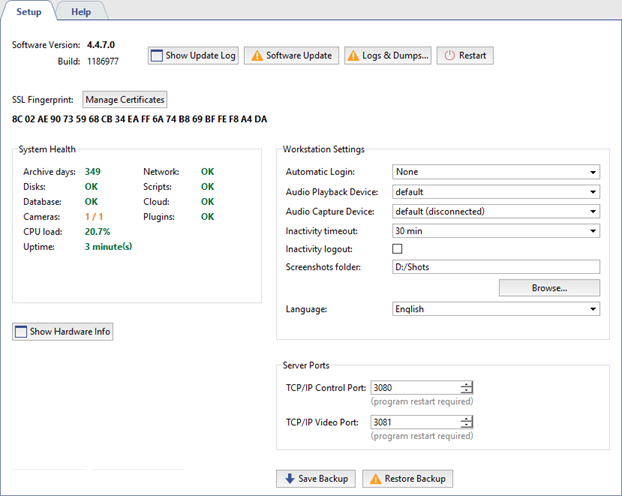
- Software version is the current version of the software, which consists of the Service Pack number - the main module version, and Grabber Pack number - the version of the IP camera and video capture cards drivers.
Buttons:
-
Update log displays the log of installed Service Pack and Grabber Pack updates.
-
Software Update is intended to update the software modules and drivers of IP cameras without reinstalling the software. After the update, the server will automatically restart. For a detailed description of the feature, please refer to Software update.
-
Logs & dumps... opens a server system files selection window to be sent to the technical support service. For a detailed description of the feature, check Logs and dumps.
-
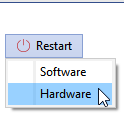
Restart is intended for the server operational reloading (Software) or the whole server (Hardware) from the administrator's interface.
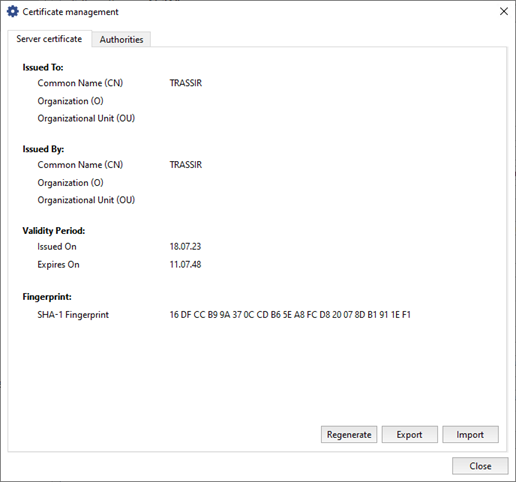
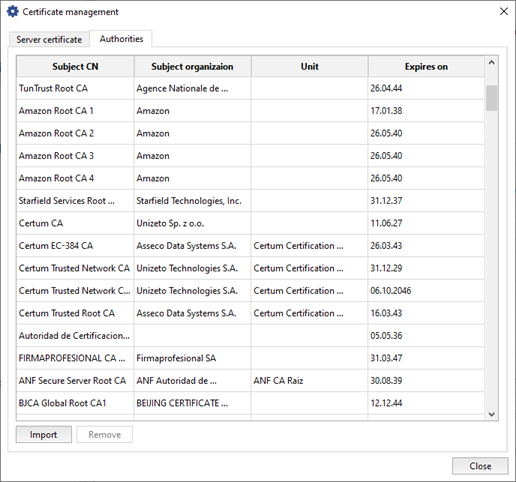
SSL certificate fingerprint - every server has a unique identifier to verify it while connecting to the network. Press Manage certificates to:
- Regenerate the current Server certificate used to create secure connection to other servers (see Connecting to a new server).
- Use Export and Import buttons on the Server certificate tab to save it on your HDD or upload to server.
- Press Import on the Authorities tab to upload your certificate to create secure connection to other devices.
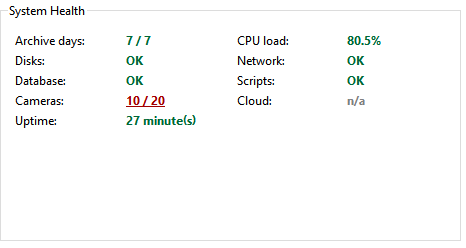
System health - Server performance measurements for rapid detection of critical server errors. The health metrics are duplicated, being shown in the Main control panel as well.
Workstation settings:
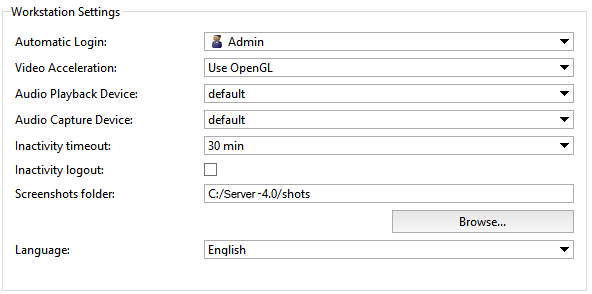
- Automatic Login indicates the username for the account that will be used to sign in to the server when launching. The default value is "None", e.g. a username and password are required to sign in to the server.
- Video Acceleration - "OpenGL" or "DirectDraw". Specify the value that is best for the video card being used.
- Audio Playback Device - The device that plays back the audio recorded by the microphone connected to the camera.
- Audio Capture Device - The device that transmits audio from the video server to the speaker connected to the camera.
-
Inactivity timeout is the time during which the operator wasn't using the operator interface in his work. Set the Inactivity logout flag. Upon the selected time expiration, the screen will display a warning that the current session will end in 60 seconds and the time countdown will start.
Tip
In case Inactivity logout box has not been checked, notification will not appear. Operator's inactivity can be traced through audit (see section Audit).
- Screenshots folder - the folder in which all screenshots made with "S" button will be saved. The folder can be located manually or you can locate it with the Browse button.
- Language is an interface language. When selecting
the default value, the interface language will change to the one selected during installation. - Hardware acceleration allows to use system resources to maximum extent in case that it is supported by the device.
-
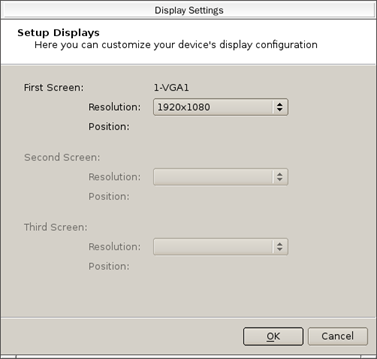
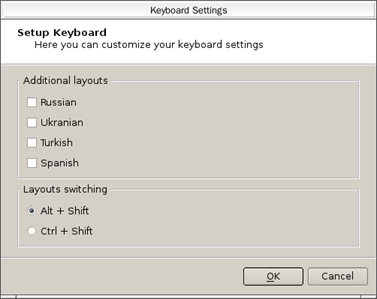
Display settings... and Keyboard settings... buttons open the corresponding settings windows.
Tip
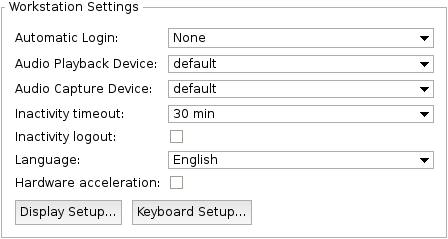
Hardware acceleration box and the Screen settings... and the Keyboard settings... buttons are displayed in case local or remote connection to the server from TRASSIR OS.
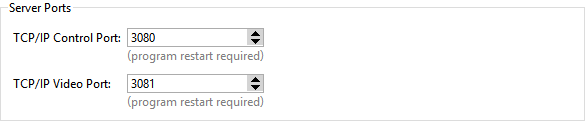
Server ports:
- TCP/IP Control Port - The server control port.
- TCP/IP Video Port - The video broadcast port.
Buttons:
-
Show Hardware Info - Displays the OS version and the server's hardware configuration.
-
Save Backup - you can save your system configuration or system database backup copy any time and save it as a file or to the TRASSIR Cloud.
When you save the configuration to a file, a text file of settings is created
_t1server.settings, which is located in the installation folder by default.When you save the database, a file is created
*.dump.
-
Restore backup - allows you to restore the system configuration or database from a previously created backup.

Tip
You need to reboot the system, after loading the database from a file.
Learn more about saving backup copies to TRASSIR Cloud in Connecting server to TRASSIR Cloud.
