
You can verify that the AutoTRASSIR/AutoPass plugin has been correctly configured and is working properly by creating a simple template. To do this:
- Open the Main control panel and display a video monitor on one of the server's screens.
- Click Template editor
 and select
  .
.
- Click
 .
.
- Drag the camera signal being processed by the AutoTRASSIR/AutoPass plugin from the list of channels to an available space.
- Click
 .
.
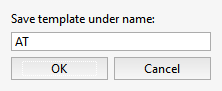
Enter the name of the new template in the small window that opens, and click OK.
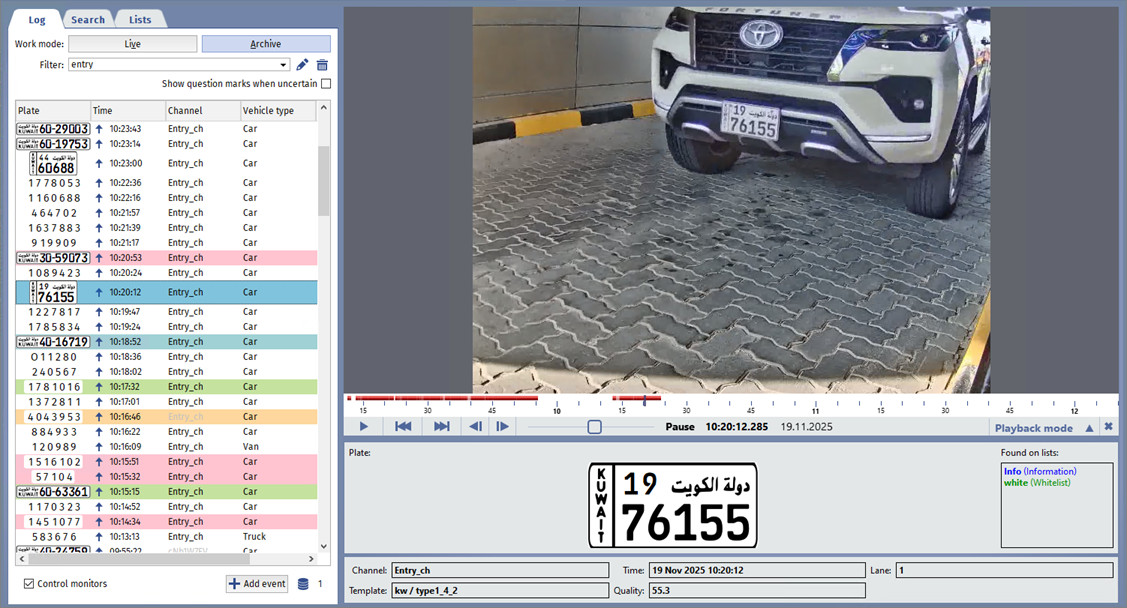
As a vehicle passes, the recognized license plate number will appear in the AutoTRASSIR/AutoPass log.
Tip
If license plate numbers do not appear as vehicles pass, verify:
- AutoTRASSIR/AutoPass plugin settings (see Setup AutoTRASSIR plugin on a channel or Setup HSC AutoPass plugin on a channel).
- Database connection settings (see Database connection settings).
You can read more about working with the template editor and the AutoTRASSIR/AutoPass plugin in the Operator's Guide (Creating a new template).
See also
- AutoTRASSIR/AutoPass general settings
- Selecting, installing, and configuring cameras to work with the AutoTRASSIR/AutoPass plugin
- Setup AutoTRASSIR plugin on a channel
- Maintaining internal lists of license plate numbers
- Connecting external lists of license plate numbers on Windows
- Connection of the external number lists in TRASSIR OS
