
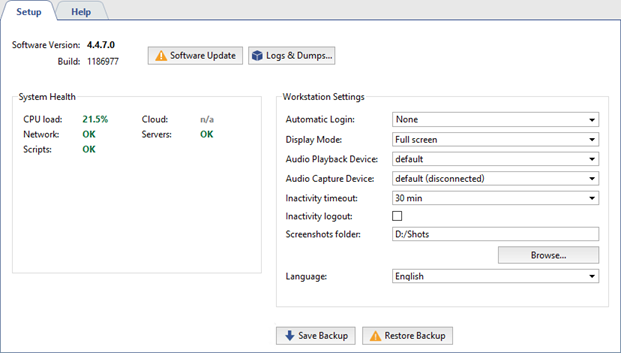
The following information is displayed in the client's main settings window:
- Software version is the current version of the software, which consists of the main modules' version number (Service Pack).
Buttons:
-
Software update is intended to update server/client modules and IP camera drivers without reinstalling the software. On update's completion, the server/client will restart automatically. See detailed description in the Software update.
-
Logs & dumps... opens a server system files selection window to be sent to the technical support service. For a detailed description of the feature, check Logs and dumps.
System health - Server performance measurements for rapid detection of critical server errors. The health metrics are duplicated, being shown in the Main control panel as well.
Workstation settings:
- Automatic Login indicates the username for the account that will be used to sign in to the client. The default value is "None", e.g. a username and password are required to sign in to the server.
- Video Acceleration - "OpenGL" or "DirectDraw". Specify the value that is best for the video card being used.
- Display mode - select the way to display the operator interface: in a separate window or on the full screen.
- Audio Playback Device - The device that plays back the audio recorded by the microphone connected to the camera.
- Audio Capture Device - The device that transmits audio from the video server to the speaker connected to the camera.
-
Inactivity timeout is the time during which the operator wasn't using the operator interface in his work. Set the Inactivity logout flag. Upon the selected time expiration, the screen will display a warning that the current session will end in 60 seconds and the time countdown will start.
Tip
In case Inactivity logout box is not checked, notification does not appear. Operator's inactivity can be traced with audit (see section Audit).
- Screenshots folder is the folder where screenshots made with "S" button will be saved. Folder location can be specified manually or located using the Browse button.
- Language is the interface language. While selecting value
by defaultthe interface language will change for the one selected during the installation.
