
TRASSIR implements a multi-tiered rights allocation system built on user accounts. Each server has its own list of user accounts with associated rights that are only applicable on that server. This must be considered when designing and initially configuring a video surveillance system based on several servers.
After installing server, the following users are created in the system: Admin, Operator and WebView. In addition to these users, a "Script" account is also created in the system, which is designed to limit the rights of scripts and the SDK. The passwords for these users are not set by default.
TRASSIR is distributed video surveillance system. Its architecture supports combining an arbitrary number of video servers in a single network. You can control any server through client software or a web browser. You can administer and control servers you are directly connected to as well as servers you are indirectly connected to through a chain of other servers. You can read more detailed information about network connections between servers in the section entitled Network.
User accounts are used to both start a server and to connect a client to a server. Regardless of what user started the server, the client software can connect under any user on the server who is allowed to sign in over the network.
Tip
TRASSIR 4 implements a full-fledged remote administration and control system. You can change any server setting from the client software; to do this, connect to the server using an administrator account or any other account that has rights to administer and control server settings. This feature makes it possible to administer and configure a server from any remote workstation, without requiring physical access to the server.
Unauthorized access protection
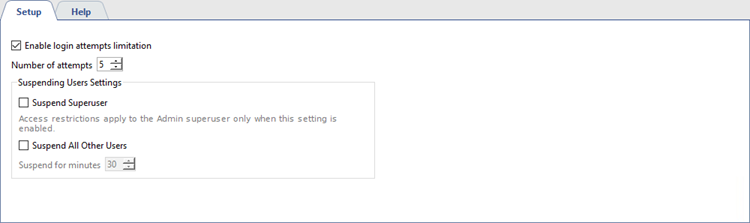
One of the key steps to enhance the system security is to lock user accounts in case of unauthorized access. Set the Enable login attempts limitation flag and specify the Number of attempts to restrict access to user accounts after a certain number of invalid login attempts.
The counting of the number of login attempts is performed during any user authorization and when a certain number of attempts is reached, the corresponding flag is disabled in user settings:
- upon local login, the authorizing on the server is counted, and the Enable local login flag is disabled.
- upon Server/Client connection, the server connection is counted and the Enable Server/Client connection flag is disabled.
- upon SDK connection, the number of incorrect SDK server connection attempts is counted and the Enable mobile/browser connection is disabled.
You can enhance your video surveillance security level, if necessary, by configuring the time locking. To do this, enable the Suspend All Other Users flag and set the Block time. In this case, users who have exceeded the number of login attempts will not be able to log in until the specified time expiration.
If you need to apply the blocking setting to the Admin superuser, enable the Suspend superuser flag.
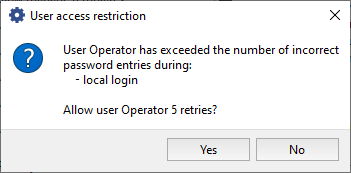
There are two ways to unblock regular users. The first way is to wait until the blocking time expires. After that, the user can try to log in to the system again. Second - you can use the administrator credentials to log in to the system. After that you will see a popup window with suggesting unblocking the blocked user.
The Admin user unblocking process is slightly different. In case the time blocking is used, the only way to unblock is to wait for the blocking time expiration. Upon the specified time period expiration, the Admin superuser can use his own credentials to log in to the system.
