
This section allows you to create or edit visitor templates. The Visitor templates are the special TRASSIR ACS forms, using which a person can create requests for temporary visitor pass issue.
In order to access the section, go to Plugins -> Access Control -> Visitor templates.
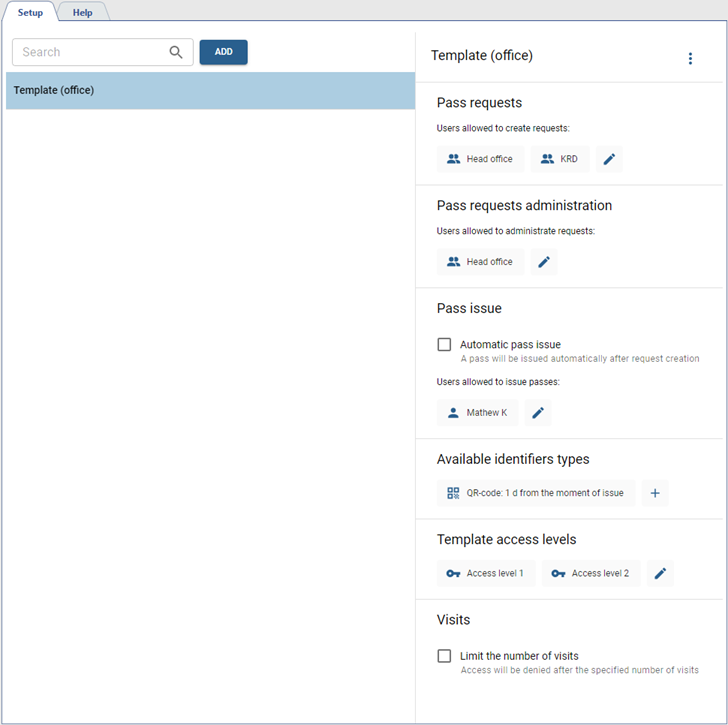
Press Add to create a new template for visitors and follow the next steps:
-
Enter the Name of a new template.
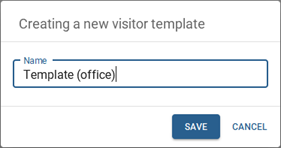
-
Select persons or a group of persons who will have access to the option of creating pass requests.
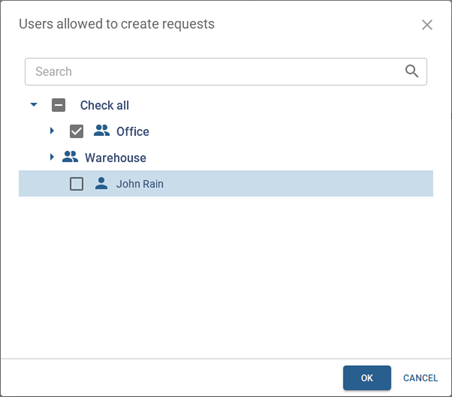
-
Choose persons or groups of persons, who will have access to the functions of Administrator of requests, if necessary. The administrator of requests will be able to reject the requests created by this template at any time (including even if the pass is issued). For more details, check Handling access permit requests.
-
Choose one of the ways of Pass issue:
- To activate the pass immediately after creating a request, set the Automatic pass issue flag.
- If you want a special person to activate and issue passes (for example, a guard at the gate or the head of security), then select those who will confirm visit requests and issue passes in the Users allowed to issue passes list.
-
Select and set up on or several identifier types (Card, QR-code or License plate), that the visitors will use to authenticate.
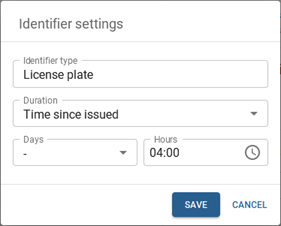
Specify the number of days and hours during which the pass will be valid in the ID type settings.
Tip
The start of the pass validity time depends on the selected method in the Pass issue setting:
- If Automatic pass issue is selected, then the pass time countdown starts from the moment the pass request is created.
- If a list of persons issuing passes is selected, the countdown of the validity time starts from the moment of confirmation and issuing of the pass by this person.
When the pass expires, it is archived. The storage time of passes in the archive is determined by the database settings. All the archived passes with the date of issue older than The record retention period will be deleted (see section Database connection settings).
Tip
The Card identifier type can't be used with Automatic card issue as for issuing a pass with the card, you need to enter the number of the card to be issued. Read more in Handling access permit requests.
-
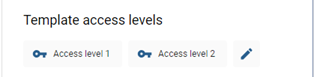
Select Template access levels that will be provided to a visitor who has received a temporary visitor's pass (see section Person access levels).
-
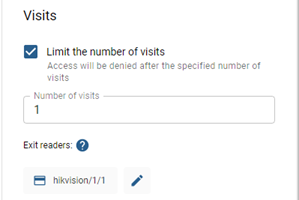
To create a template with one-time use or with a limited number of visits, it is necessary to specify the number of visits and select the readers through which the visit will be completed. After this number of visits, the pass with the person ID specified in it will automatically become invalid.
Tip
The process of the request creation is described in the "Operator's Guide" (in section Access from mobile app)
