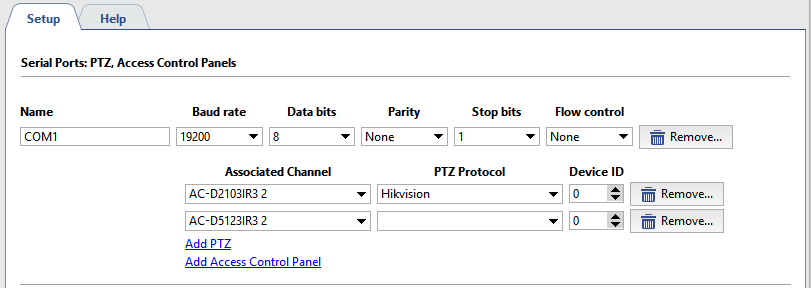
To set up serial ports, select Devices -> Serial ports menu item. In this menu you can set connection of analog tilting cameras (PTZ-devices) to the video surveillance system.
Press Add serial port in order to set up PTZ device, connected to the server serial port directly. Press Add MOXA serial port to add the device, managed through the network converter.
Important
The MOXA network converter connection is configured on TRASSIR OS server locally.
Further on establish serial port settings:
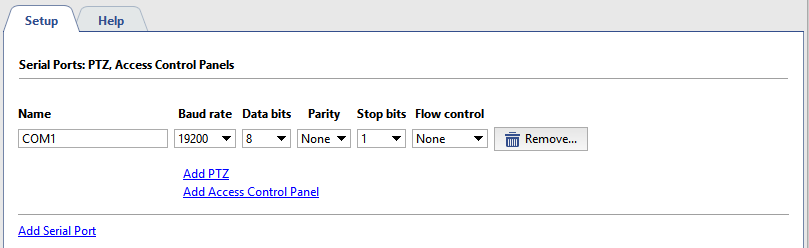
-
Port name - name of the serial port of server to which the device is connected.
- Rate, Data bits, Parity, Stop bits, Stream control are parameters of the port to which PTZ-device is connected.
Or network converter:
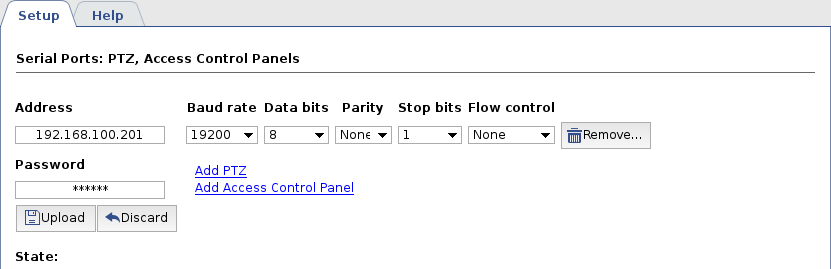
-
Address and Password - IP-address of the network converter and password to connect to it.
- Rate, Data bits, Parity, Stop bits, Stream control are parameters of the port to which PTZ-device is connected.
- Press Apply button to connect to the network converter. Herewith connection result shall be displayed in the Status field.
- Clicking the Web-interface link you will directly change to network converter settings.
Tip
See details of PTZ-device connection in the section Connecting analog PTZ cameras.
Now add single or several PTZ-devices:
- Click Add PTZ-device link.
- Select the channel from the dropdown list Associated channel.
- Choose protocol for the tilting camera in PTZ protocol drop down list (it is determined by the camera model).
- Enter unique identified for PTZ-device in Device ID field. A number of cameras can be bound to single serial port, each camera will be identified by the system by the unique identifier.
Tip
The device ID is adjusted on camera using jumpers. When specifying the camera settings, note that the value of the Device ID field must match the camera's setup.