
Warning
This tab is only displayed in TRASSIR OS. It is absent in the Windows version.
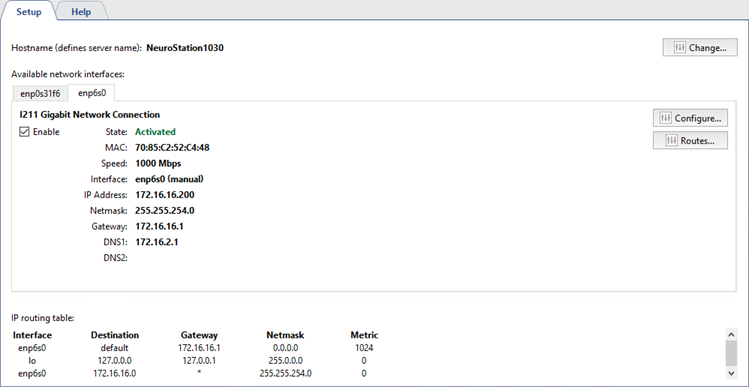
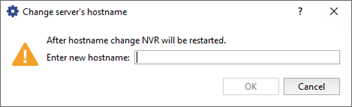
You can change the name of the server on the tab. To do this, click the Change ... button and enter a new name in the opened dialog box.
Warning
If the server name changes, TRASSIR OS asks to restart the video server in order to apply the change.
Below, Available network interfaces is displayed. Configuration of network interfaces, switching them on and off are made in the tabs.
Tip
When connected to 3G / 4G modem server, connection settings tab will appear.
You can change the interface settings by clicking the Configure... button.
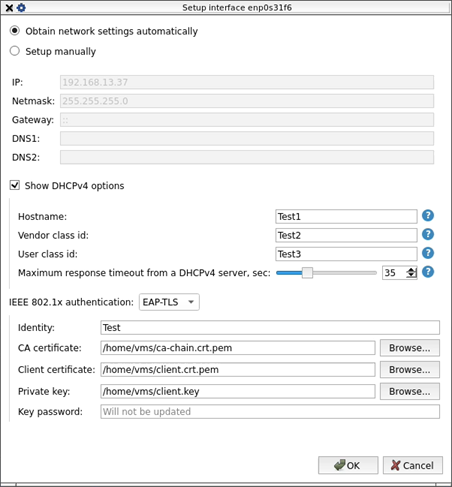
To configure the settings automatically, select option Obtain network settings automatically or Set automatically. Otherwise, select Setup manually and specify required connection settings.
To configure DHCPv4, check Show DHCPv4 options to open and configure additional settings according to the network requirements.
In addition, you can enable IEEE 802.1x authentication to increase the security of the network connection. To do this, select EAP-TLS and specify the appropriate settings, including the certificates required to authenticate the server connecting to the network.
Tip
To connect, the key and certificate files must be accessible to the system. If the connection fails or is interrupted after a reboot, check the specified paths to these files and correct them if necessary. It is recommended to store the files on the system drive.
For any network interface, you can define an IP routing table. Click Routes.. button to create it.
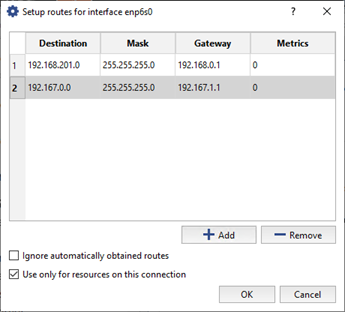
Click Add button and edit the route.
Tip
To make the network interface use only the entered routing settings, set the Ignore automatically obtained routes flag.
Set Use only for the resources on this connection flag to restrict the connection to the limits of local network.
Created IP routing table will be displayed at the bottom of the tab.

