
Important
Before the AutoTRASSIR configuration, we strongly recommend you to read the section AutoTRASSIR/AutoPass.
For the license plate recognition system to operate correctly, the camera must include certain features and be installed and set in a proper way. Please familiarize yourself with Selecting, installing, and configuring cameras to work with the AutoTRASSIR/AutoPass plugin.
Before using the AutoTRASSIR plugin, be sure you have correctly configured your database connection.
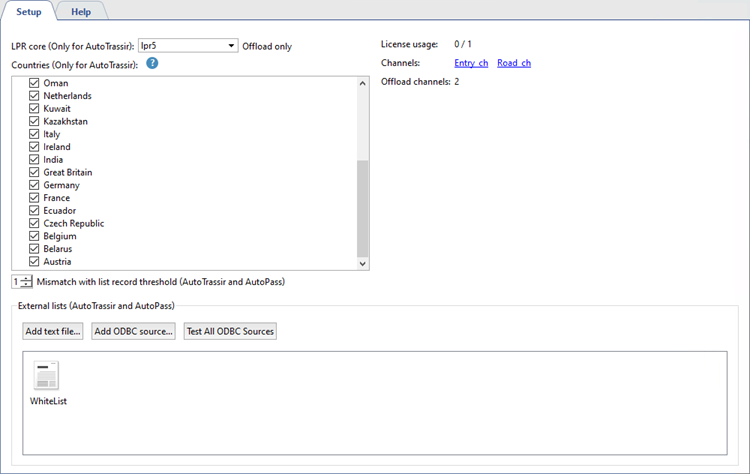
Main parameters of the AutoTRASSIR/AutoPass plugin are displayed on the Plugins -> AutoTRASSIR/AutoPass tab of the Settings window.
-
Only for the AutoTRASSIR plugin:
In the LPR core configuration, select the version of AutoTRASSIR.
Tip
After changing the version of the plugin, the server must be rebooted.
-
Only for the AutoTRASSIR plugin:
In the Country preset you can select the country in which license plate recognition will take place. Furthermore, the templates of the selected country and of the neighboring ones will be displayed in Visualization templates list. You can also select custom item and enable the required templates manually.
The recognition template for the HSC AutoPass plugin is chosen during its setting (see Setup HSC AutoPass plugin on a channel).
Tip
AutoTRASSIR/AutoPass recognizes license plates regardless of the selected country visualization template. The display of the visualization templates is required only in the operator's interface. Thus, if the recognized license plate corresponds to the selected country template, it will be displayed in that country format in the operator's interface.
 or
or 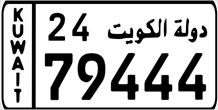
Otherwise, the recognized license plate will be displayed as a set of recognized characters.

Tip
Select Chinese in OCR type setting in order to increase the quality of Chinese license plate recognition in AutoTRASSIR (LPR3). Use standard OCR type in any other cases.
-
Only for the AutoTRASSIR plugin:
The Licenses usage field shows the number of currently connected channels out of the maximum allowed (which is limited by your license).
-
Only for the AutoTRASSIR plugin:
The Channels section displays the list of channels for which AutoTRASSIR has been activated.
-
For AutoTRASSIR and HSC AutoPass plugins:
The Mismatch with list record setting lets you set up mismatch which can be used for the recognized numbers search in the internal lists, from 0 to 5 symbols.
Tip
E.g. the Mismatch with list record threshold value is set to 1 and the license plate number 6063361 is in the whitelist.
In case AutoTRASSIR makes a mistake in 1 symbol when recognizing a license plate and recognizes 4063361 or 606336 instead of 6063361 number, due to 1 symbol mismatch, the mistakenly recognized number will match with the number from the whitelist.
-
For AutoTRASSIR and HSC AutoPass plugins:
The External lists area displays a list of all of the external lists connected to AutoTRASSIR.
AutoTRASSIR plugin standard setting workflow
-
Install and configure cameras that will be used for license plate number recognition.
-
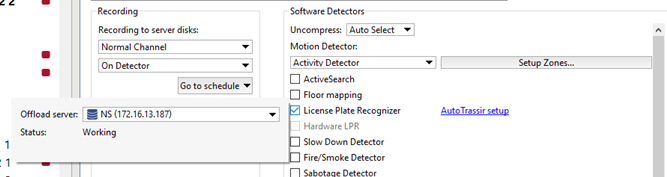
Go to the Channels node of the settings tree, select the desired channel from the list, and check License Plate Recognizer for the channel in the Software Detectors area.
To activate the plugin, go to the Channel settings to the Software detectors area, select License plate recognizer and then select the Server which will calculate the analytics.
Tip
Analytics server is not selected in LPR1 and LPR3.
-
Follow AutoTRASSIR setup link and configure plugin operation on the selected channel.
Tip
AutoTRASSIR channel configuration depends on the version of the plugin. For a configuration description, see the corresponding section of the manual:
Warning
Be sure that the Recording to server disks parameter in the Archive recording area is set to Permanent or On Detector.
-
Verify that the AutoTRASSIR plugin is properly functioning by creating a simple template.
-
Configure "black", "white" or "info" plate lists:
-
Using internal lists.
-
You can also connect external lists, stored in external text files or databases.
Tip
The settings for connecting external lists of license plate numbers differs for Windows and TRASSIR OS.
-
HSC AutoPass standard setting workflow
-
Install and configure cameras that will be used for license plate number recognition.
-
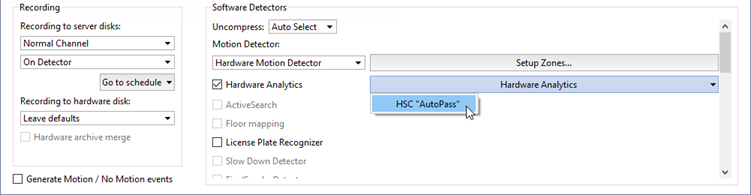
Go to the Channels node of the settings tree, select the desired channel from the list, and check Hardware Analytics for the channel in the Software Detectors area.
Press Hardware Analytics and choose HSC AutoPass.
-
Configure the plugin operation on the chosen channel (see Setup HSC AutoPass plugin on a channel).
-
Verify that the AutoTRASSIR plugin is properly functioning by creating a simple template.
-
Configure "black", "white" or "info" plate lists:
-
Using internal lists.
-
You can also connect external lists, stored in external text files or databases.
Tip
The settings for connecting external lists of license plate numbers differs for Windows and TRASSIR OS.
-
See also
- Setup AutoTRASSIR plugin on a channel
- Creating an AutoTRASSIR/AutoPass template
- Maintaining internal lists of license plate numbers
- Connecting external lists of license plate numbers from a text file
- Connecting external lists of license plate numbers on Windows
- Connection of the external number lists in TRASSIR OS
