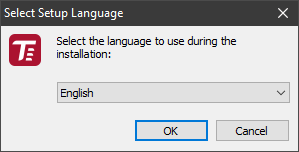
Run the setup file, select your language and press OK.
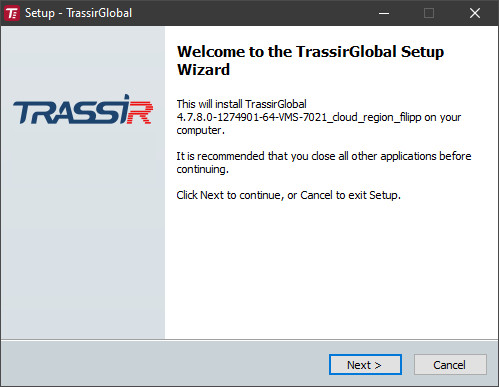
An installation wizard will start after the language selection. Press Next.
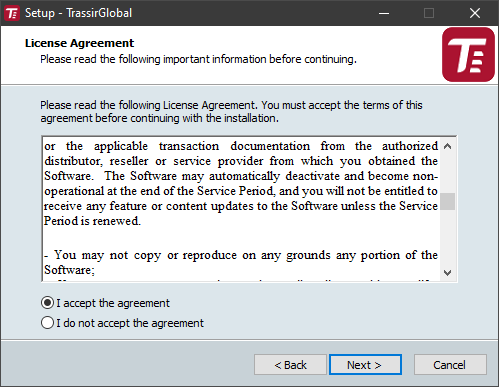
You can review the text of the license agreement on the License agreement screen. After reviewing the agreement, select I accept the agreement and click Next.
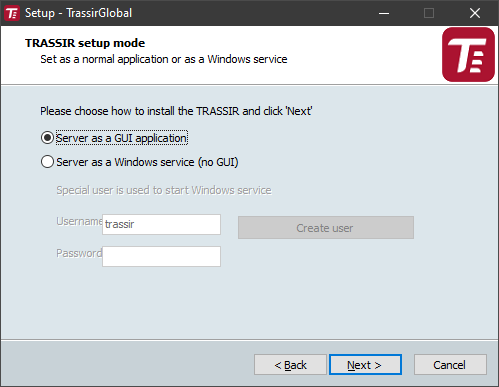
At the next step select the installation option Server as GUI application and press the button Continue.
Tip
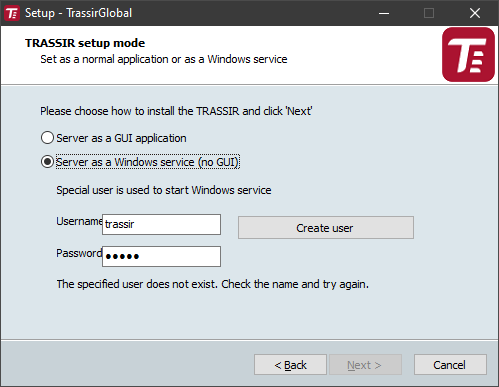
If you want to install the server as a Windows service, select Server as Windows service (without GUI) installation option and enter the user data which will be used to run the service. In case such user is not available yet, you can create it, pressing Create new user.... Press Next to proceed.
You can use the client software version in order to connect to the server installed as a Windows service.
Learn more about connecting to a server in Connecting to a new server.
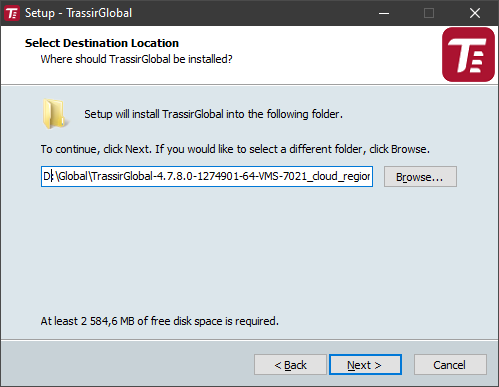
Specify the installation folder manually or by using the Browse button. Click the Next button after that.
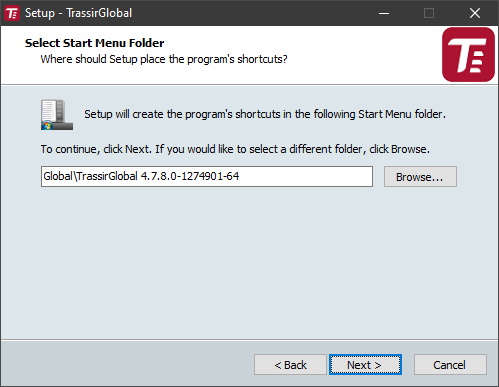
Specify the Start Menu folder where application shortcuts will be created. Click Next.
Next step, the installer will prompt you to install and configure the PostgreSQL DBMS. All events recorded in the server, will be stored in the database. Although the software can work without a database connection, we strongly recommend using one. Moreover, certain plugins require a database.
-
In case a PostgreSQL database is already installed on a PC, the installation wizard will prompt you to use the existing database; if you do not want to use the existing database, select Recreate database in the existing DBMS and enter the PostgreSQL superuser password. Otherwise, select Use installed DMBS PostgreSQL. Click Next.
-
In order to install the database automatically, download the archive with the installation files from our website and unzip it into the same folder as the installation file. Alternatively, you can always download PostgreSQL from the official site and perform the manual database installation.
Tip
Before beginning to install the database, you must configure the operating system settings.
If you have already the database installed or you want to do this later, select Do not install DMBS PostgreSQL. Otherwise select Install PostgreSQL and fill in all the fields. For your convenience, you can use the Generate buttons to generate passwords. After filling out all the fields, click Next. The installation of PostgreSQL will start automatically.
Tip
The PostgreSQL superuser's password can be selectable and you can subsequently create new database users.
The Windows service user's password must satisfy your operating system's security policy. To create a strong password, use the combination of uppercase and lowercase letters, as well as numbers and punctuation marks.
-
If the installer cannot find the installation files for the DBMS, and PostgreSQL DBMS is not installed on the PC, the installer will issue a warning. Click Next to skip the installation of the DBMS, or verify that the DBMS installation files are in the same folder as the installer file and restart the installer.
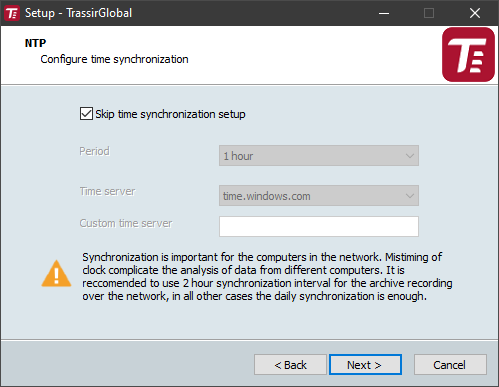
Next step, the installation wizard will offer you to configure the time synchronization service (NTP). Select a synchronization Period and Time server. You can also specify the address of an arbitrary NTP server or cancel the configuration of NTP by setting the Skip time synchronization setup checkbox. Click Next.
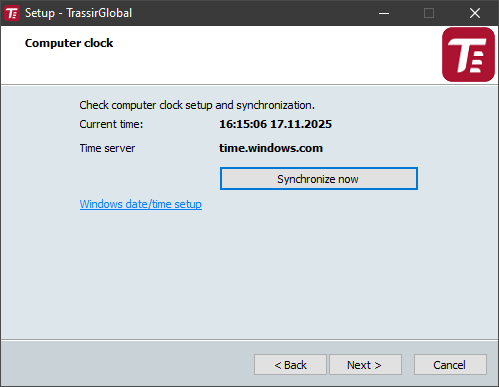
The installation wizard will prompt you to verify the correctness of the server's current date and time. You can synchronize time using an NTP server by clicking the corresponding button, or click the Windows date/time setup link to quickly navigate to the settings window. Click Next.
Select any additional installation settings. Click Next.
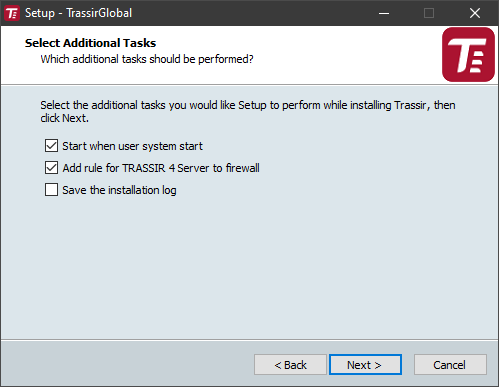
- Start when user system starts lets you restore a system to working order in the event of potential hardware failures, for example, if the electricity supplied to the site is unreliable.
- If you plan to use the standard Windows Firewall, then set the Add rule to firewall checkbox.
- If needed, you can Save the installation log.
- If you are installing to a different folder while updating the server, then set the Copy configuration from the previous installation checkbox to copy all the settings from the previous version. This will save time during the configuration process.
The wizard will show the selected installation parameters in the final step. Click the Install button.
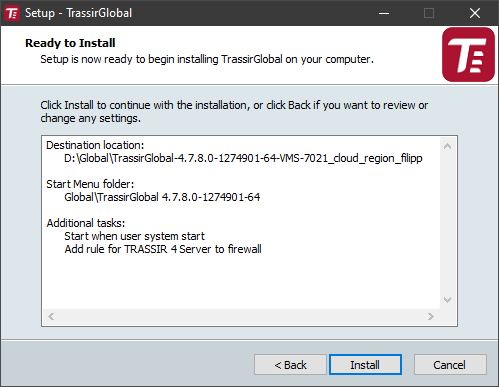
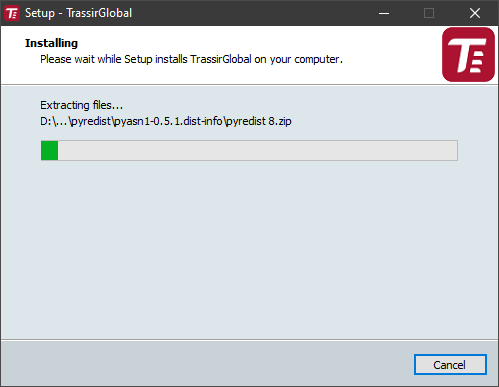
The files will begin to be copied.
Click Finish to complete the installation.