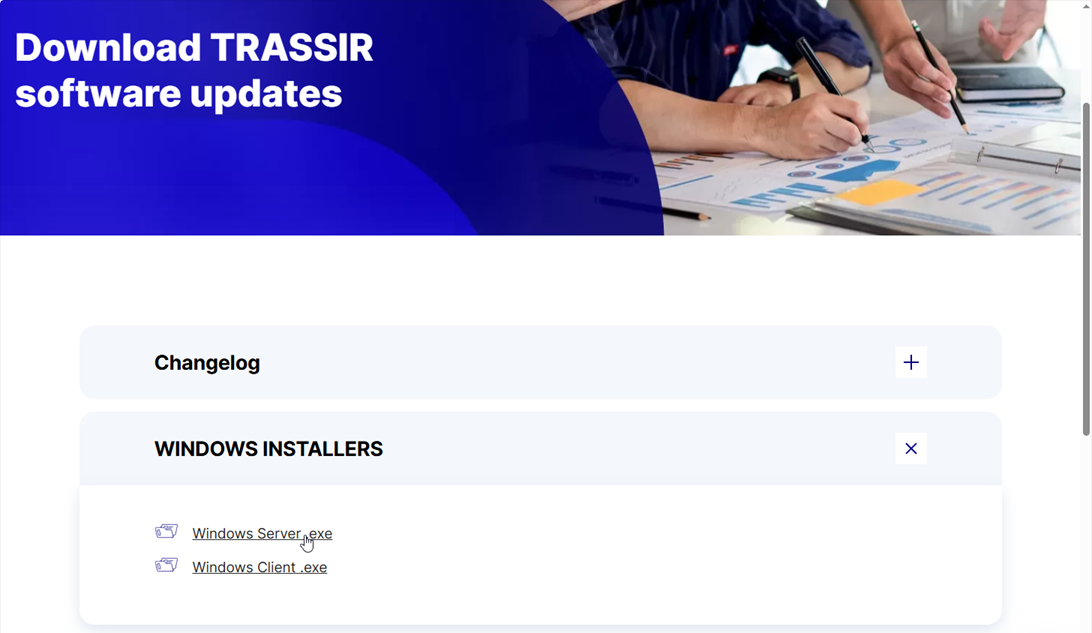
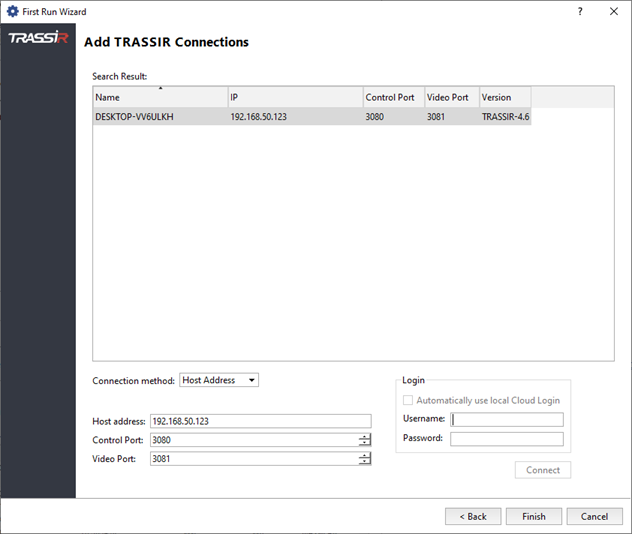
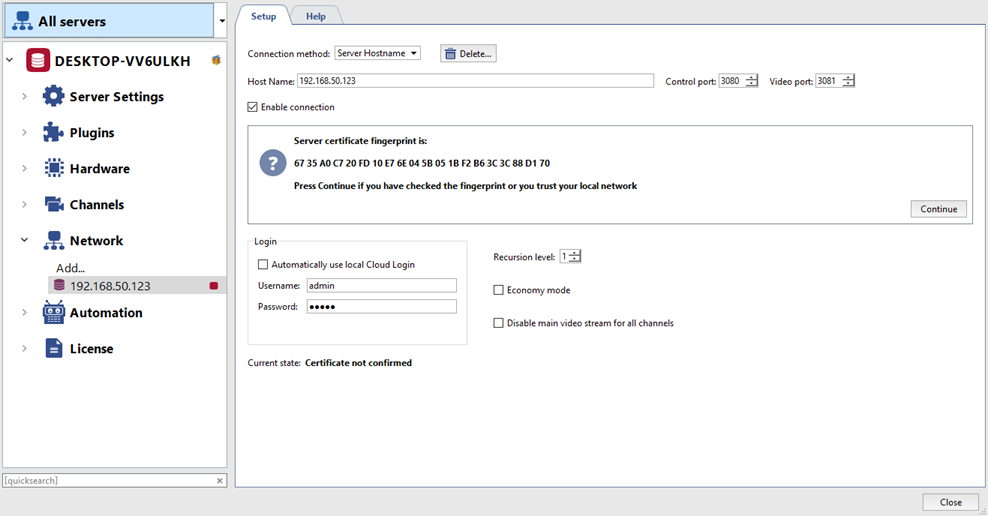
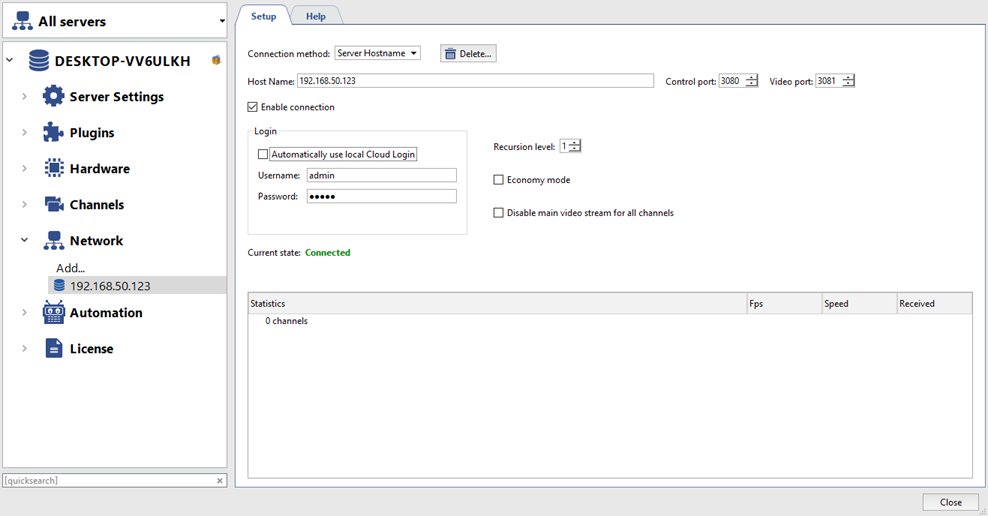
You can enable the demo mode of the server both online and offline. Follow the steps below to activate the TRASSIR software
on a computer with Internet access.
Activation steps:
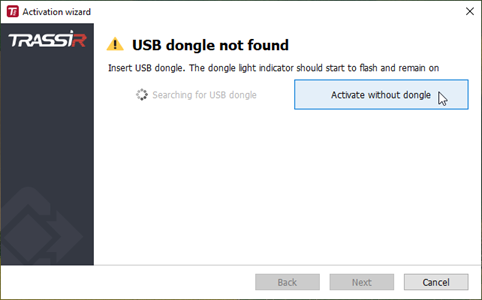
Launch the TRASSIR software. In the Activation Wizard window that appears, click Activate without dongle.
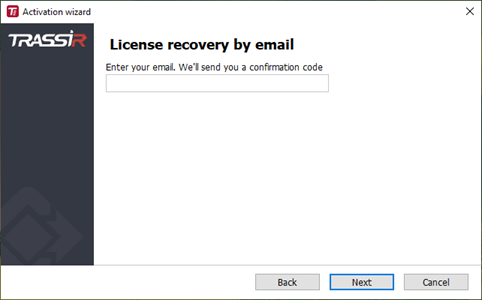
Click Recover license by email.
Enter the email address that is registered to the TRASSIR cloud account and click Next. If you don't have an account yet, the Activation Wizard will create one for the specified email address in one of the following steps.
A letter with a confirmation code will be sent to the specified email. Enter the code in the Activation Wizard and click Next.
If there is no TRASSIR cloud account for the email address you specified, the Activation Wizard will ask you to specify the region you are in. Click Next to allow the Activation Wizard create a cloud account.
A letter about successful registration of a new Cloud account will be sent to the specified email. The letter contains the
generated password for the account. You can change the password in your personal account on the Cloud website.
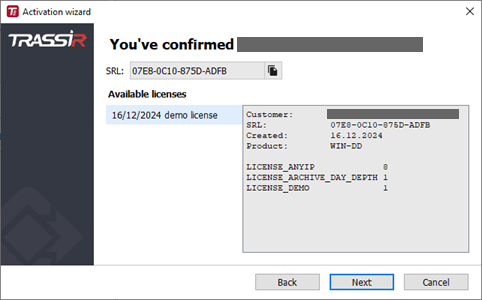
Activation Wizard will contact the Cloud and obtain a demo license. Click Next to upload the demo license to TRASSIR.
Activation Wizard will upload the selected license to the server and activate it. Click Finish to start the server.
Tip
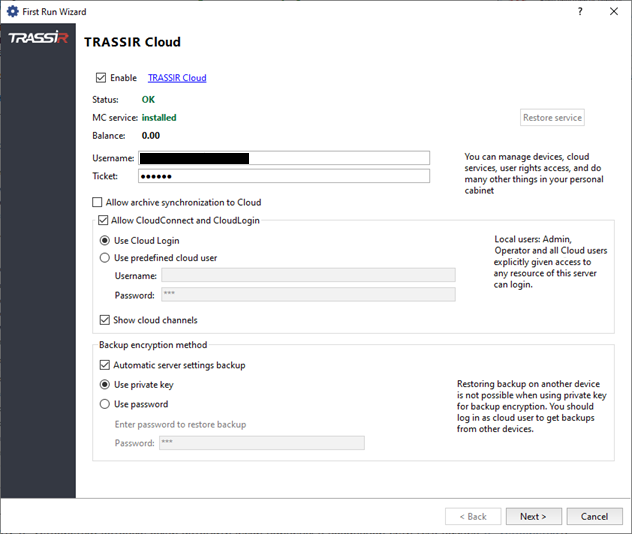
After activation, the server will be automatically added to the Cloud.
If this function is not required:
In the TRASSIR Cloud settings of the video recorder, uncheck Enable TRASSIR Cloud.
In the Devices section on the Cloud site, click the button next to the video recorder name and select Delete from the drop-down list.
You can enable the demo mode of the server both online and offline. Follow the steps below to activate the TRASSIR software
on a computer without Internet access.
Activation steps:
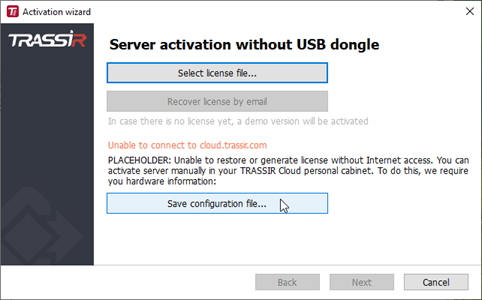
Launch the TRASSIR software. In the Activation Wizard window that appears, click Activate without dongle.
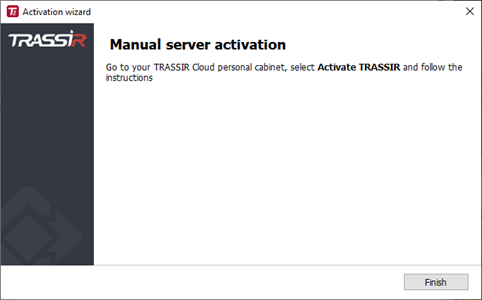
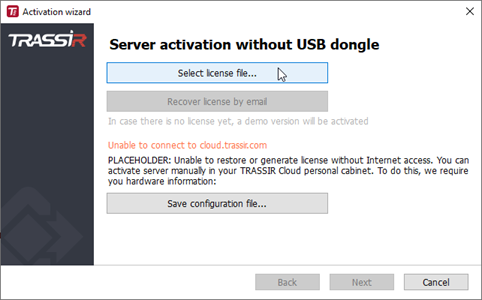
Activation Wizard will report that it is unable to contact the TRASSIR cloud. Click Save configuration file... and store the configuration file. Activation Wizard will close. Transfer the configuration file to a computer with Internet access.
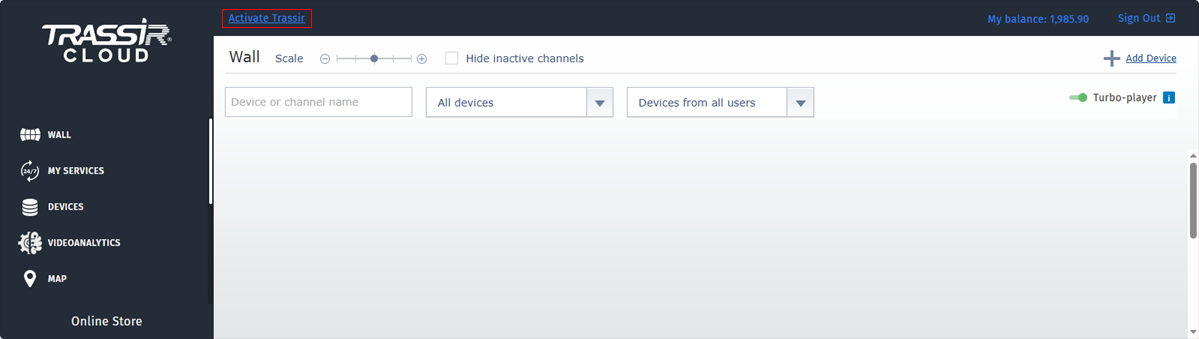
Log in to the Cloud site with your account. If you don't have an account yet, register. Click the Activate TRASSIR button at the top of the page.
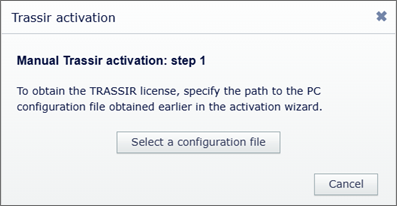
In the dialog box that appears, click Select a configuration file and specify the path to the previously obtained configuration file.
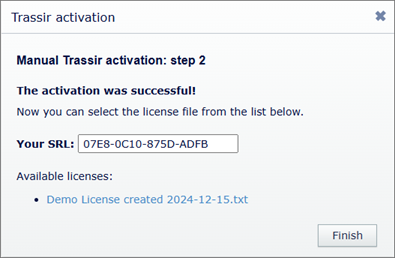
The Cloud will check the configuration file and then create a new demo license or download a previously created demo license.
Click the link to download the demo license file. Transfer the demo license file to the computer with the TRASSIR-Server installed.
Launch the TRASSIR software once again. In the Activation Wizard window, click Activate without dongle.
Click Select license file... and in the dialog box that appears, specify the path to the demo license file.
Activation Wizard will upload the selected license to the server and activate it. Click Finish to launch the TRASSIR software.
All events, registered on the server, are stored in the database. The database can be located on either a local or remote
server. For example, a separate server used only for recording events can be chosen as the database.
A computer with the following minimum specifications is required to install PostgreSQL DBMS:
Processor: Intel Pentium D 1.8 GHz or greater.
RAM: 2 GB or greater.
For PostgreSQL installation:
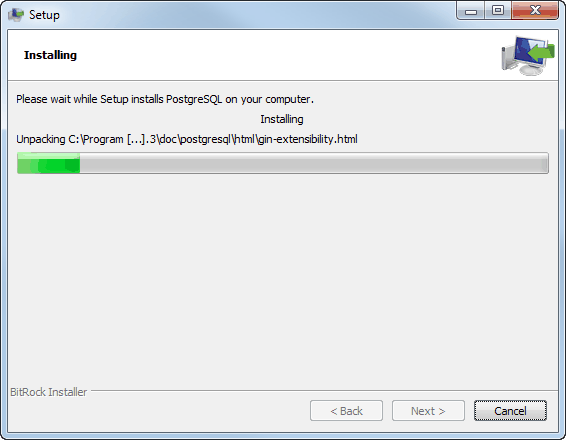
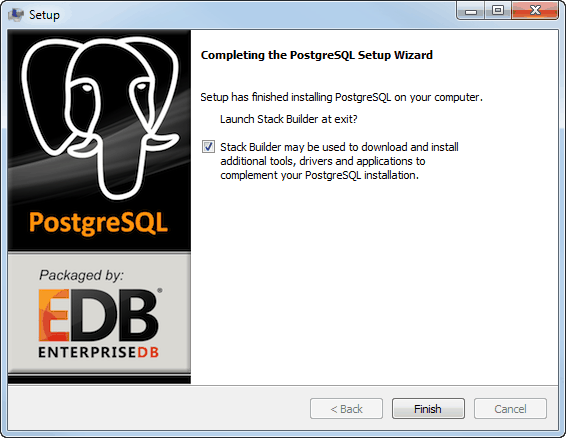
Download the PostgreSQL distribution from the PostgreSQL website (it's free).
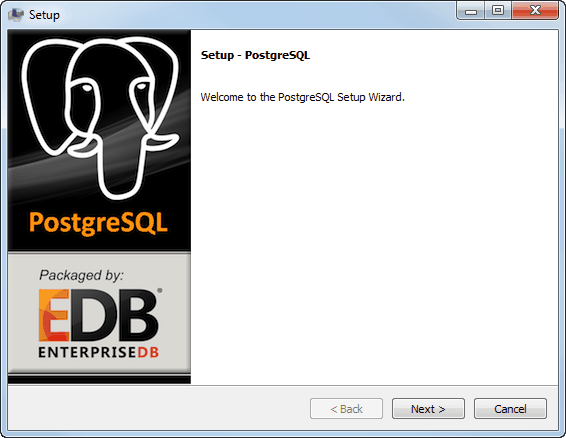
Launch the installer and click Next > in the window that opens.
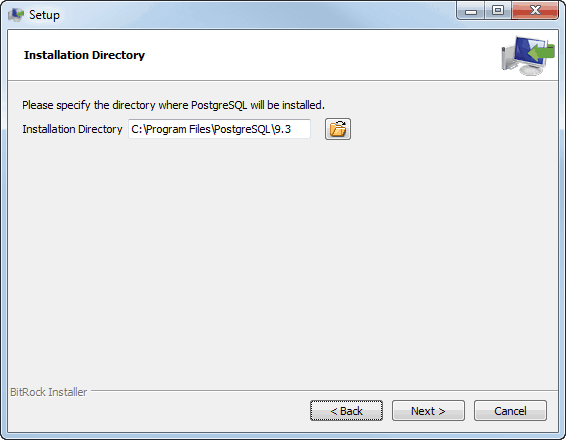
Select the database installation folder and click Next >.
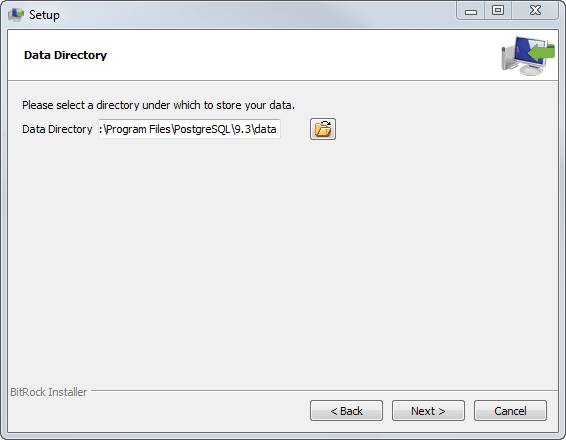
After that select the folder that contains the DBMS files. Click Next > to continue.
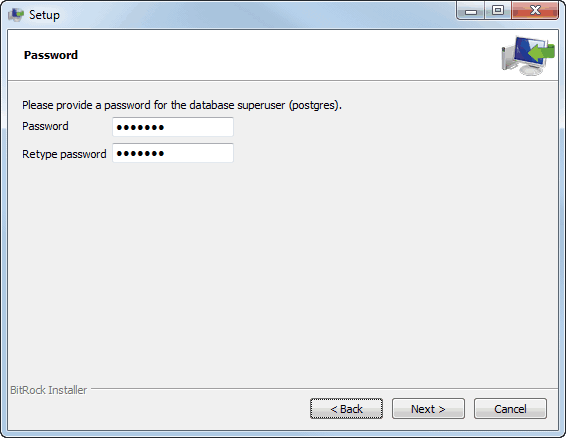
In the next step, enter the DBMS's superuser's password. Click Next > to continue.