
The Pose detector plugin runs:
- locally on an NeuroStation server with TRASSIR OS;
- remotely on all servers running TRASSIR version 4.x and higher, connected to the NeuroStation server, which the detector uses as the Analytics Server. For more information on connecting the server, see Connecting to a new server.
Tip
If video frame analysis is performed on a remote server, the user specified to connect to the server must have remote analytics enabled in their settings.
Before setting up the pose detector on the channel, perform the following:
Table 96.
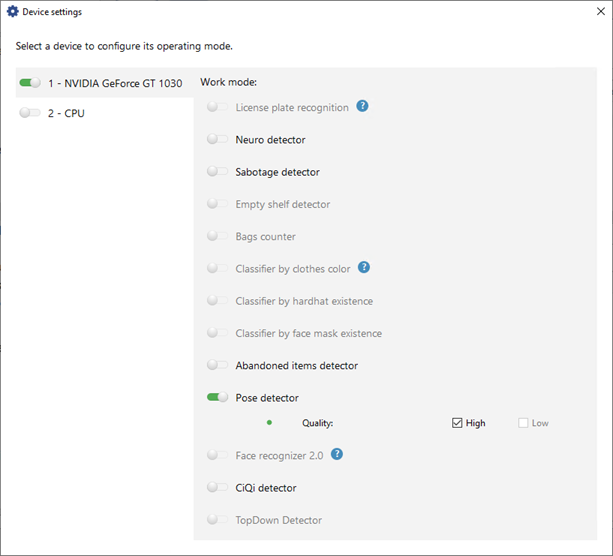 |
|
Important
The number of channels on which the Pose Detector is available is determined by the number of LICENSE_DEEP_POSE licenses on the analytics server.
Available licenses are listed in the server settings on the tab License.
