
Important
If you don't have a TRASSIR Cloud account yet, create one using our cloud service.
See details on cloud service functions and capabilities in the TRASSIR Cloud Guide.
Make sure that Activate Cloud box is checked, before connecting to TRASSIR Cloud cloud service. Select one of the ways to access cloud devices:
-
Access to any cloud account devices
Select Cloud login and leave the field Bind to cloud user blank.
Now any cloud user can authorize and get access to the cloud devices in the personal account, including the shared devices.
Warning
Please note that in case the Bind to cloud user field is blank, a user will receive the rights of the client's administrator after the authorization.
-
Access to a single cloud account devices
Select Use Cloud Login and enter your cloud account name into Bind to cloud user field.
In this case, local users and that cloud account users will be able to authorize the client.
After the authorization, cloud users will see only the devices added directly to the cloud personal account and access to which is allowed in user rights setting.
Tip
See cloud user rights settings in details in the TRASSIR Cloud Manual (section Users). Local user rights settings is described in Determining access rights.
-
Access to cloud devices under local user
Select Another user and type in your cloud user name and password.
Now only local users can authorize on the client, therewith they get access to the cloud devices of the logged in user.
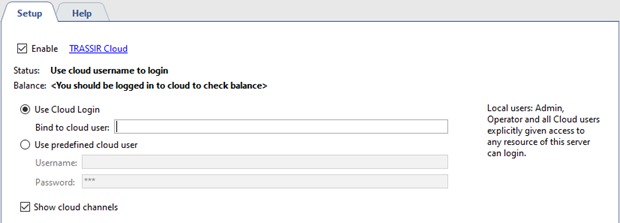
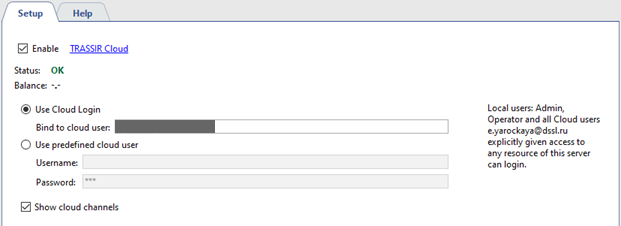
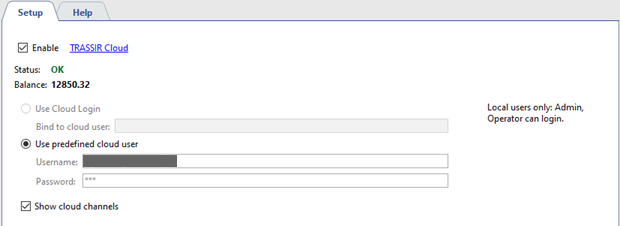
Check the Show cloud channels box to display cloud camera channels in the list of connected devices. The cloud cameras operation depends on the tariff of their connection to the TRASSIR Cloud. See details on restrictions in Cloud cameras section.
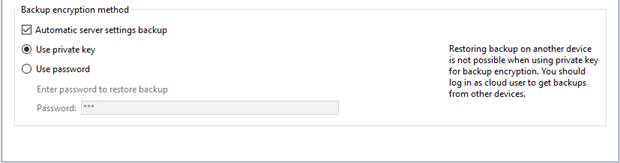
The Backup Encryption Method block lets you configure secure storage of the client settings cloud backup and ensure that they can be quickly restored in case of system failures:
-
Set the Automatic server settings backup flag to automatically save the current client settings to the cloud storage.
-
Set the Use private key flag to encrypt the backup copies of settings stored in the cloud. Using the private encryption keys provides an additional protection level against unauthorized access and prevents the saved backup from being restored to other devices.
-
You can set a password to restore the backup for additional protection of the saved settings. To do this, set the Use password flag and enter the password in the corresponding field.
