
The Card design is an editor for customization of the employee ID card appearance. With its help, you can customize the appearance of the passes, creating unique layouts and adding information about the employee on them. The pass layout editor allows you to add fields with the employee personal data, his photo, as well as change the background image of the pass.
Important
The passes template creation feature is available with a LICENSE_PACS_PRINT license purchased in addition to the base TRASSIR ACS license on the server.
Available licenses are listed in the server settings on the tab License.
In order to create a new layout, open Plugins -> Access Control -> Card design.
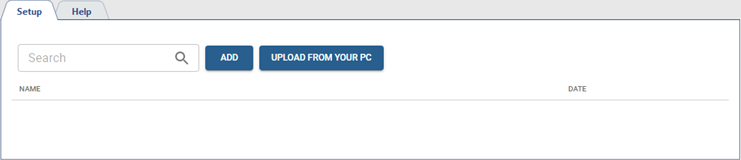
Press Add to open the pass layout editor:
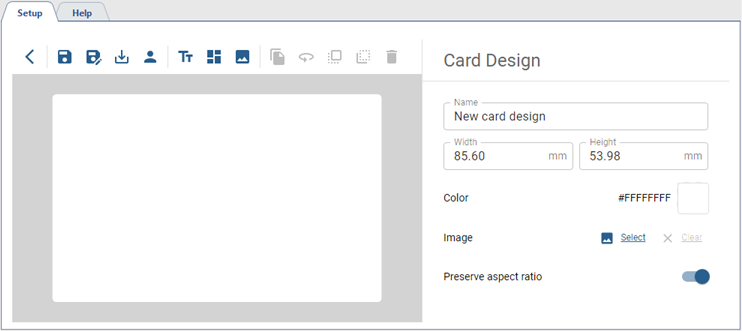
Use the layout settings panel to define the size of the pass, as well as choose its background color or background image. Next, use the editor buttons to add necessary fields to the layout and customize their parameters.
Description of buttons of the pass layout editor.
Table 119.
 |
Save - save the pass layout. |
|
 |
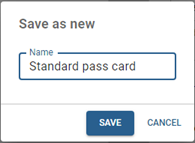
Save layout as new - press this button to save the layout template with a new name.
|
|
 |
Download - save the pass layout to a file for later uploading. |
|
 |
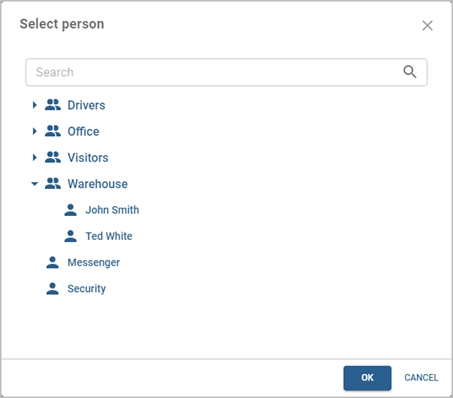
Person for preview - select the person, whose details will be displayed on the created pass card layout.
|
|
 |
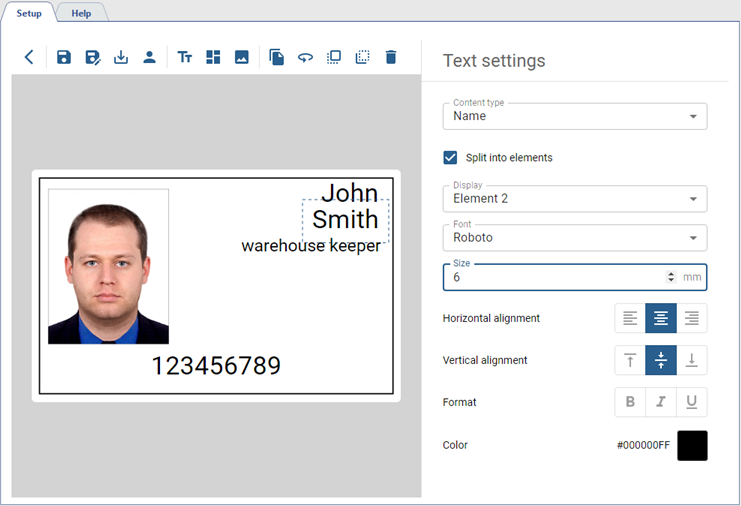
Text - add a text field or a person data field (including Person extra fields) to the layout. Text fields comprising a list of values, e.g., Name, License Plates, Pass Cards, and Access Levels, can be placed in various areas of the template with individual format settings. Check Split into elements and select the element in the Display field to be displayed in the selected area of the template.
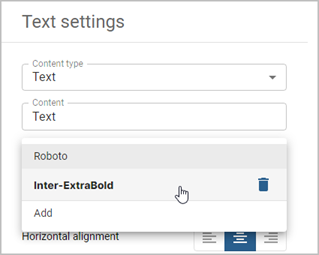
TipYou can also add your own font for use in your pass design. This will allow you to create unique layouts and ensure consistency with the style of your company or organization.
You can select any number of TTF (TrueType Font) fonts. |
|
 |
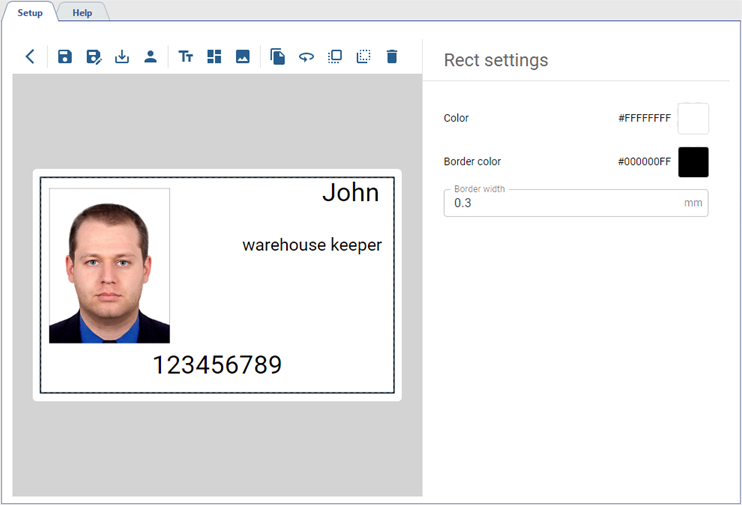
Rect - add a rectangle to the layout.
|
|
 |
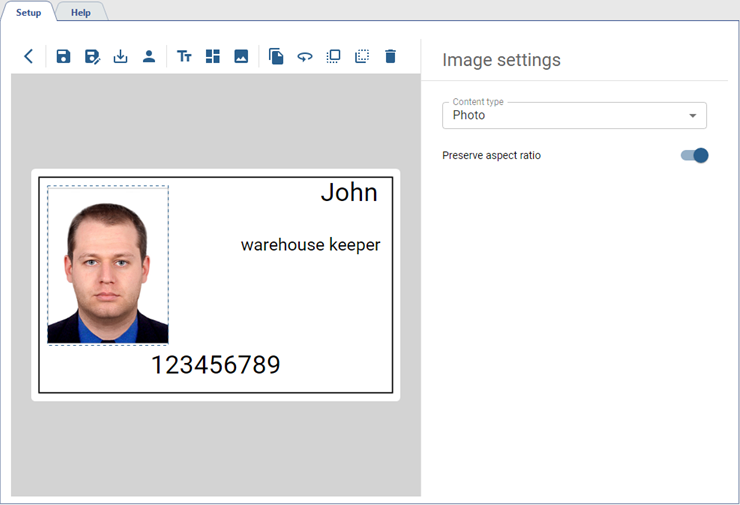
Image - add a field with an image or photo of the person to the layout.
|
|
 |
Clone - copy the selected field. |
|
 |
Rotate - rotate the selected field 90 degrees counterclockwise. |
|
 |
Bring to front - move the selected field to the foreground. |
|
 |
Send to back - move the selected field to the background. |
|
 |
Delete - delete selected field. |
Tip
The process of printing a pass card based on the created layout is described in Additional actions with persons and Handling access permit requests.
