
Important
At least one access level should be created for operation with TRASSIR ACS.
Open the Plugins -> Access Control -> Access Levels section to set up access levels.
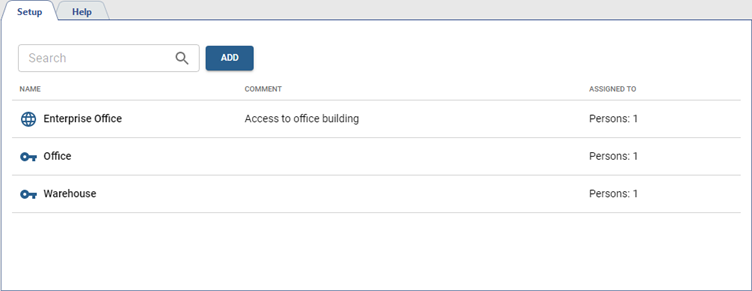
Access levels can be used to allow people to enter the entire area or only certain rooms. The settings page displays all created access levels and the number of persons to whom they are assigned to.
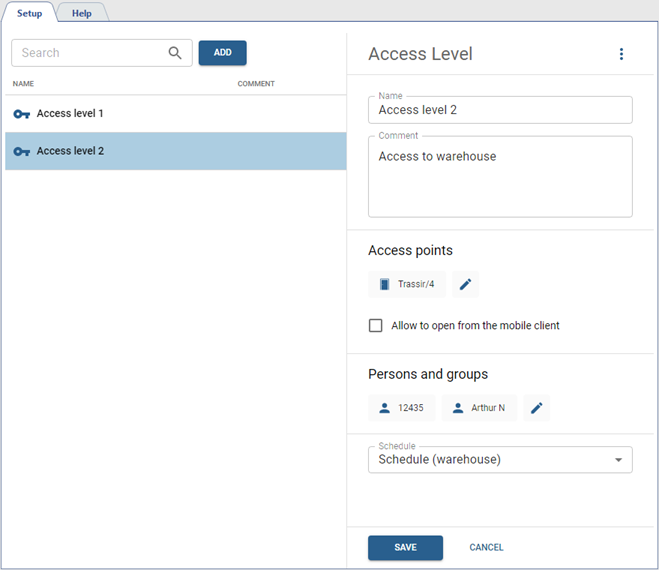
In order to create a new access level, press Add and follow the next steps:
- Enter the access level name and add comment, if necessary.
-
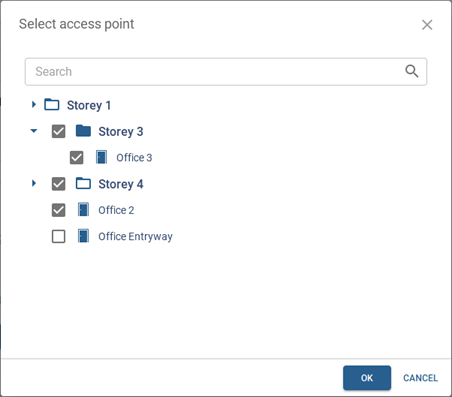
Add access points that people with this access level are permitted to use.
Important
The number of simultaneous access point assignments for a person/group/template in different schedules depends on the device functionality.
In addition, the number of access levels assigned to one person or selected in the visitor template should be taken into account. This number also depends on the functionality of the device and the number of identical access points specified in the assigned access levels.
Set the Allow to open from the mobile client flag to let the person with this access level use this feature (see Access from mobile app).
-
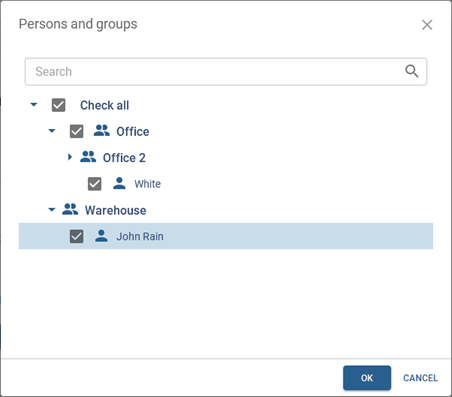
Add groups of persons or separate persons to whom this access level will be assigned.
- Select the schedule which this access level will use. Section Access schedule describes the detailed instruction for access schedule creation.
Access levels downloaded from the LDAP server or server with TRASSIR ACS Enterprise are marked with  . See Data Synchronization and TRASSIR ACS Enterprise user manual (see Access levels).
Important
In access levels downloaded from LDAP server or TRASSIR ACS Enterprise server, you cannot edit the list of assigned persons. Add or remove the persons on the corresponding server.
You can use the rights to the individual server objects to set different options of access to access level management.
The rights are located on the rights tree at: Server name -> Plugins -> Access Control -> Access levels.

-
If the Access levels section has the View right enabled, the section itself and the added devices are displayed in the settings interface.
If the Setup right is enabled, the user can add new access levels.
-
If the added access level has the View permission enabled, it is displayed in the settings interface.
-
Added access levels with the Setup right enabled are available for editing parameters.
