
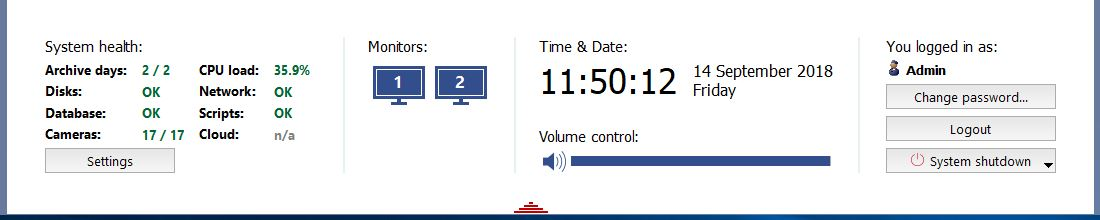
After signing in, the main control panel is grouped as follows:
-
System Health shows the parameters of the server's operation, allowing to identify quickly the presence of critical errors. You can read more about system health in the relevant subsection of the manual.
The Settings button opens the settings window. If your account has access to the Settings... button, please see the Administrator's Guide; it contains detailed information about the administrative functions. This guide only describes the functions of the video surveillance system's operator.
-
The Monitors group - the button to show / hide the operator interface. If several monitors are connected to the computer system unit, then there will be several icons for hiding / showing the interface (each monitor has its own interface).
By default, the video monitor interface is hidden after the installation. Click the image to display the monitor. Click a second time to hide the video monitor interface. You can read more about working with the monitor interface in the Operator's Guide.
Tip
When the window display of the video monitor on the client is used, the main control panel looks as follows:
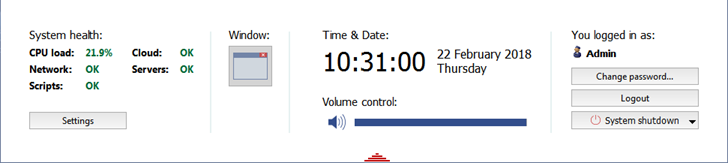
Read about this display mode in the "Administrator's Guide" (Client settings).
-
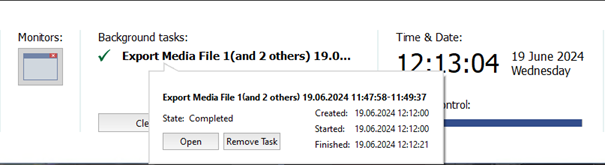
The Background tasks group shows a list of tasks the execution of which has been postponed, i.e. delayed archive export.
Left-click on a task to view its status. A popup window with the information will appear. You can cancel the task in this window by clicking the appropriate button.
The icon next to the task changes depending on its current status:
 - indicates a task waiting in the queue to be executed;
 - indicates a completed task.
The Clear button removes all completed tasks from the list.
Tip
This group will only appear on the main control panel if there are background tasks currently scheduled in the system.
-
The Time & Date group displays the server's system date and time.
Use the Volume control to adjust the overall volume level.
-
The Signed in as group displays the username for the person who is currently signed in.
The Change password... button allows users to change their own passwords.
The Sign out button lets the system's current user sign out.
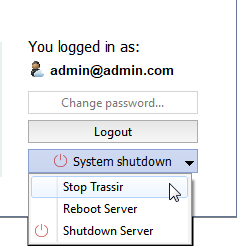
The System shutdown button brings up the following dropdown menu:
- Stop TRASSIR - shuts down the software.
- Reboot Server - restarts the server the operator is using.
- Shutdown Server - shuts down the server the operator is using.
Tip
If the server was started in "no restart after failure" mode, then when the System shutdown button is clicked, the dropdown menu will not be shown. Instead, the software will be closed.
