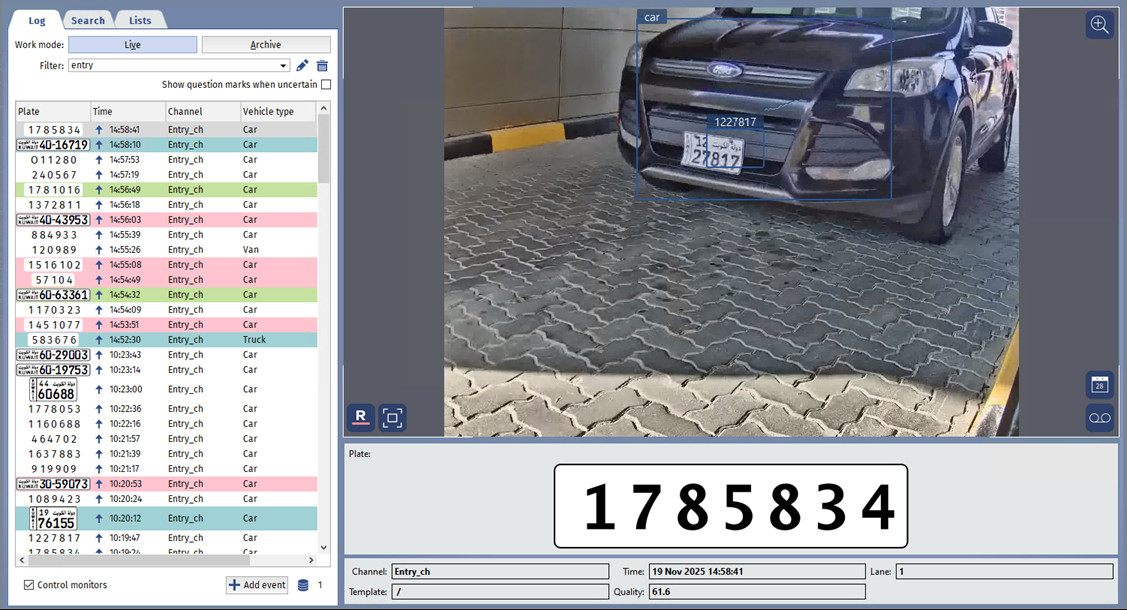
If your system includes the AutoTRASSIR/AutoPass plugin, then on one screen you can view:
- Video from cameras recording vehicles entering and exiting;
- the license plate number recognition results and special messages in the event that a recognized number is in the AutoTRASSIR/AutoPass list, e.g. the blacklist;
- The log of recognized license plate numbers.
To display the AutoTRASSIR/AutoPass area, you must configure the video monitor template.
Important
Vehicle type and Special vehicles columns are shown in the log only for HSC AutoPass plugin.
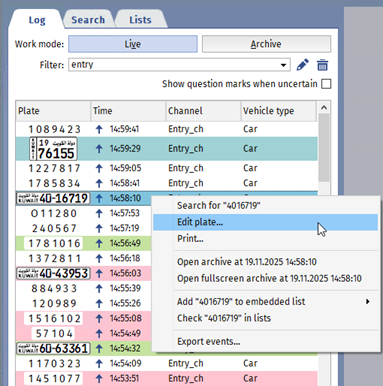
All license plate numbers recognized by the AutoTRASSIR/AutoPass plugin are key events that can be used to perform the following actions:
- Search for the number in the database or internal license plate number lists;
- edit an unrecognized or partially recognized license plate number;
- print a confirmation document;
- open the archive to the moment at which the license plate number was recognized (in the current window or in fullscreen mode);
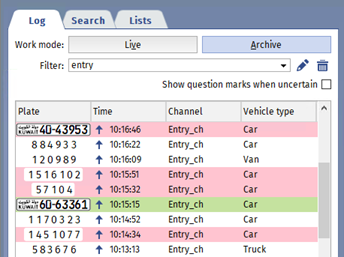
If the recognized license plate number is detected on one of the three lists, then it will be highlighted as follows in the AutoTRASSIR/AutoPass log:
- green - the license plate number is on the whitelist;
- red - the license plate number is on the blacklist;
- blue - the license plate number is on the informational list.
To bring up the action selection menu, point the cursor at the AutoTRASSIR/AutoPass log at an entry with a license plate number and select the desired action in the context menu: