
In order to switch to the request handling mode, press  and select Access Control.
Creating access permit request
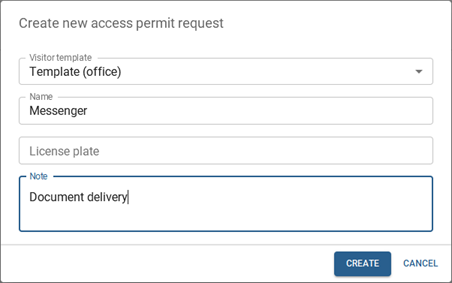
In order to create a pass request, press Create, choose Visitor template and enter the visitor data.
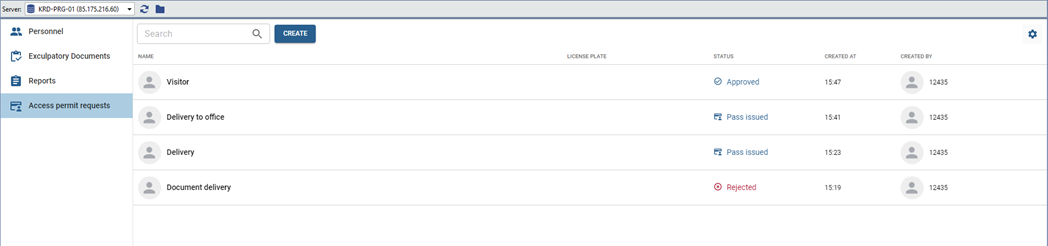
Request review
The operator screen displays:
- all of your created requests;
- the pass requests created by other persons, if you are the person who approves the pass requests and issues them to visitors, or the request administrator.
Using the search, you can find requests by name or the name of the employee who created them.
Pass issuing
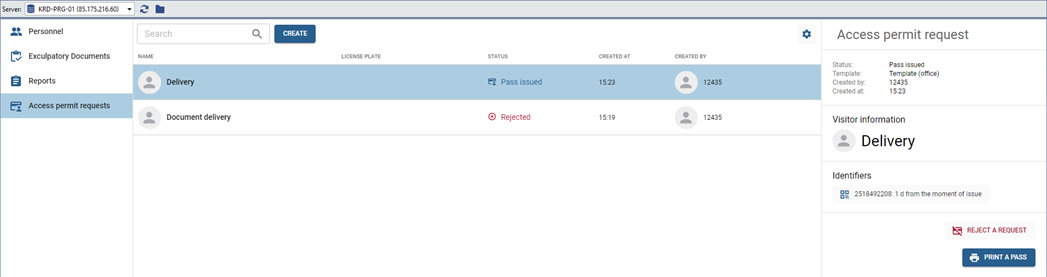
The requests with Pass issued status were confirmed earlier, or their confirmation was performed automatically.
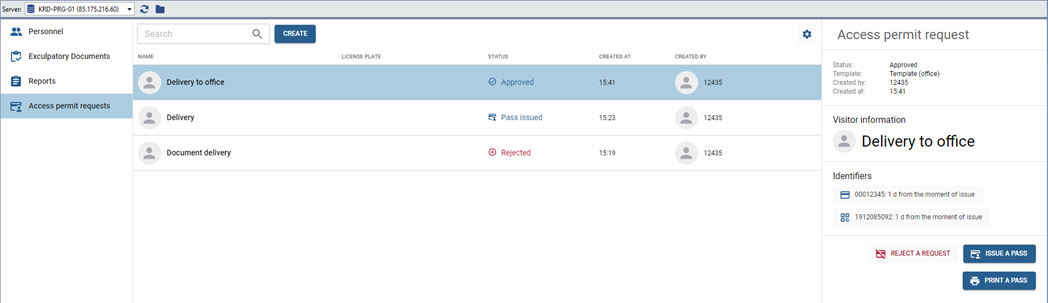
The requests that have the Approved status should be confirmed. To do this, follow the steps below:
-
Click on the request. If the Identifier by which the visitor will be authenticated, is already added to the application, proceed to the next item. If it needs to be specified, press the button
 and add it.
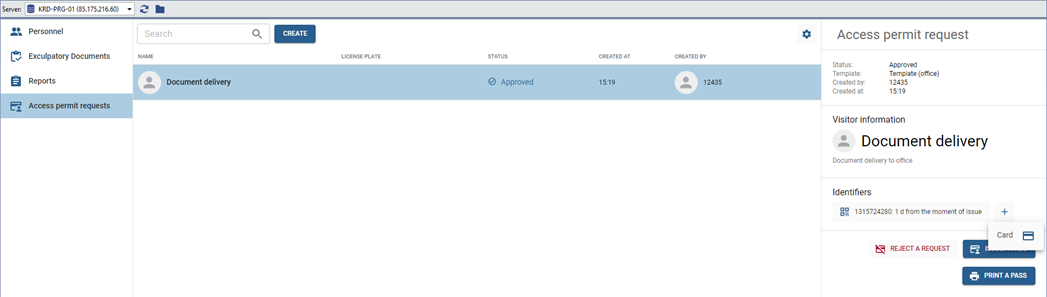
Table 124.
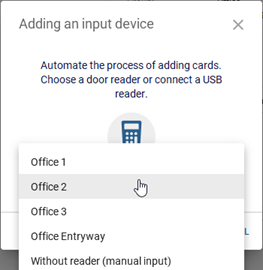
Select one of the ways of entering the ID card data:
- using USB reader connected to the client/server;
- using the reader installed at the access point;
- by entering the card data into the input field manually.
Tip
Data input from an ID card using a USB reader is only supported in Windows version.
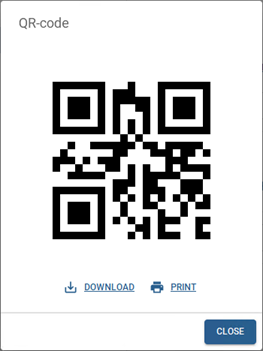
If a QR code is used as an ID, download or print it out and give it to the visitor.
-
Press Issue a pass to approve or Reject a request to cancel.
-
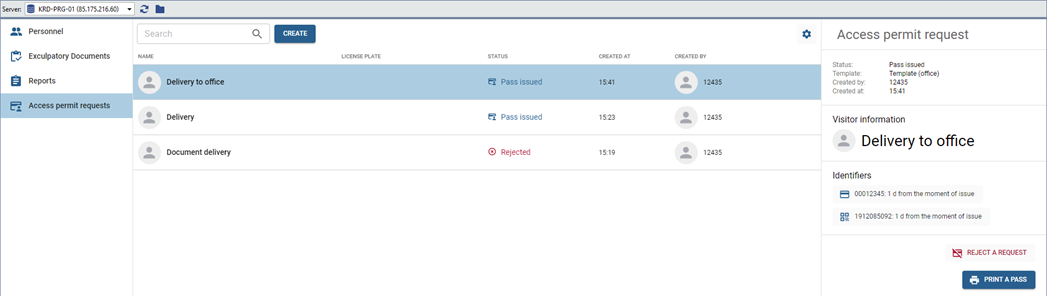
When the request changes the status to Pass issued, the visitor can authenticate.
Important
The request can be rejected by the Request Administrator at any time. Read more on adding the request administrator in the Administrator's Guide (see section Visitor templates).
Tip
All passes have a certain validity period, which begins at the moment of pass issuing. Upon the time expiration, the pass proceeds to the archive and the status of the request changes to Request archived. The pass validity time is configured in the visitor's template. For more details, see the Administrator's Guide (section Visitor templates).
A request with the status Request rejected is archived within 24 hours after rejection.
In order to check all archived requests, press  and choose Show archived requests.
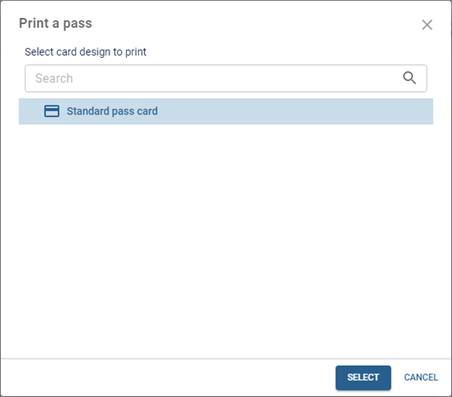
Click Print a pass to print a pass. In the window that opens, you can select the pass layout design option.
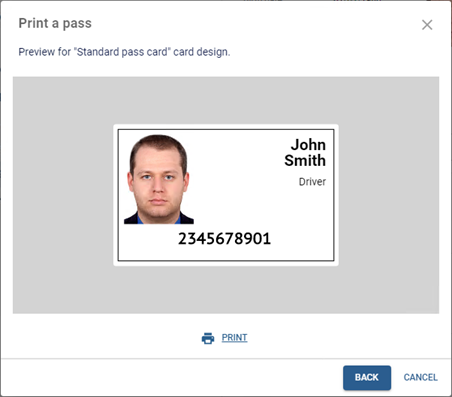
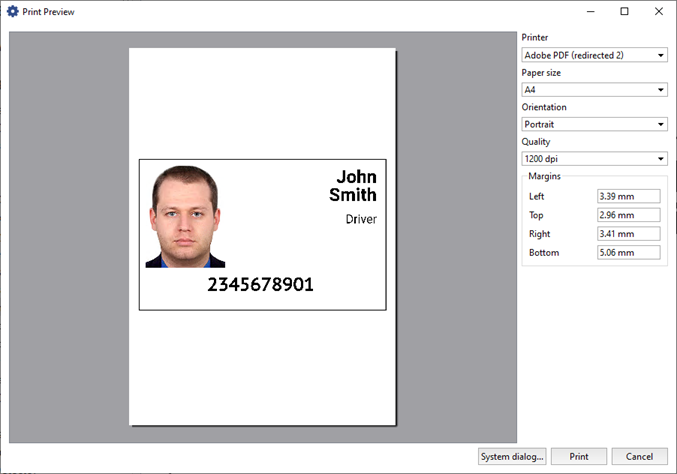
Click Print to open the preview window with additional print settings.
Important
The Print passes feature is available with a LICENSE_PACS_PRINT license purchased in addition to the base TRASSIR ACS license on the server.
Available licenses are listed in the server settings on the tab License.
Print preview is available only in TRASSIR for Windows.
The process of creating pass layouts is described in the Administrator's Guide (see Pass design).
