
To create a new group, open Plugins->Access Control->Personnel, press Add and selectGroup.
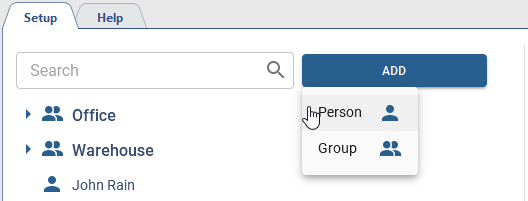
After that:
-
Enter a Group Name and Comment, which can be used to search for this group and the people in it.
-
Select the Location of the group in the persons tree.
Click
 next to the Location field, to save the current group location to the clipboard. It can be used when creating a file to import new persons into the same group.
-
Set the Assign general parameters flag to let the group parameters be inherited by all the persons added to this group.
Set the parameter values that will be automatically assigned to all persons in that group.
All assigned parameters will become unavailable for the person in the group after the saving. In order to keep the editing options, set the Allow to change person's settings flag.

The Imported persons group displays the persons imported from TRASSIR ACS Enterprise. Read more in Personnel.

Tip
You can use rights to individual server objects to assign viewing and management access to various groups of persons.
The rights are located on the rights tree at: Server name -> Server settings -> Persons.

