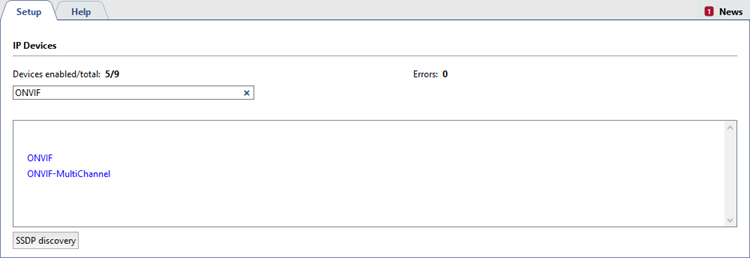
The server supports operation with IP devices via the ONVIF protocol. To add a new device, click ONVIF or ONVIF-MultiChannel in the IP devices tab of the Settings window.
Tip
ONVIF-MultiChannel is an ONVIF protocol extended to support multi-channel devices (video recorders, fisheye cameras). It provides access to multiple independent video streams through a single network interface, allowing use of all device channels.
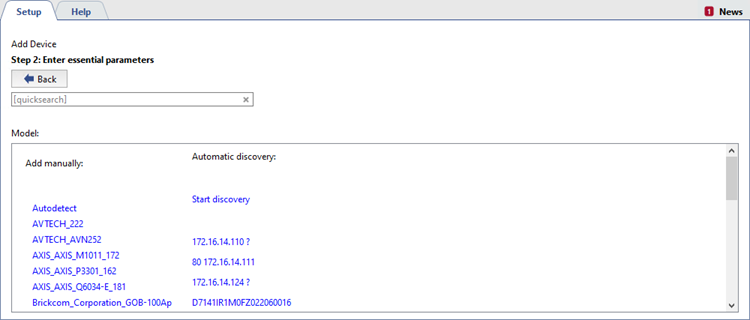
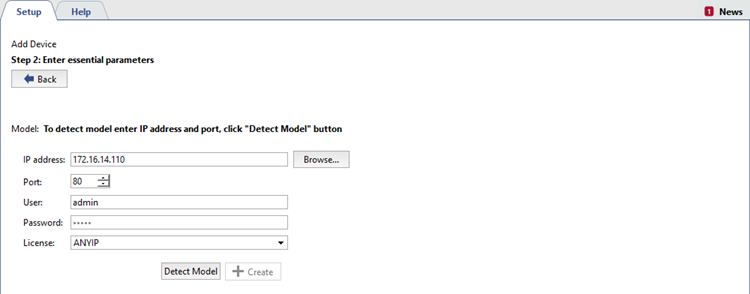
Select your device model from the Add manually list. If needed, you can use quick search to shorten the list of device models. Enter the connection information in the window that opens.
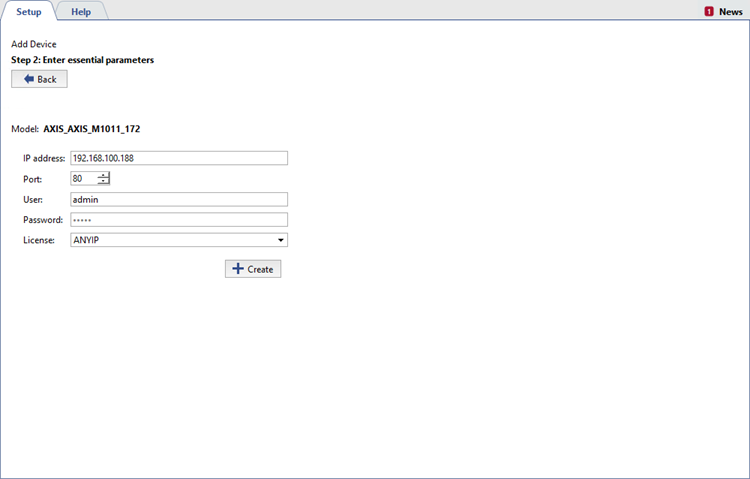
- IP address - The address doesn't need to be specified if the device was found automatically.
- Port - The number of the network port for connecting to the device (may be different from the web interface's port).
- Username and password - Note that the username and password entered must be for a user whose credentials are stored on the device itself.
- License - the license under which this device will connect.
Important
Enter a valid username and password, because some devices demand authentication at the model identification stage.
Click Create. The device settings window will open.
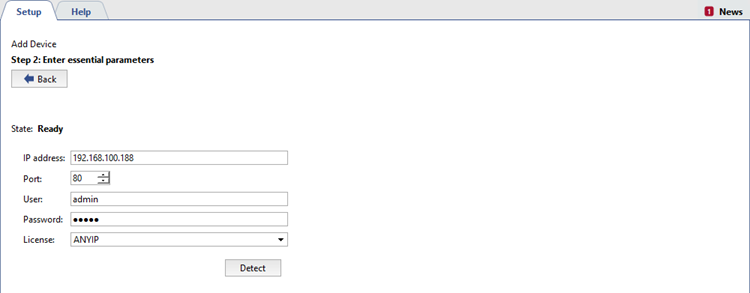
If your model isn't listed, click Start Search and, when the search is complete, click the IP address of your model. In the window that opens, enter your connection information and click Detect Model. After a short while, your device model will be identified.
You can also use the Autodetect feature to determine your device model. To do this, click it, enter your connection details in the window that opens, and click the Detect button. After a short while, your device model will be automatically detected and connected.