
Important
Before connecting the devices, learn more about their setup and operation features:
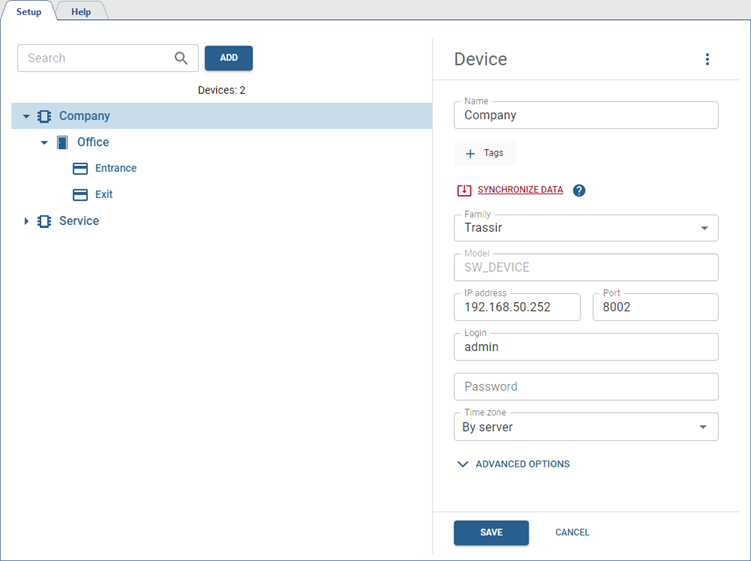
In order to connect the devices to the server, go to Plugins -> Access Control -> Devices in the server settings, press Add and enter the connection parameters in the window that opens.
Important
The number of connected devices is determined by the number of licenses purchased in addition to the basic TRASSIR ACS license on the server:
- LICENSE_PACS_TRASSIR_FACE or LICENSE_PACS_TRASSIR: for TRASSIR devices with or without face recognition;
- LICENSE_PACS_HIKVISION_FACE or LICENSE_PACS_HIKVISION: for Hikvision devices with or without face recognition;
- LICENSE_PACS_HIWATCH_FACE or LICENSE_PACS_HIWATCH: for HiWatch devices with or without face recognition;
- LICENSE_PACS_ZKTECO_FACE or LICENSE_PACS_ZKTECO: for ZKTeco devices with or without face recognition;
- LICENSE_PACS_TRUEIP: for TrueIP devices;
- LICENSE_PACS_BASIP_FACE or LICENSE_PACS_BASIP: for BAS-IP devices with or without face recognition.
Available licenses are listed in the server settings on the tab License.
Tip
TRASSIR ACS includes a software controller that enables management of GPIO outputs for devices connected to the server (e.g., cameras). This solution is suitable for organizing access with authentication in conditions where installing a hardware controller is not possible.
To connect the software controller, select it in the Family field. Learn more in the Connecting and configuring a software controller.
In case of the successful connection to the server, you will see access points on the device connection page. Otherwise, the error message appears.
The Persons, depending on their access level, are automatically uploaded to all connected devices. You can update data on any specific device, if necessary. To do this, press Synchronize data.
Add Tags to make it easier to find the device among all added devices (see Tags).
If your device and server are in different time zones, you can configure the Time Zone parameter. This allows the device's local time to be synchronized with its time zone while events are logged using the server's time.
The information about the maximum memory capacity of the device and the memory level in the connection settings may vary depending on the connected device.
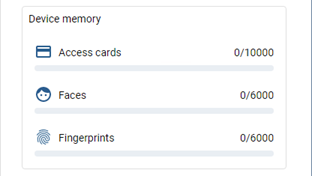
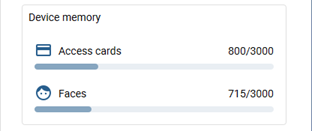
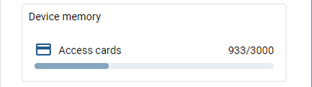
Table 98.
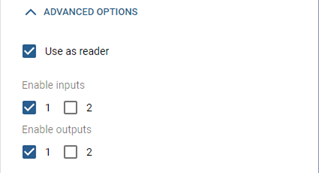 |
TRASSIR ACS supports operation from GPIO controller. Open the Advanced Options to activate it and set the flags next to the required inputs or outputs. After saving the settings, they will be added as independent controller objects. Read more on GPIO configuration in GPIO settings. If a terminal connected to the device is used during person authentication and passage, the Access granted and Pass events occur on both devices. To disable message reception from the device, set the Use as reader flag. |
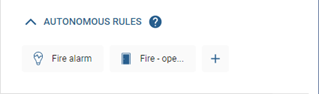 |
With Autonomous rules, you can configure various rules to be executed depending on the current state of the controller, access points, readers, or GPIO inputs. See more on setting up autonomous rules in Autonomous rules settings. |
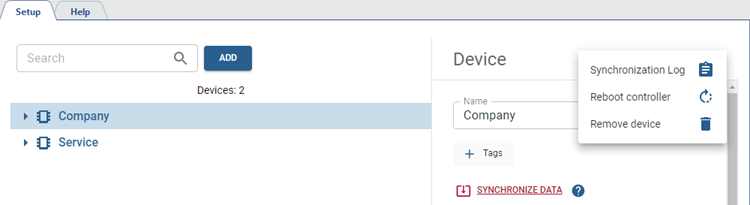
Click  to do the next steps:
-
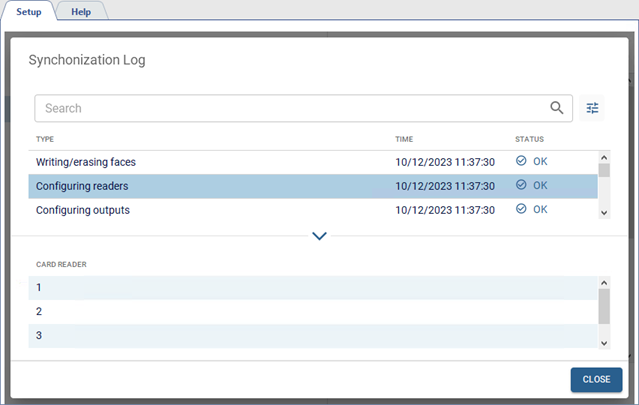
Open the Synchronization Log, which records all synchronization events, date and time of execution, and their status. Select the event in the log to check the detailed information.
-
Reboot controller. If this item is selected, a command will be sent to the controller for reboot.
-
Remove device from Access Control settings.
Features of setting up devices of different manufacturers
-
TRASSIR devices
Table 99.
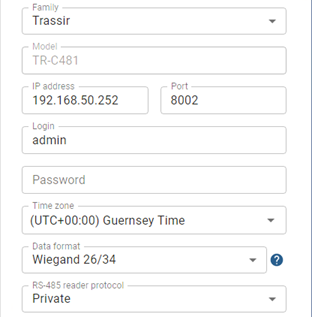
Select in TRASSIR TR-C481 controller connections settings:
- in the Data format field - the format used for storing card numbers in the database: Wiegand 58 or Wiegand 26/34;
- in the field RS-485 reader protocol - one of the protocols: OEM or OSDP, depending on which protocol the reader uses to transfer data to the controller.
-
ZKTeco controllers
Table 100.
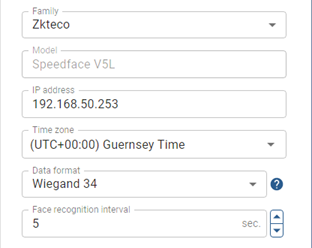
In ZKTeco controller connection settings in the Data format field, it is necessary to select the format to be used for storing card numbers in the database: Wiegand 34 or Wiegand 26. In this case, the data format in the connection settings should match the format set on the readers connected to this controller.
Set the periodicity with which people's faces will be recognized in the Face recognition interval field. If the same recognition events appear in the log - increase the value of the interval.
Important
When designing or upgrading an Access Control, it is important to note that the system can be configured to work with only one data format: Wiegand 34 or Wiegand 26.
It should also be taken into account that some devices support only one data format. A card read and written as an identifier in the Wiegand 26 format can not be used on a device that works with the Wiegand 34 format and vice versa.
-
TrueIP SIP servers
Table 101.
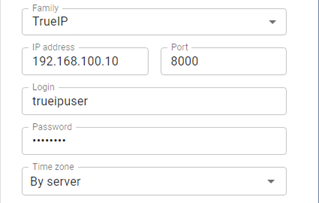
When adding a TrueIP server, use the following parameter values:
- Family: TrueIP;
- IP address: the address of the TrueIP SIP server;
- Port: 8000(HTTPS) or 8001(HTTP);
- User: trueipuser;
- Password: Root1337.
-
BAS-IP devices
Table 102.
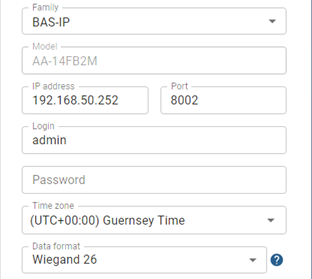
In the BAS-IP devices connection settings, in the field Data format, select the format you entered in the preliminary configuration of the intercom panel (see Features of BAS-IP devices setup and operation).
