
AutoTRASSIR setting aims to selecting the detector's working mode and defining the size of objects and recognition borders. All other parameters are integrated into the neural network, which detects license plates and recognizes test on them.

Detector
Set up the following parameters in the Base settings on the Detector tab:
-
Maximum amount of cars in a frame at the same time is the maximal number of cars that the detector will simultaneously detect in a frame. As a rule, the value is selected depending on number of lanes in a frame. The higher the value is, the higher is the load on the analytics server.
-
Quality - determines the quality performance of the detector:
Best quality / low speed for recognizing license plates in the distance. The image of higher quality is used in this mode, which significantly increases the load on the analytics server.
Medium quality / optimal speed for recognizing license plates at medium and close distances. This mode makes the best use of the analytics server resources and can use an image of medium quality for detection.
Important
The value of the Quality should match the License plate recognition neural detector settings on the analytics server.
Read more about the server analytics configuration in Analytics.
-
The Detector mode is selected in dependence on the scene in which the license plates are recognized:
Simplified - this mode is suitable for scenes when the vehicle moves at low speed (at the barrier, in the parking lot, etc.).
Universal - this mode is suitable for all speed modes and provides high quality of license plate recognition, but at the same time, it significantly increases the load on the analytics server.
-
Save the license plate numbers to the event log - sets the saving mode of the recognized license plate numbers to the log. It is selected depending on the required detection:
Right after the number recognition - In this case AutoTRASSIR fixes the license plate number right after the vehicle appears in a frame and saves it to the log when it is recognized with the greatest extent of confidence. It suits for slowly moving or standing vehicles.
After the car leaves the frame - in this mode AutoTRASSIR tries to recognize the license plate number when the vehicle is in a frame and fixes the number when the car leaves the frame. It will suit if the maximum precision of license plate number detection in the fast moving traffic flow is required.
-
In the Driving speed dropdown list select the traffic speed in a frame. The higher the selected speed is, the more often the detector triggers and the greater is the server load:
- Stationary - standing or very slow moving vehicle, such as a car approaching an auto barrier.
- Very slow - up to 10 km/h.
- Slow - up to 20 km/h.
- Average - up to 30 km/h.
- Fast - up to 200 km/h.
- Highest possible - detector will trigger at each frame.
-
Set the Show vehicles with no plate flag to display events with unrecognized license plate number in the AutoTRASSIR log.
The Advanced settings area lets you set the following parameters:
-
The Sensitivity parameter sets the level of confidence which is used during the license plate recognition and is defined depending on the detection requirements. The lesser the value is, the lesser is the probability of the detector false triggerings.
-
The Movement direction parameter sets the direction of the traffic flow, which the detector will take as the direct movement. The direction is indicated by the green arrow on video and the slider shows the value.
-
The Duplicate detection filter parameter allows you to eliminate repeated detections of the same license number if it has been previously recognized. Repeated detections may occur when the recognized license plate number disappears and then reappears in the frame, e.g., when it is hidden by another car. Select the time interval during which the recognized license plate number will not be detected repeatedly by the plugin.
-
The Interval between events parameter allows repeated detections while the vehicle is continuously in the frame. This may be useful in case the license plate number was previously recognized incorrectly. An event will be sent only if the newly recognized license plate number is different. Select the time interval during which the recognized license plate number will not be detected repeatedly by the plugin.
-
The Analyze the lower part of the vehicle parameter lets you prevent the detector triggering on the inscriptions located on the body of the shell. This setting allows you to set the license plate area more accurately.

Tip
In the AutoTRASSIR log the movement in the direction of the green arrow is indicated by up arrow and the oncoming direction - by the down arrow. You can read more about recognized license plate number review in the License plate recognition andFiltering current license plates sections of the Operator's Guide.
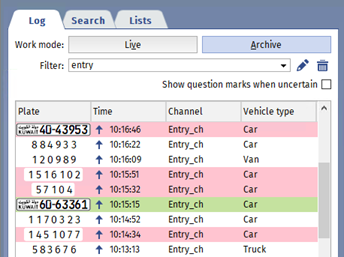
The Object sizes area lets you create a zone in which the vehicles will be detected. With the help of Minimum object size and Maximum object size parameters set the minimal and maximal sizes of the detected objects.

Object counting
The Object counting tab lets you set the zones, in which the vehicles will be detected and specify their borders. In order to create a new counting zone press  and set its vertices. Left click on the zone starting point or press CTRL+ENTER to finish the zone drawing.

Tip
Both traffic lanes and the adjacent territories can be taken as counting zones. You can create a zone of any form to avoid objects causing the false triggerings, such as parked cars.
You can enable colored border highlighting for each transport type. To do this, check the corresponding box and select a border color.
You can check the setting correctness in the operator's interface.
