
Important
The number of connected software controllers is determined by the number of LICENSE_PACS_SW_DEVICE licenses purchased in addition to the base TRASSIR ACS license on the server.
Available licenses are listed in the server settings on the tab License.
To connect a software controller, open the server settings, navigate to Plugins -> Access Control -> Devices, click Add, and in the menu that opens select Software Controller in the Family field.
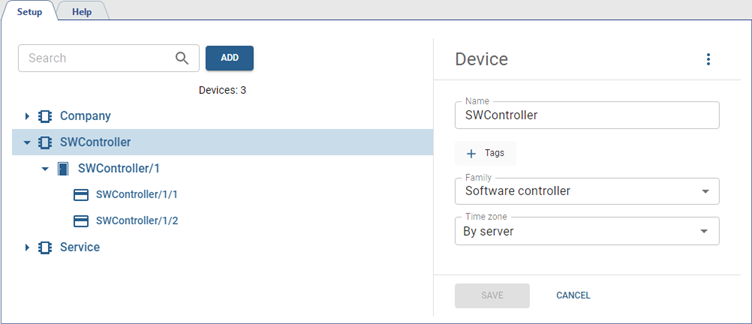
Add Tags to make it easier to find the controller among all added devices (see Tags).
If your controller and GPIO device are in different time zones, you can configure the Time Zone parameter. This allows the device's local time to be synchronized with its time zone while events are logged using the server's time.
Select an access point and configure its parameters.
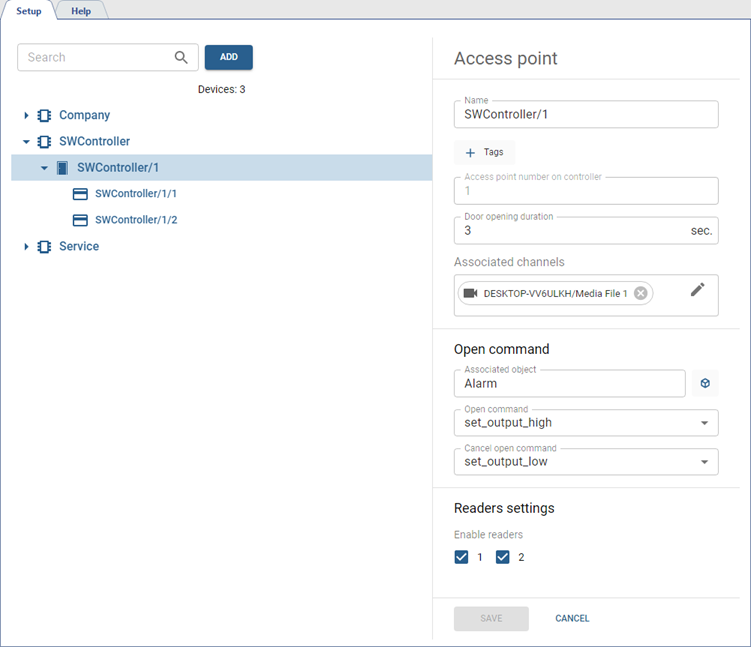
Configure the access point parameters:
- Name which will be displayed in the object tree>.
- Add Tags to make it easier to find the access point among all added devices (see Tags).
- In the Door opening duration field, select the duration for which the door lock will remain unlocked.
- In the Associated Channels field, select video channels to associate them with all events that occur and are logged at this access point. When reviewing events, video from these channels will be displayed in the TRASSIR ACS template or on the active monitor.
- In the Open command settings block, choose the Associated object, to which commands configured below will be sequentially sent, with the interval specified in the Door opening duration field.
- In the Readers settings block, specify the number of readers the access point will use for personnel authentication. Enable the flags next to the desired readers.
Select a reader, enter its Name, and choose its Location.
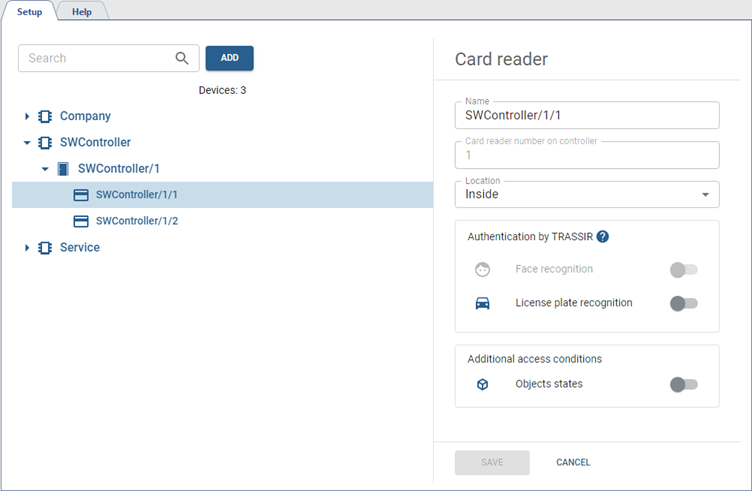
If necessary, configure additional reader settings.
-
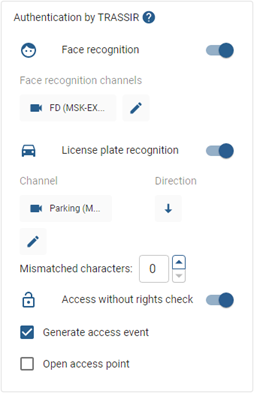
Server plugins can be used for authentication. Enable the appropriate plugin in the Authentication by TRASSIR setting and configure its parameters.
Table 108.
Important
The Face Recognition function is available only if the Face Recognizer plugin is enabled.
The number of video channels used for face recognition is determined by the number of corresponding licenses and the settings of the Face Recognizer plugin.
The face database will be used for the face recognition.
For more information on the Face Recognizer plugin settings, see TRASSIR Face Recognition.
If the Face Recognizer plugin will be used for authentication, then enable it, and in the Face Recognition Channels field, specify the video channels that will be used for authentication.

Important
The License Plate Recognition function is only available if the AutoTRASSIR plugin is enabled.
The number of video channels used for license plate recognition is determined by the number of corresponding licenses and the settings of the AutoTRASSIR plugin.
For more information on the AutoTRASSIR plugin settings, see AutoTRASSIR/AutoPass.
If the AutoTRASSIR plugin will be used for authentication, enable License plate recognition, and in the Channel field, specify the video channel that will be used for authentication.
Tip
The license plate numbers specified in personnel settings will be used for license plate recognition.
Select the direction of vehicle movement and define the error (from 0 to 3 Mismatched characters) with which the search for license plates in the person parameters will be performed.
Tip
For example, if the Mismatched symbols setting value is set to 1, and one of the person has the 6063361 number.
If AutoTRASSIR makes a one character error when recognizing a license plate number and instead of 6063361 recognizes 606336 or 4063361, the wrongly recognized number will match the person's number due to the set inaccuracy, and TRASSIR ACS will let the vehicle through.
Configure access without person identification in the Access without rights check group settings to simplify the process of vehicles entering or leaving the protected area.
Enable the Generate access event so that the ACS ignores access levels and generates an Access granted event for all vehicles with a number, which will appear in the Access Control Log of the operator interface.
If the Open access point is enabled, after generating the Access granted event, the command Open once will be sent to the access point.
-
Additional access conditions configuration
Table 109.
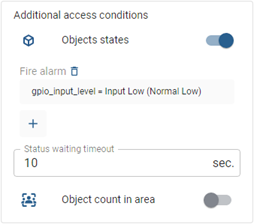
In the Additional access conditions setting, you can enable the Objects states option to specify GPIO input/output states required for access after successful identifier authentication.
Access will be granted only once—after the object's state changes to the one specified in the settings and within the time set in the Status waiting timeout field.
Based on the data received from the object counting in the area function (see Areas), you can configure the passage restriction based on the number of objects.
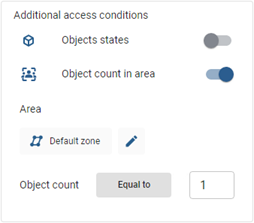
To determine the Object count in area, the video is analyzed by the Neuro detector plugin.
Important
The Object count in area function is available only if the Neuro detector plugin is enabled.
The number of video channels used for object recognition in the area is determined by the number of corresponding licenses and the settings of the Neuro Detector plugin.
All channels used to detect objects in an area must have an area defined. The area must be located as close as possible to the access point (turnstile or door).
For detailed Neuro Detector configuration, see TRASSIR Neuro Detector.
If you enable the Object count in area option, select the Area and set the Number of objects parameter, access will be allowed only if the number of objects in the selected area matches the value specified in the parameter.
- Greater than: access is allowed if the number of objects in the area is strictly greater than the specified value.
- Equal to: access is allowed if the number of objects in the area is equal to the specified value.
- Less than: access is allowed if the number of objects in the area is strictly less than the specified value.
Important
The number of readers used to detect objects in an area is determined by the number of LICENSE_PACS_VA_PASS_DETECTOR licenses purchased in addition to the base TRASSIR ACS license on the server.
Available licenses are listed in the server settings on the tab License.
-
Detection of passage violations
Table 110.
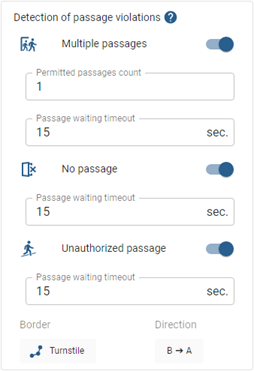
For Detection of passage violations, the video is analyzed by the Neuro detector plugin.
Important
The Detection of passage violations function is only available if the Neuro Detector plugin is enabled.
The number of video channels used for detection of passage violations is determined by the number of corresponding licenses and the settings of the Neuro Detector plugin.
All channels used to detect violations must have a passage border defined. The border must be located as close as possible to the access point (turnstile or door).
For detailed Neuro Detector configuration, see TRASSIR Neuro Detector.
In the settings, you can select the types of violations that will be detected when they occur:
- Multiple passages: crossing the border by several persons with one authorization (commonly called "tailgating" or "piggybacking").
- No passage: a person presents their ID without actually crossing the border.
- Unauthorized passage: crossing the border without presenting an ID.
For each detected violation, you must specify a Passage waiting timeout during which the Neuro Detector border is expected to be crossed.
For the Multiple passages violation, in the Permitted passages count parameter, specify the number of people who can pass through with one authorization, if this option is provided.
To configure the detection of passage violations, in the Border parameter, select the border previously defined in the Neuro Detector settings on the channel.
In the Direction parameter, specify the direction of movement of the persons.
Important
The number of readers used to detect passage violations is determined by the number of LICENSE_PACS_VA_PASS_DETECTOR licenses purchased in addition to the base TRASSIR ACS license on the server.
Available licenses are listed in the server settings on the tab License.
