
You can add the following interactive objects to the created map:
- camera channels;
- Access Control devices (including TRASSIR ACS devices);
- floor areas;
- "Automation" module elements (scripts, rules, schedules);
- and other CCTV objects.
Important
You can add the Floor area to the map only after its creation and calibration. Read more in Floor mapping settings.
Follow the next steps to add an object to the map:
-
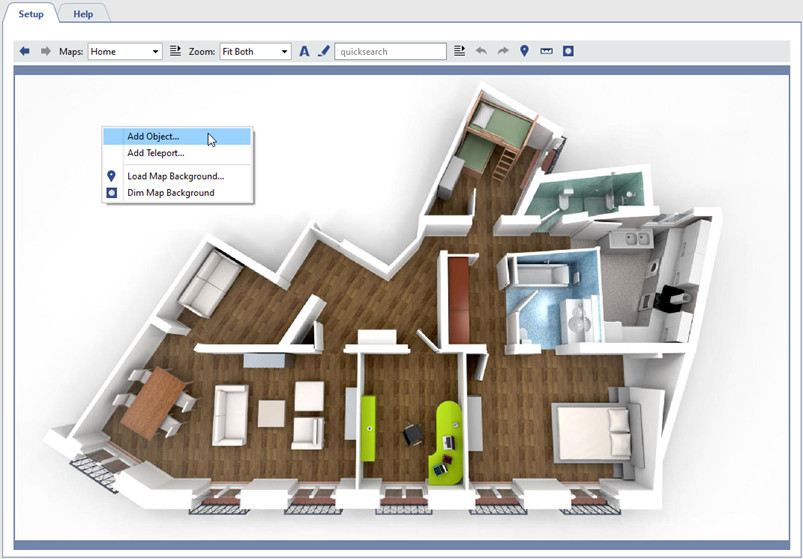
Right-click anywhere on the map and choose Add object in the context menu.
-
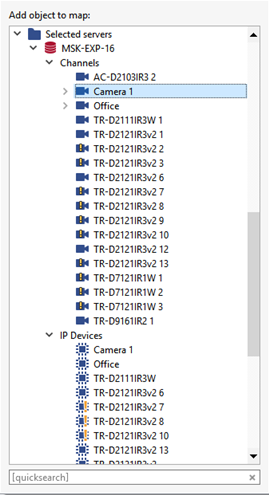
In the opened window, select the object to add to the map.
-
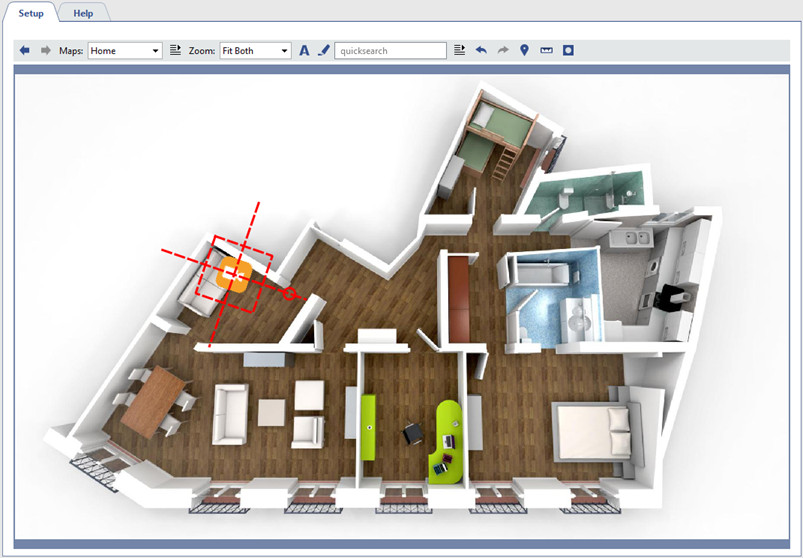
Place the object to the required spot on the map.
In order to rotate an object or zoom in/out, click on the red circle and change the angle or scale of the object on the map.
Tip
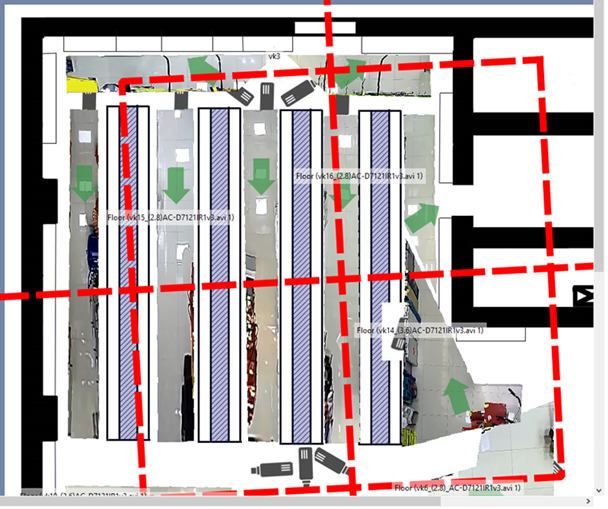
While adjusting the position of the Floor area object on the map, you should change the rotation angle and dimensions so that the area with the image coincides with the plan on the map.
In order to adjust the position of the Floor area object on the map more precisely, click
 and using the grid and the Pixels per metersetting, adjust the image scale. The grid lines on the image are placed in intervals of 1 meter.
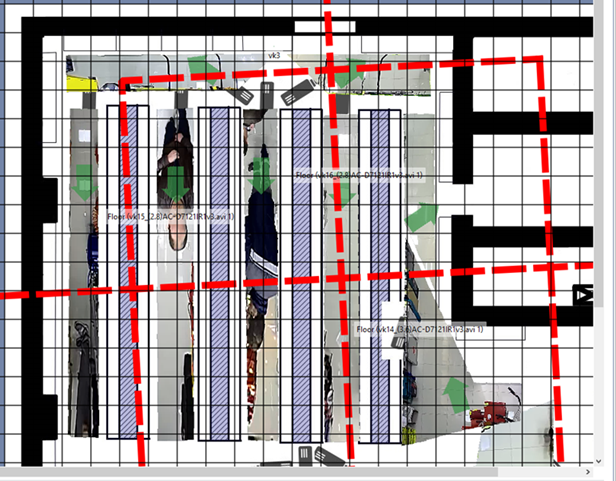
-
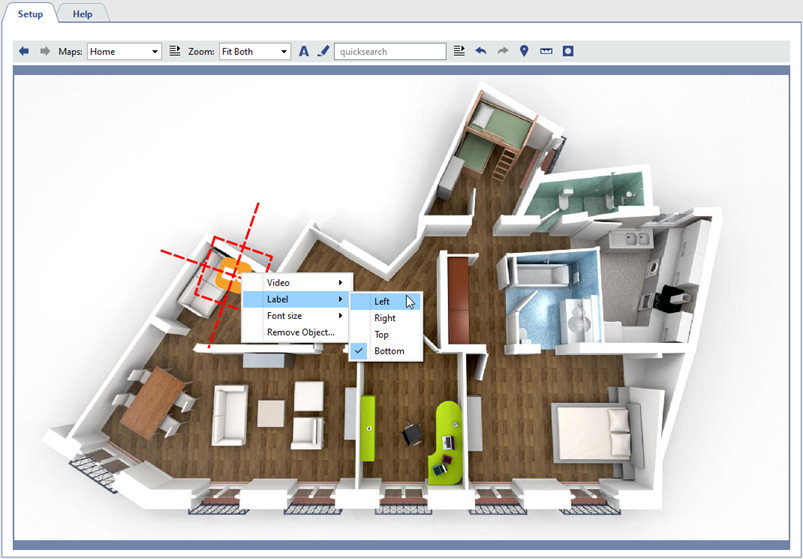
Select the display option for the label next to the object. To do this, select the object, right-click and, in the context menu that opens, select Label and the display option.
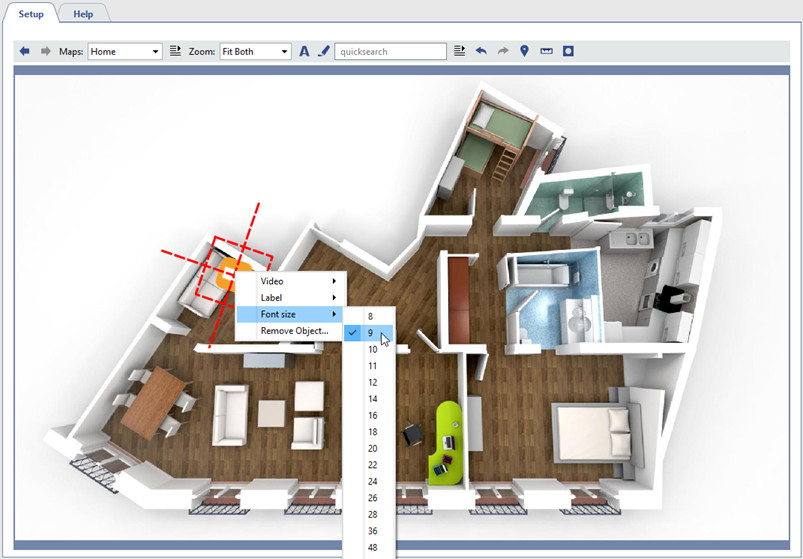
In order to set the font size of the label, select Font size and set the desired size.
Tip
The labels next to the objects are hidden by default. To display them, click
 .
.
-
Depending on the object type, configure additional display options:
-
Configure video parameters for the Channel object:
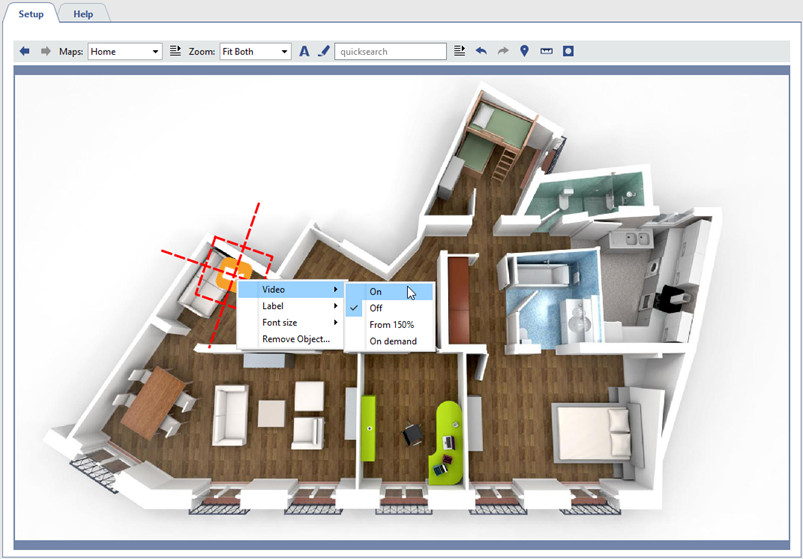
"Disable" - if the camera's video does not need to be displayed on the map.
"Enable" - if the camera's video needs to be displayed on the map.
"Enable at 150% zoom" - if the video should be displayed only when the map's zoom level is 150% or more.
"On demand"—if videos are only need to be opened on demand by double clicking the channel icon.
Tip
After making your selection, the video display area will be shown. If desired, you can change the area's size and location on the map.
-
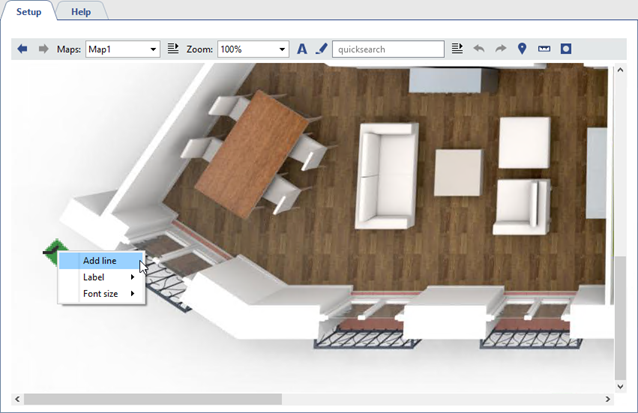
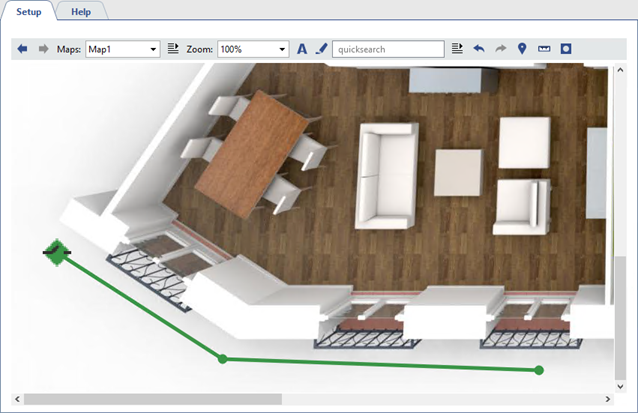
You can add a line on the map for the Alarm input object. If the alarm input state changes, the line will also change its color.
To add a line to the map, select Add Line and set the points through which it will pass. To finish drawing the line, put the cursor on the last point and double-click the left mouse button.
-
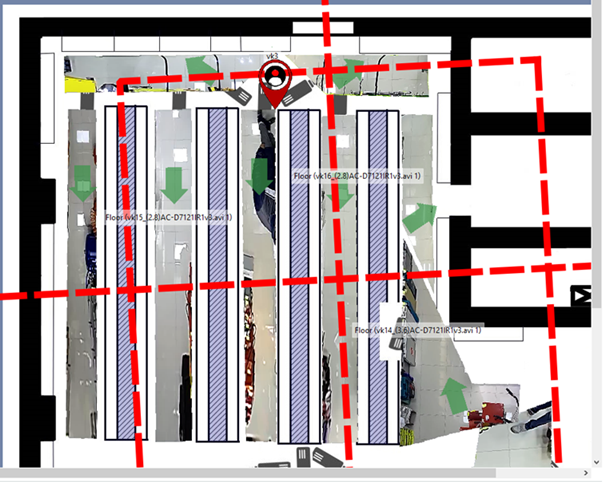
You can change the size of the marker that shows the location of the person on the map for the Floor area object. To do this press
 , and adjust the Person marker size.
-
