
Camera image quality indicator CiQi is neural network plugin designed to assess the quality of images from street video surveillance cameras. Its purpose is to analyze sharpness, contrast, color and other image parameters. The plugin makes it possible to enhance control over the territory, increase the efficiency of security services and respond to events.
These are some examples of problems to which the plugin reacts: dirt on the lens, obstacles in front of the camera, environmental changes, and technical issues.
Important
Camera image quality indicator CiQi operation peculiarities:
-
The plugin works on NeuroStation network video recorders or any video recorder of version 4.x connected to the NeuroStation server and using it as Analytics Server. For more information on server connection, check Connecting to a new server.
-
Check the Enable remote analytics flag in the user's settings, which will be connected to the analytics server.
- In the analytics server settings, on the Analytics tab, one or more GPUs must have CiQi Detector enabled. For more details, see Analytics.
To activate the plugin, in Channel Settings in the Software detectors area, select Camera image quality indicator and select Server, which will calculate analytics.
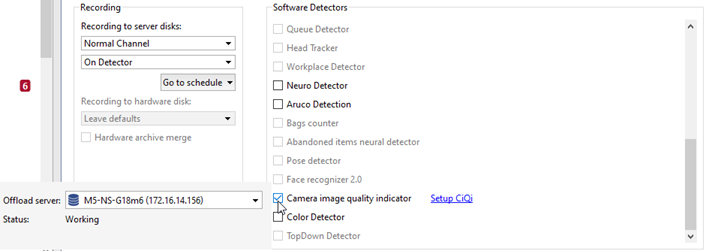
Press Setup CiQi. The detector's settings window will open.
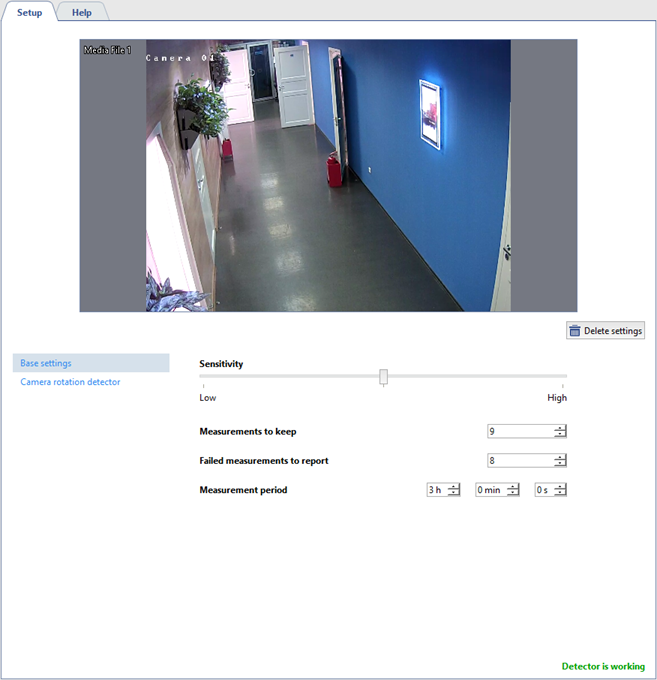
In the detector's base settings you should:
- Set the detector's Sensitivity. A higher value increases sensitivity to image changes, but also increases the probability of false alarms.
- Specify the number of measurements in the Measurements to keep settings. It will determine the number of measurements the detector keeps.
- In the Failed measurements to report setting, select the number of measurements after which the detector will send a message about changes in the image quality.
- Define the Measurement period - the time period, after which the detector will measure the image quality.
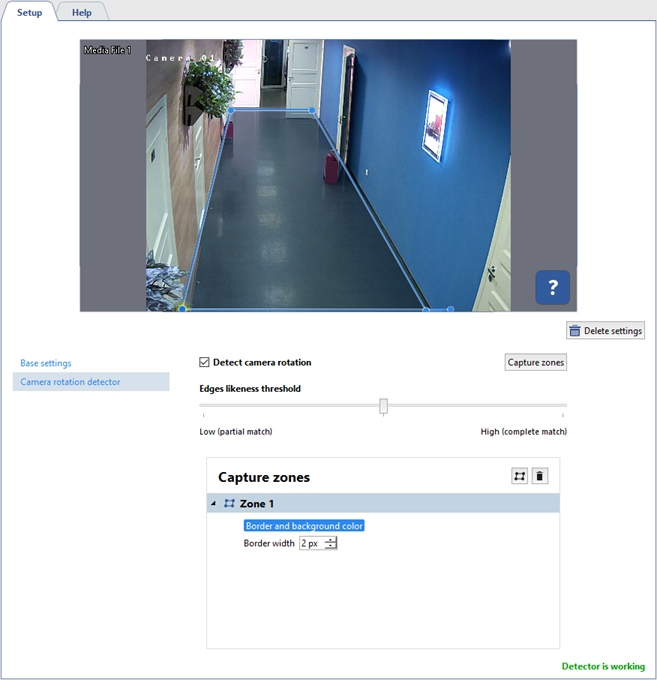
In the Camera rotation detector settings block, you should:
- Set the Enable camera rotation detector flag so that the detector starts analyzing the video stream and tries to determine if the camera is rotated from its normal position.
- Set up Edges likeness threshold. This setting determines the level of object boundaries similarity in the image that the system will use to detect camera rotation. The higher the threshold is, the stronger is the similarity of the object boundaries to be detected to consider the camera rotated. This allows you to avoid false positives due to the noise or other artifacts in the image.
- Select Capture zones. Specify one area of the image to be analyzed by the detector to determine the camera rotation. Setting the correct capture zone can enhance the accuracy of the analysis and eliminate unnecessary objects or background from consideration.
Tip
Enable CiQi Detector figure display to monitor changes in the detector's operation (see section Camera window interface settings).
