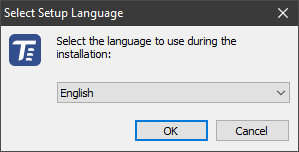
Run the executable file, select your language and press OK.
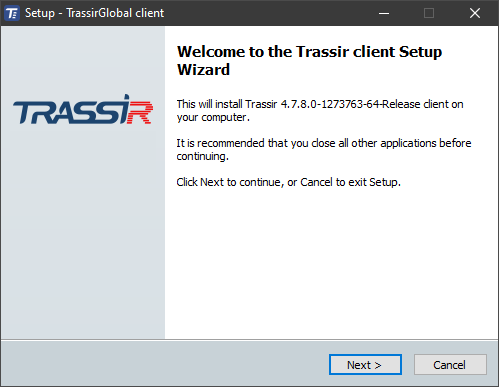
An installation wizard will start after the language selection. Press Next.
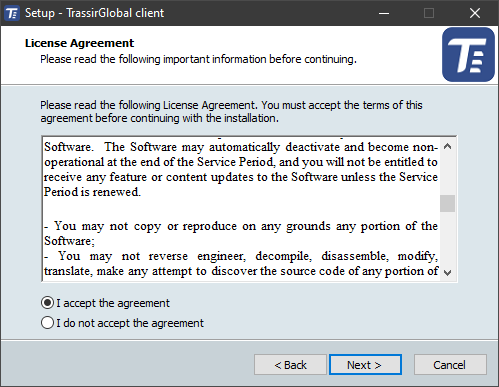
You can review the text of the license agreement on the License agreement screen. After reviewing the agreement, select I accept the agreement and click Next.
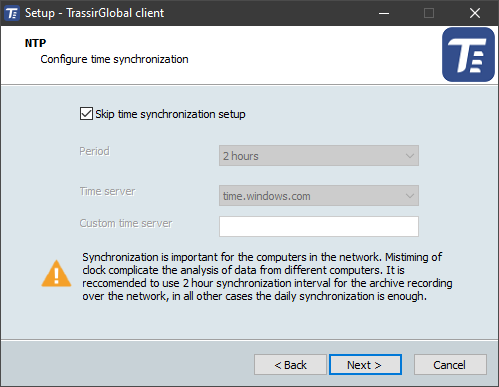
Next step, the installation wizard will ask you to configure the time synchronization service (NTP). Select a synchronization Period and Time server. You can also specify the address of an arbitrary NTP server or cancel the configuration of NTP by setting the Skip time synchronization setup checkbox. Click Next.
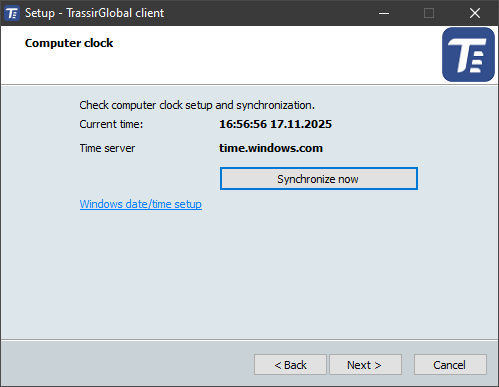
The installation wizard will ask you to verify the correctness of the server current date and time. You can synchronize time using an NTP server by clicking the corresponding button, or click the Windows date/time setup link to quickly navigate to the settings window. Click Next.
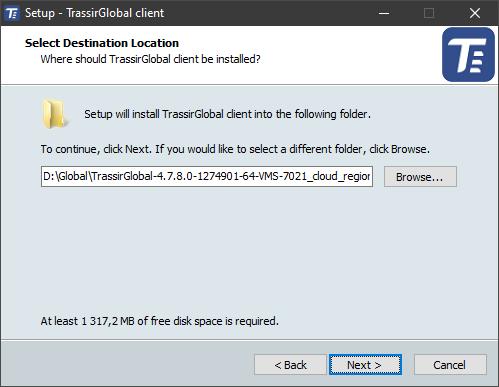
Specify the installation folder manually or by using the Browse button. Click the Next button after that.
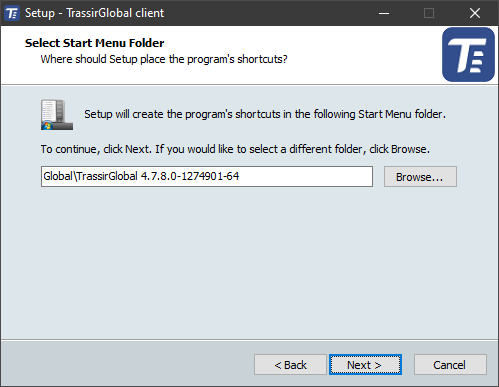
Specify the Start Menu folder where application shortcuts will be created. Click Next.
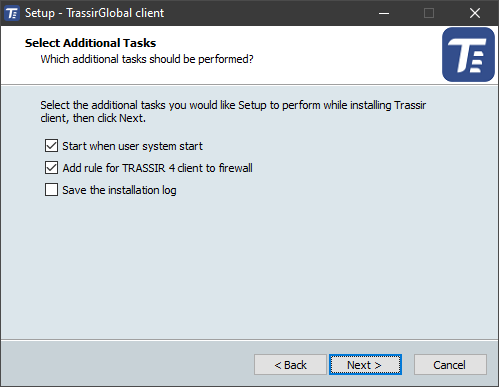
Select any additional installation settings. Automatically launching the application makes it possible to bring the system back in operation in case of server hardware failures, for example, an unreliable supply of electricity to the site. If you plan to use the standard Windows Firewall, then set the Add rule to firewall checkbox. Click Next.
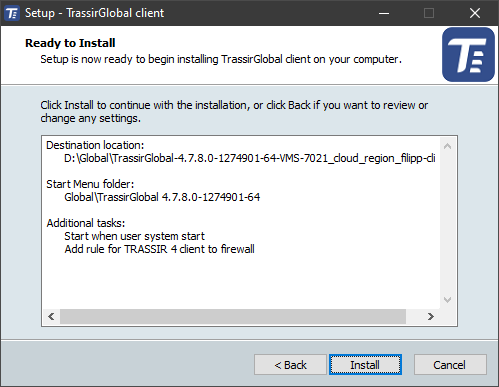
The wizard will show the selected installation parameters in the final step. Click the Install button.
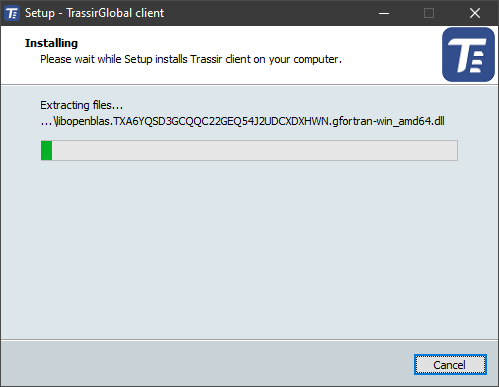
The files will begin to be copied.
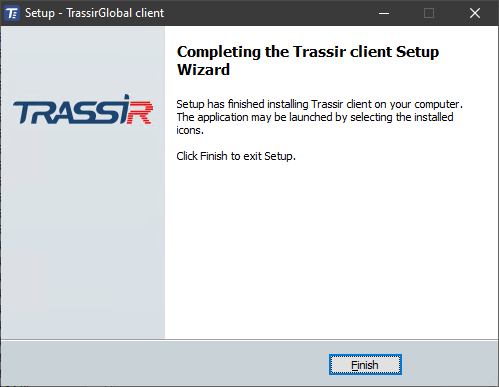
Click Finish to complete the installation.