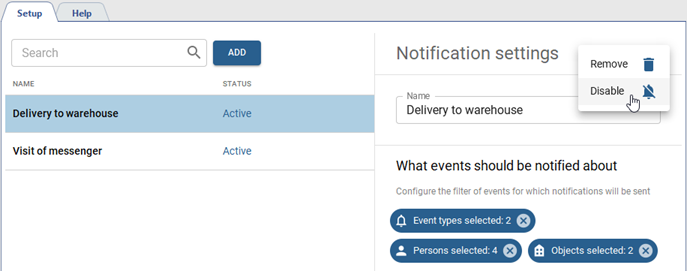
This section lets you create and edit notifications on various events, occurred in TRASSIR ACS.
Go to Plugins->Access Control->Notifications to open.
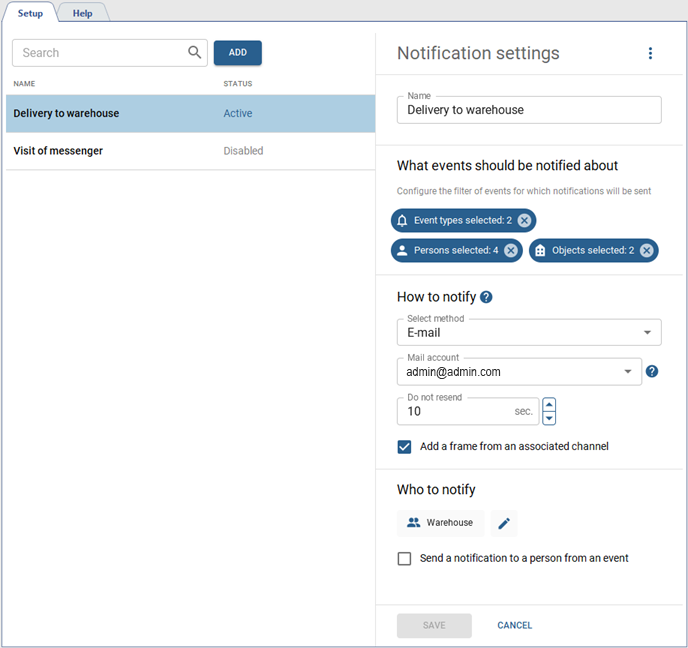
Press Add to create a new notification and follow the next steps:
- Enter the name of the notification
-
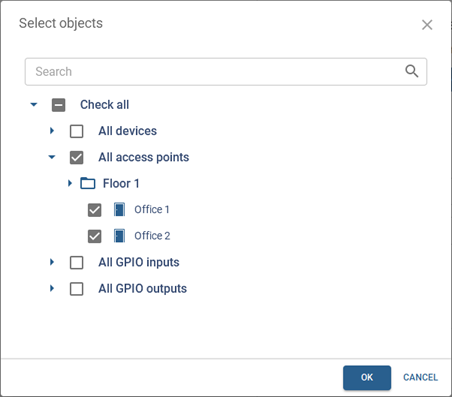
Select the events to be notified by specifying the Event Types, Persons and Objects:
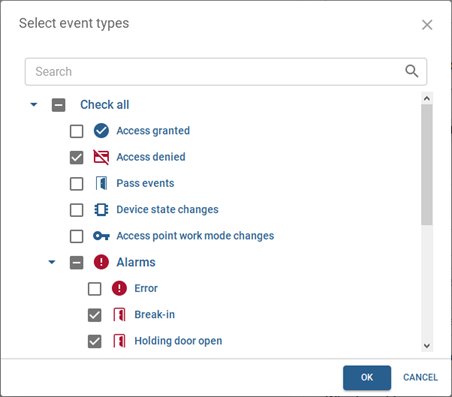
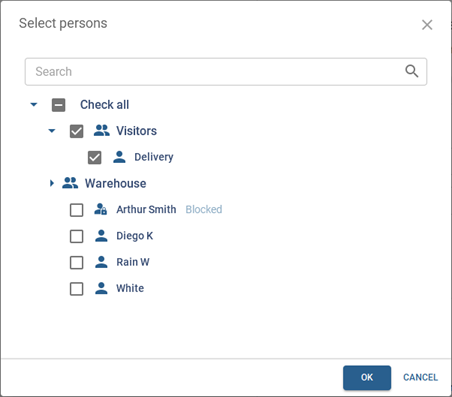
-
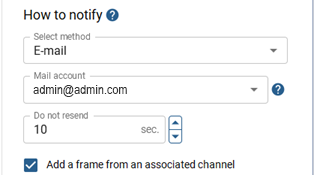
Choose the way of sending notifications:
Tip
If the Email is selected, then select the account configured in Automation in the Login field. TRASSIR ACS will use it to send notifications.
Specify the time interval, during which TRASSIR ACS will not send the same notifications, in the Do not resend field.
Set the Add a frame from an associated channel to add a screenshot from the channel, taken at the moment of the monitored event, to each notification. For more information about adding related channels, see Devices.
-
Select the recipients who will receive notifications when the monitored events occur. You can select only one of these options:
- specify the TRASSIR ACS groups or persons who will be notified when an event occurs;
- set the Send a notification to a person from an event flag, to notify the person with whom the event occurred.
Tip
The notifications are sent to the addressees at the contact information specified in the person's settings.
You can disable any notification by selecting Disable in the notification settings.