
In order to find the required person, you can use the filter that searches for a person not only by name but also by company, job title, time card number, access card, license plate number, additional fields, and tags when assigned (see Tags).

Actions with one person
To enter the single-person action mode, press  next to the photo and select the appropriate menu item.

-
Print a pass
To print a pass, select Print a pass and, in the window that opens, select a layout option.
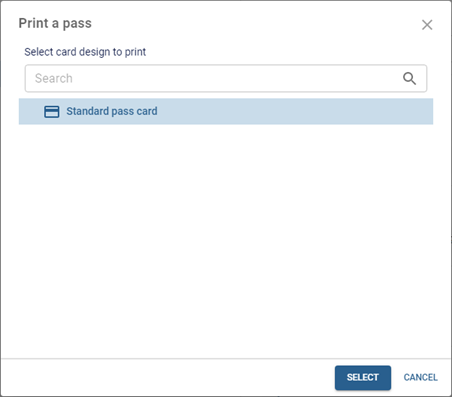

Click Print to open the preview window with additional print settings.

Tip
The Print passes feature is available only with the corresponding license.
Print preview is available only in TRASSIR for Windows.
The process of pass layout creation is described in Pass design.
-
Synchronization log review
Select Synchronization Log to open a list of person IDs that have been sent to all devices available to this person and their status.

-
Locking/unlocking a person
In order to block a person, select the corresponding menu item and specify the date when the person is automatically unlocked in the opened window, if necessary.

The blocked person will be marked with a corresponding icon and caption. You can unblock it any time by pressing Unblock.

Actions with several persons
To enter the multi-person action mode, press  and select the appropriate menu item.

Tip
The Person extra fields and Import persons features are described in Creating a new person
-
Mass parameter assignment
Select Mass parameter assignment to enter the mass person parameter modification mode. Next, select the required persons and the parameters to be assigned to those persons.

-
Moving of persons
The Moving of the persons features works the same way. Instead of parameters, you need to select the group to which the selected persons will be moved.

-
Print a pass
Select Print passes to print out the pass cards. After that, select persons or group of persons for which you want to print pass cards and click Print.

In the window that opens, select a layout option.

Click Print to open the preview window with additional print settings.
Important
The Print passes feature is available with a LICENSE_PACS_PRINT license purchased in addition to the base TRASSIR ACS license on the server.
Available licenses are listed in the server settings on the tab License.
Tip
Print preview is available only in TRASSIR for Windows.
The process of pass layout creation is described in Pass design.
