
This section allows you to set a LDAP server connection. After the setup, the connection will be used to automatically update and synchronize persons data.
Important
TRASSIR ACS supports synchronization with LDAP servers using LDAPv3 protocol and Basic authentication.
Data synchronization is available with a LICENSE_PACS_SYNC_LDAP license purchased in addition to the base TRASSIR ACS license on the server.
Available licenses are listed in the server settings on the tab License.
To open the section go to Plugins -> Access Control -> Data synchronization.
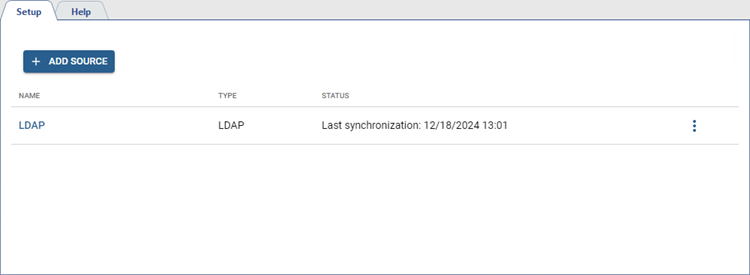
To create new connection press Add source, select LDAP and perform the following:
-
Enter the Name of the source.
-
Setup a LDAP server connection.
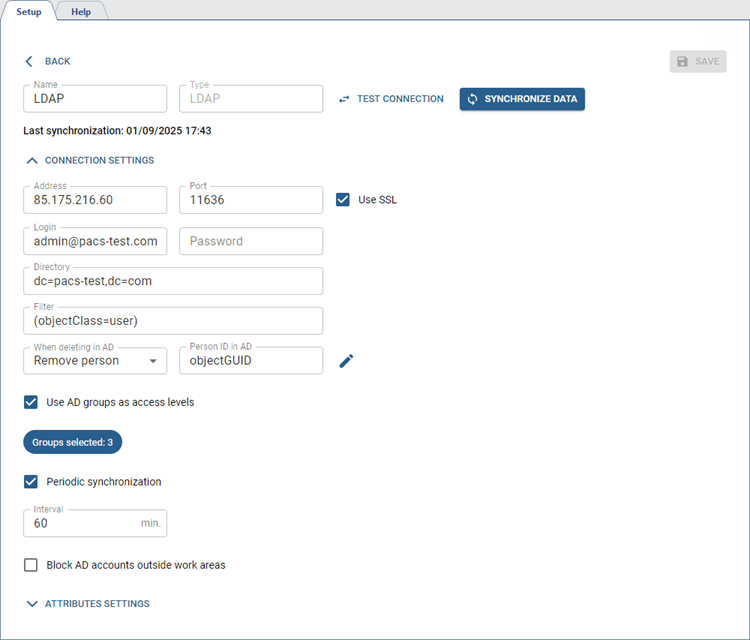
The server connection settings window opens, fill the fields: Address, Port, Login and Password.
To test the connection press Test connection.
-
Set the synchronization parameters.
Enter a LDAP tree search start point in the Directory field to indicate the section to execute the data requests in (e.g., a division or organization). Use the Filter field to enter conditions to limit the list of persons to be synchronized (e.g., active users or certain roles).
In When deleting in AD select what to do when deleting an Access Control person from a LDAP server: Remove person or Block person.
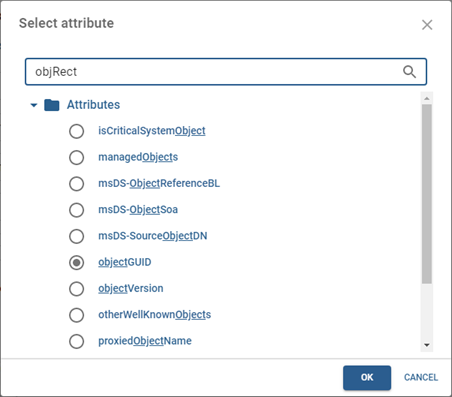
Press
 next to Person ID in AD and select an attribute to use as a unique person ID for data synchronization.
-
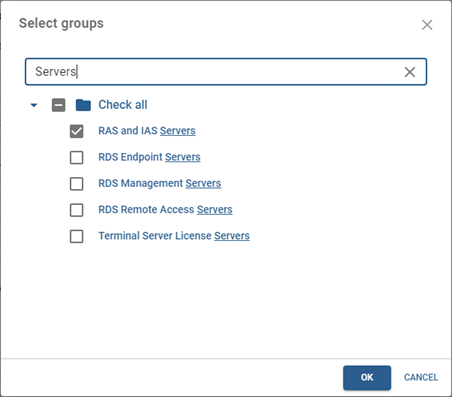
To use server groups set on the LDAP server as access levels, check Use AD groups as access levels and select groups.
-
Set the synchronization interval.
Check Periodic synchronization and enter the time interval for the synchronization.
-
Check Block AD accounts outside work areas. As a result, the Active Directory account will be available to the person only within their work area. Otherwise, the account will be blocked on the LDAP server until the person returns to their work area.
Important
The block will work under the following conditions:
- Work areas are present in the Access Control settings (see Areas).
- An Active Directory account and work areas are selected for the person (see Creating a new person).
The Active Directory account will not be blocked for a person, if it matches the username in the LDAP server connection settings.
-
Select the synchronization attributes.
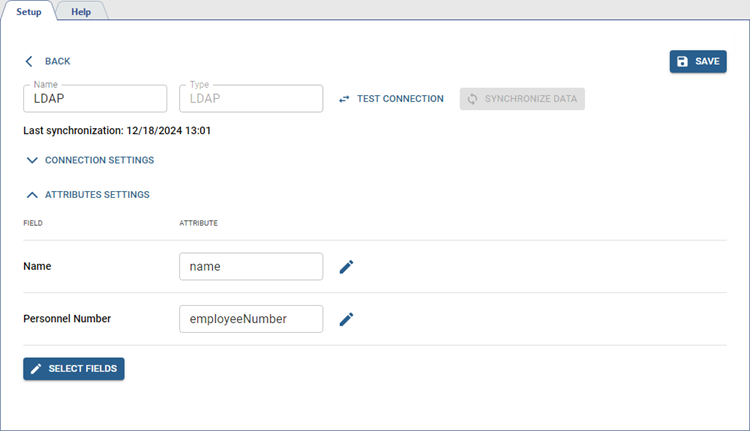
Press Select Fields and select the person attributes to be filled with data from the LDAP server.
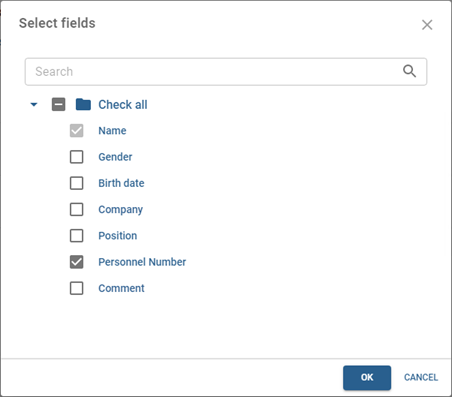
To select the LDAP server user attribute to be placed in the field press
and select it from the list.
-
Save the connection parameters. Press Synchronize data to start the synchronization.
Tip
If the synchronization is successful:
- In the Personnel section, a group named as in the field Name will be created with the list of persons downloaded from the server.
- Fields selected to be used as the synchronization attributes will be inaccessible to edit for all downloaded persons.
- In the Access levels section, the access levels will be created corresponding to the groups in the connection settings.
