
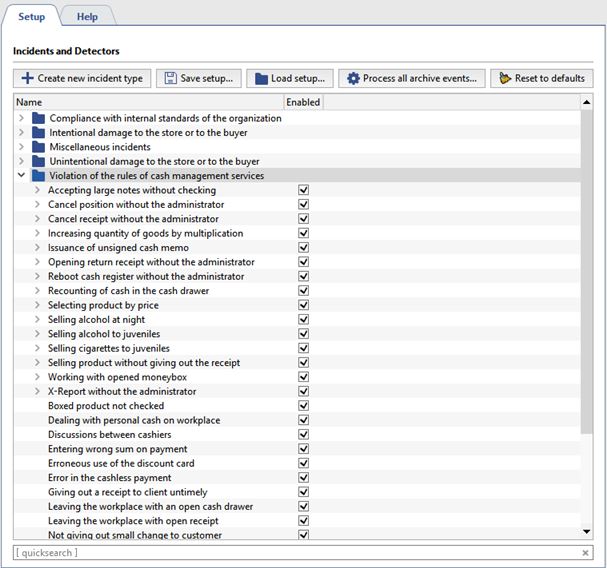
Incidents are special events resulting from an analysis of personnel actions. They represent violations of a retail outlet's established operating rules.
For example:
- Violation of cash-handling rules: "Sale receipt printed without signature", "Product released without receipt", etc.
- Violations causing intentional or unintentional harm to the organization or customers: "Simulated product scanning", "Product sold with understated weight", etc.
- Violations resulting from failure to comply with internal company standards: "Store opened late", "Cell phone used", etc.
- And so forth.
Tip
You can use quick contextual search to quickly find an incident.
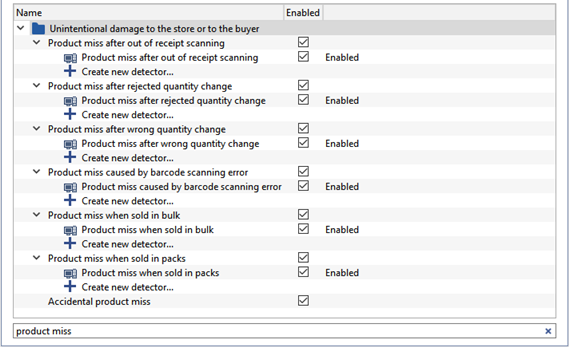
You can use the following types of incidents:
- Automatically detected - Incidents are detected using configured detectors.
- Manually detected - Incidents whose confirmation requires operator involvement. See the Operator's Guide (ActivePOS incidents) for a description of manually detected incidents and how to confirm them.
To begin incident detection, set the checkbox next to the desired incident. When using automatically detected incidents, set the checkbox for the corresponding detector.
In order to create incident and detector settings backup copy and transfer them to the other server, press Save settings... button and select the folder. On default setting will be saved to the file pos_detectors.xml. Press Load settings... button in the other server's settings and select the file saved earlier.
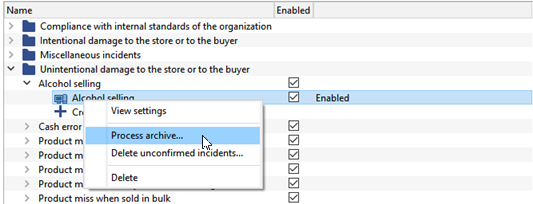
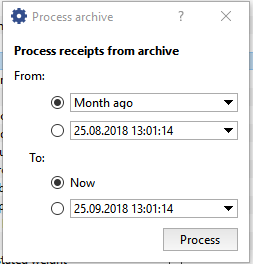
In case during the operation any detector has been deactivated and the staff activities analysis has not been performed, you can activate it at any time and process the archive of receipt which has been already saved with it. To do this, mark the required detector in the list and select Archive processing... item in context menu. Specify the period of time, the receipts of which should be processed by this detector in the opened window and press Process.
Tip
In order to process the whole archive of events, press Process all archived events... button.
Important
In order to reset all done settings of incidents and detectors used by them, press Restore default values button.
