Tip
Floor mapping is designed for transferring image from camera to the floor surface. It is required for showing people movement on map, detected by Neuro detector. It is also required for building heatmap.
To activate the plugin go to Channel settings to the Software detectors settings area and select Floor mapping. Click Floor mapping setup link to open the settings window.
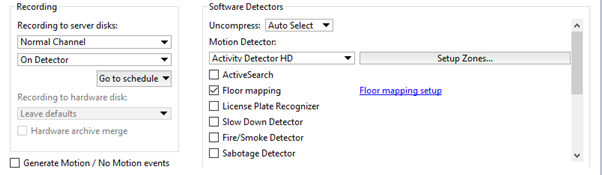
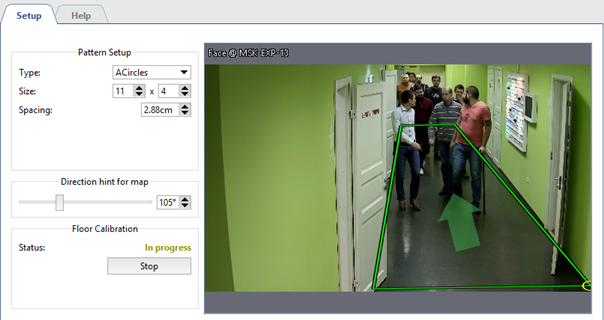
Th detector settings window will open:
Important
The plugin is configured by calibration with the help of a special template.
Prior to the calibration:
-
Please contact technical support to receive the calibration template.
-
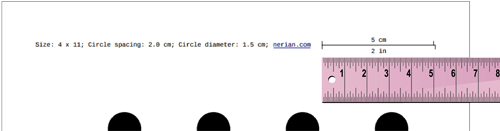
Print the template in 1:1 scale on an A2 or larger sheet.
-
Check the scale of the received template using the ruler.
Settings
-
Make the plugin preset
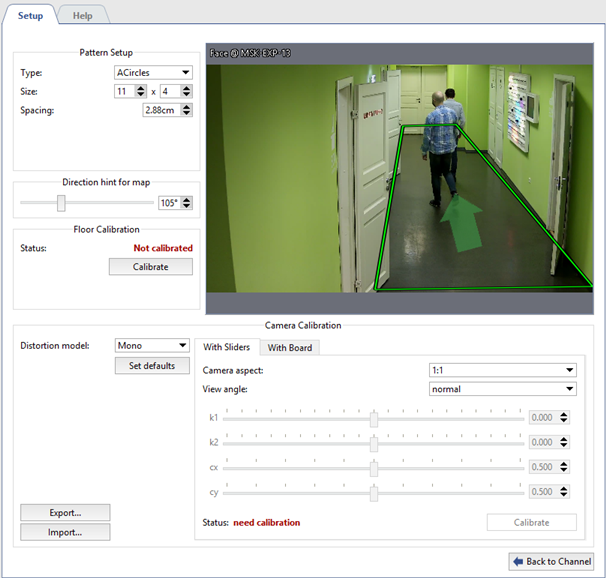
In the Pattern Setup group of settings enter the parameters of the template to perform calibration. All required parameters are specified in the template.
- Type - the type of the template.
- Size - number of lines and rows.
- Spacing - the distance between the template items.
-
Floor calibration
Before starting the calibration, put template on the floor in such a way to ensure its coming into image coverage in full . Click Calibrate in Floor calibration settings group and wait for the calibration completion. Calibration is deemed to be completed when the value in Statuschanges to Calibrated.
Tip
Floor calibration is not required in case of using Fisheyecameras.
Important
Floor re-calibration is required in case of the change of:
- camera installation location;
- camera tilting angle;
- focal distance of the lens.
-
Camera calibration
To start with select the Distortion model installed on the camera: Mono or Fisheye.
Further calibration of camera can be done in two ways:
-
With sliders
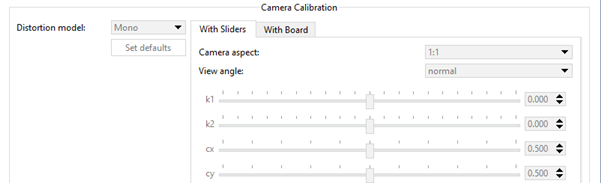
On the "With sliders" tab in Camera aspect and View angle fields select height-to-width aspect of maximum resolution and lens vision's horizontal angle.
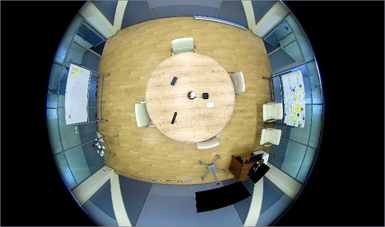
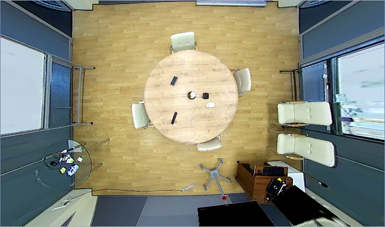
Then on click Calibrate and changing the sliders adjust the image deterioration in such a way to make all straight lines in real life (walls and floor borders, door and window reveals, etc.) straight in the image. On completion, click on Stop.
-
Camera calibration with board
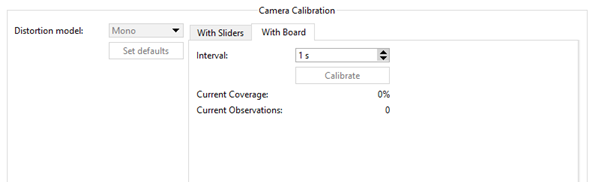
On the With board tab in Interval field enter the time which will pass between neighboring calibrations.
Further on calibration shall be done as follows: one person shows a template to the camera in various points of the shooting area and the other person clicks Calibrate and monitors the changes in the values of Current Coverage and Current Observations.
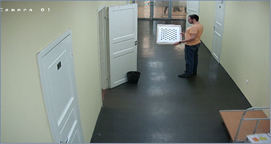
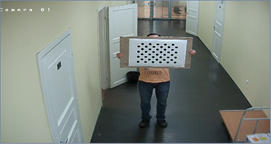
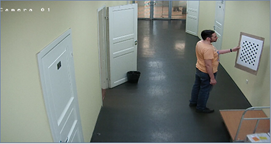
The calibration is considered to be completed when the Current coverage parameters will exceed 80%. Click Stop,to stop calibration and fix the result.
Tip
Set defaults resets the camera calibration settings.
The camera calibration depends on the camera model and lens installed on it. Thus making single camera calibration you can conduct Export / Import of settings to the other camera of the same model and with the same lens.
-
-
Floor area marking
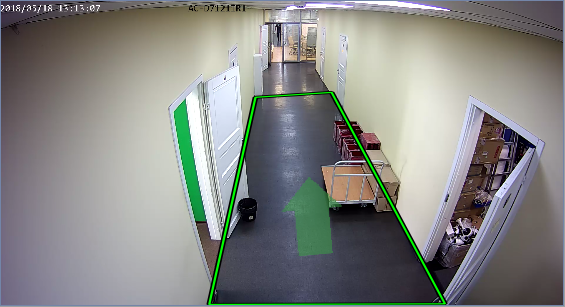
Modify the position of the rectangle points in such a way to make the marked area to enframe all visible surface of the floor. If necessary, add the desired number of points using the context menu.
Further on, to ensure the correct floor area location on the map, you'll need to orient it in space. To do this using Direction hint for map direct an arrow in such a way to direct it on the one of the walls or make parallel to the passage.
-
Calibration validity check
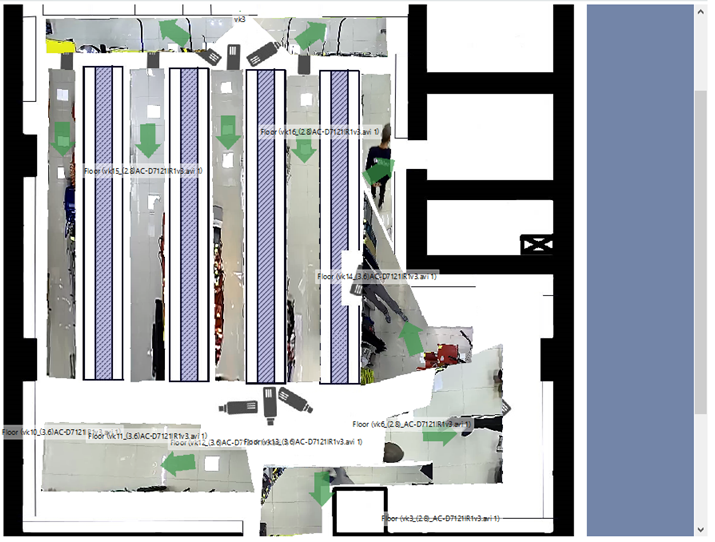
Calibration validity test can be done by adding floor area on the map. Under correct settings floor area will be maximum approximated to the plan.