
The Wall tab lets you manage your video surveillance system. You can watch video and archive from cameras and video recorders, connected to TRASSIR CMS.
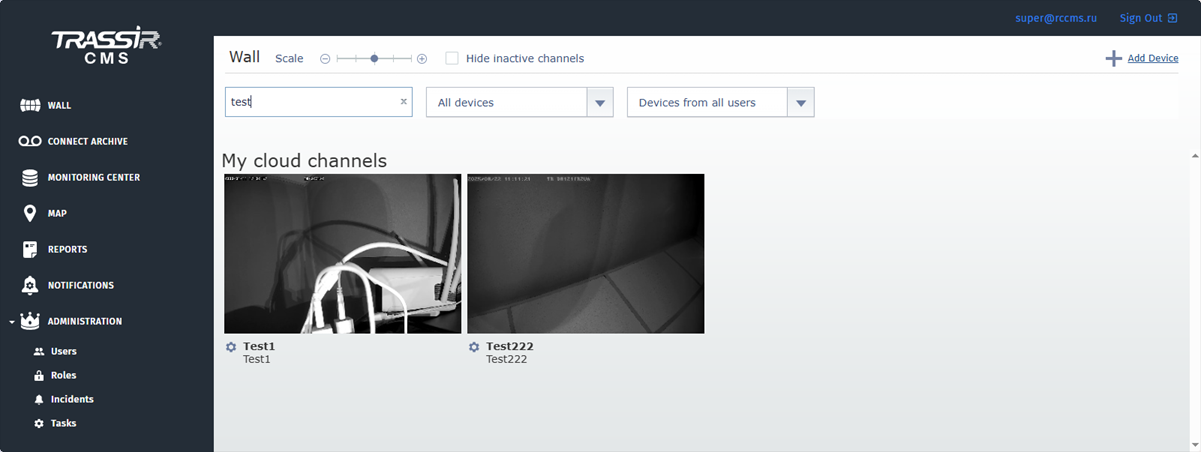
All connected devices and channels are displayed on TRASSIR CMS wall by default. In order to hide the channels for which only the archive is available, check the Hide inactive channels box. The Scale will help you to adjust the preview size. Use filters to search for a channel or a device by name or display certain channels only.

Tip
The Add device link opens the new device to TRASSIR CMS connection window. Read more in Connecting devices.
The buttons on video screen enable the following device functions:
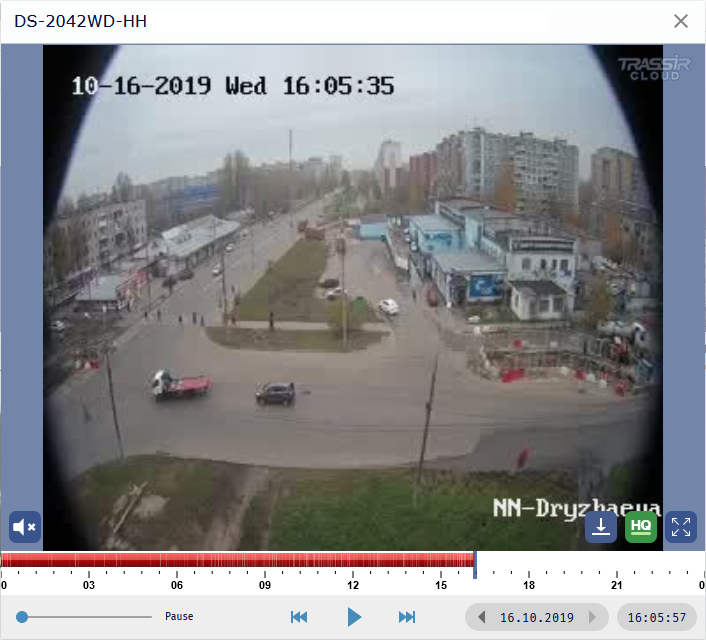
Table 141.
 |
Play camera video in real time |
 |
Spread video to fullscreen |
 |
Escape the fullscreen mode You can also escape the fullscreen mode by pressing Esc. |
 |
Mainstream is playing Press the button to switch to substream. |
 |
Substream is playing Press the button to switch to mainstream. |
 |
Sound is on Press the button to turn the sound off. |
 |
Sound is off Press the button to turn the sound on. |
 |
Open cloud archive You can use a built-in video player to watch the cloud device archive. Use control buttons to mange the archive playback. The timescale lets you quickly find and jump to the required archive fragment. TipThe archive review is only available on those cameras where the corresponding service is added. |
 |
Open device archive |
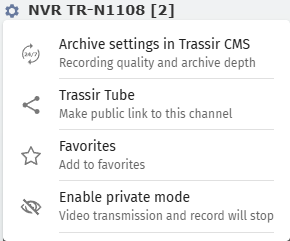
The Wall section also lets customize settings of any device, connected to TRASSIR CMS. Press the button near the channel name in the list to:
- Parameters - view and customize the device parameters.
- Archive settings in Trassir CMS - review and configure archive parameters.
- TRASSIR Tube - generate a public link for the channel view.
- Favorites - add channel to favorites.
- Health history - open the status log of the device.
- Settings - open the camera settings page.
- Enable private mode - play and record video from camera only by play button on the video.
- Delete - delete device.
Tip
The set of context menu items depends on the device type (camera or server) and the user rights in the assigned role. Read more about user rights in Roles.
