
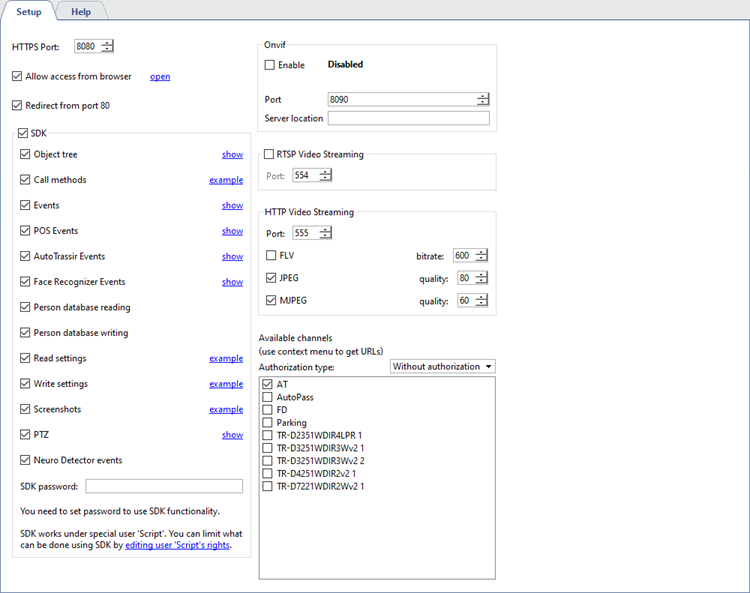
Check SDK flag to enable access to server via SDK.
Depending on the functionality you are going to use, you should set the corresponding flags: Object Tree, Call Methods, Events, POS Events, AutoTRASSIR Events, Read Settings, Screenshots, PTZ, etc. You can use the item links for quick performance check of one or another feature, as well as a hint to the command syntax. If you wish to get video from the server or play the archive, check the following flags: FLV, JPEG, MJPEG.
Tip
See detailed description of features in TRASSIR SDK.
You can change the Port which will be used to connect to server, if necessary. The default value is 8080.
Enter the password that will be used to get session or send commands when working through the SDK password in the SDK password field.
Warning
Access to SDK features is possible only in case SDK Password is entered.
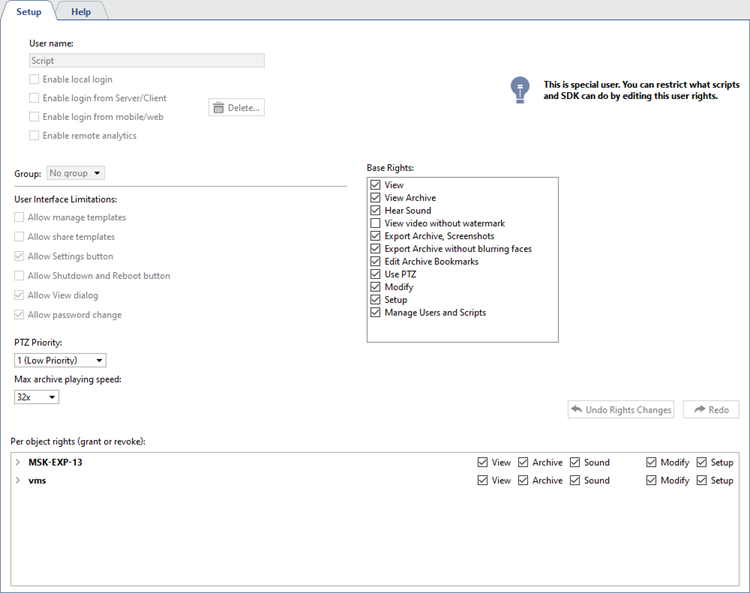
The user account for working with the SDK must have rights to use the required functions. When working by specifying the SDK password, you must configure the necessary rights for the Script service user.
TRASSIR has its own WEB interface, where you can configure the server and watch video from cameras. You can access the WEB interface from any browser if Allow access from browser is checked. Click on the link next to the checkbox and you will open the server's WEB interface. For more information on connecting to the server from a browser, see Access to TRASSIR WEB interface.
Tip
Check the Redirect from port 80 box to use only the server IP address in the browser address bar to access the WEB interface.
In order to connect to the server via the Onvif protocol, set the Enable flag in the Onvif settings group, select the connection port and enter a phrase that can be used to find the server in the local network in the Server location field.
In order to activate RTSP Video Streaming check the corresponding box and select the connection port.
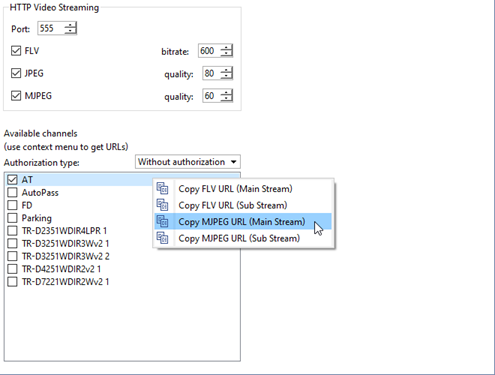
To enable the HTTP Video Streaming function, check the box next to the stream format: MJPEG or FLV, which will be used to transmit the video stream, and set the streaming quality. Below in the list, select the desired channels by checking the boxes next to them, and then copy the stream link from the context menu.
Warning
When connecting to the server via Cloud Connect, the current connection route is used during the process of generating a link to the video stream, which does not allow creating a link of the correct format, and the video stream via such a link may not be available.
If you need to set up streaming, use Server Address as the Connection Method (see Connecting to a new server).
