
To create a new group, go to Plugins -> Access Control Enterprise -> Personnel, press Add and selectGroup.
After that:
-
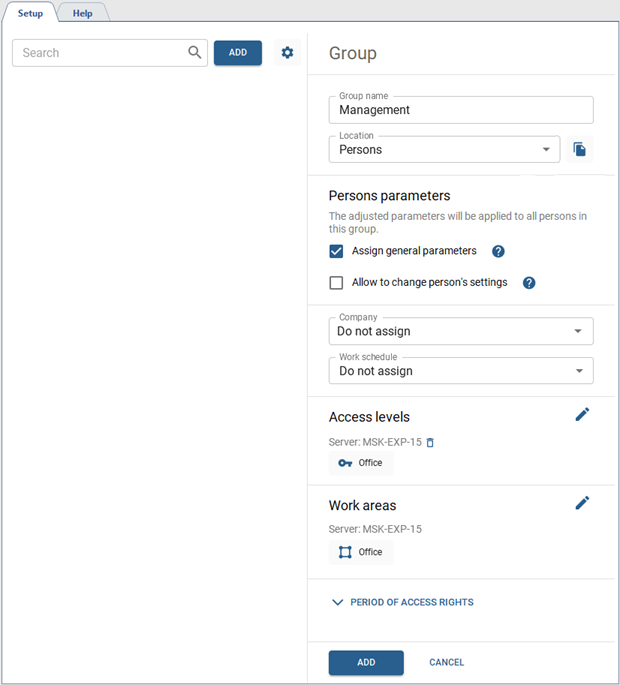
Enter a Group Name, which can be used to search for this group and the people in it.
-
Select the Location of the group in the persons tree.
Click
 next to the Location field, to save the current group location to the clipboard. It can be used when creating a file to import new persons into the same group.
-
Set the Assign general parameters flag to let the group parameters be inherited by all the persons added to this group.
Set the parameter values that will be automatically assigned to all persons in that group.
All assigned parameters will become unavailable for the person in the group after the saving. In order to keep the editing options, set the Allow to change person's settings flag.
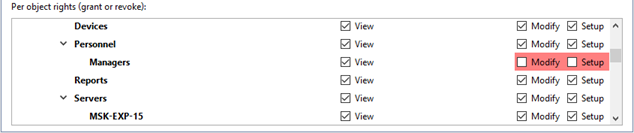
You can use the rights to the individual server objects to set different options to access the viewing and editing functions of the person groups themselves, as well as the persons in the groups.
The rights are located on the rights tree at: Server name -> Plugins -> Access Control Enterprise -> Personnel.
-
If a person group has the View right, it will be displayed in the Personnel, Work Schedules and Access Levels tabs, but the Person and the Group settings editing function will not be available.
The groups of persons that have the View right disabled on the tabs will not be displayed. However, they will be displayed if their subgroups have the View right disabled.
-
The person group with the Modify right enabled can not create new groups, but can create new persons in the existing groups and modify the existing group parameters.
-
The person groups with the Setup right enabled can create and edit the person groups, as well as persons in these groups.
